Domain
Summary
Domains allow you to manage public DNS records for the Domain. When managed by the platform, it also allows
for automatic setup of Site and Zone records.
Add Domain
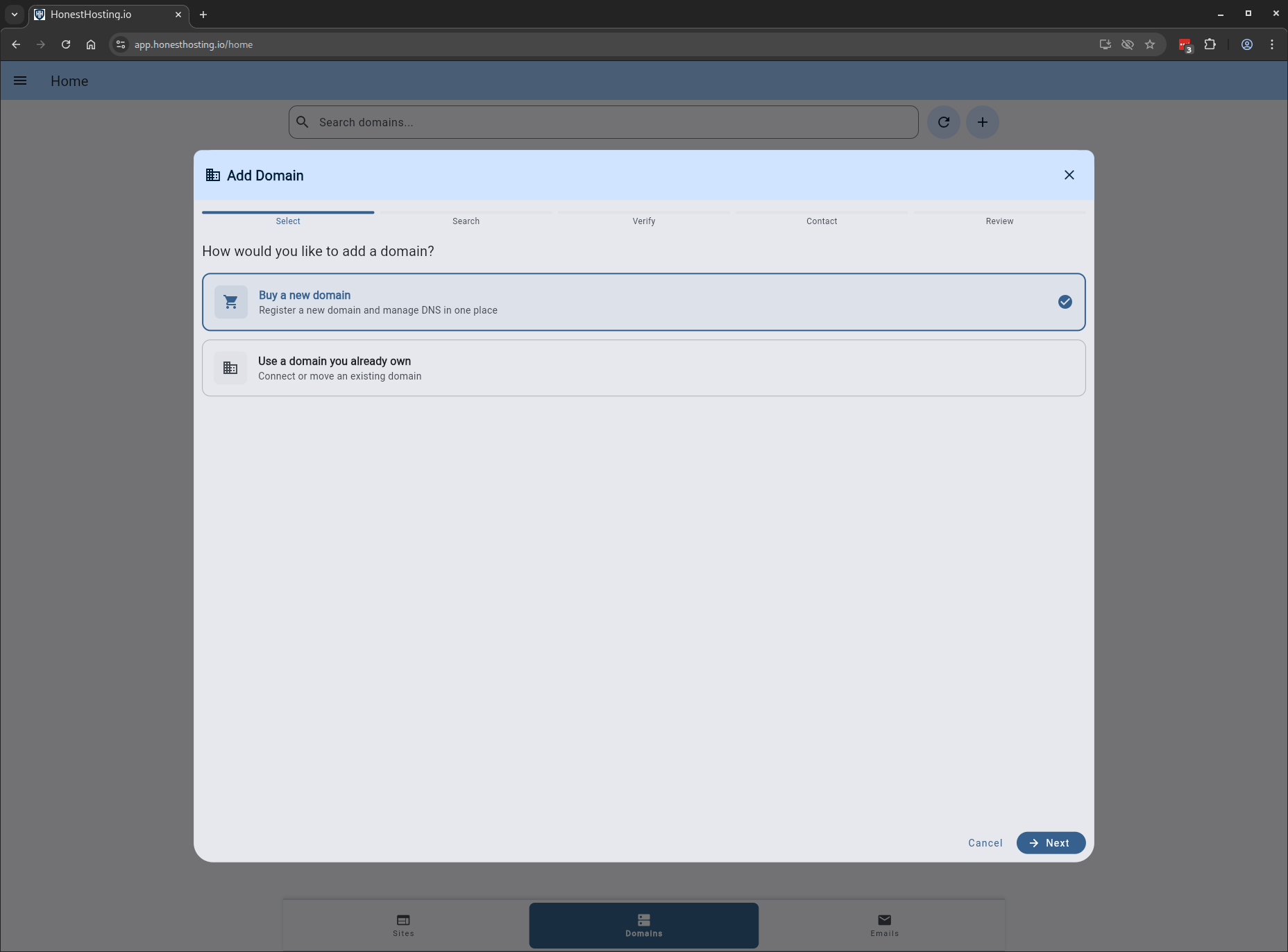
There are 3 main options when adding a Domain to the platform:
- Buy a new domain
- Transfer a domain you own
- Manage DNS records only
Buy a new Domain
When purchasing a new domain, the platform allows you to buy several domains at once, walking you through each step.
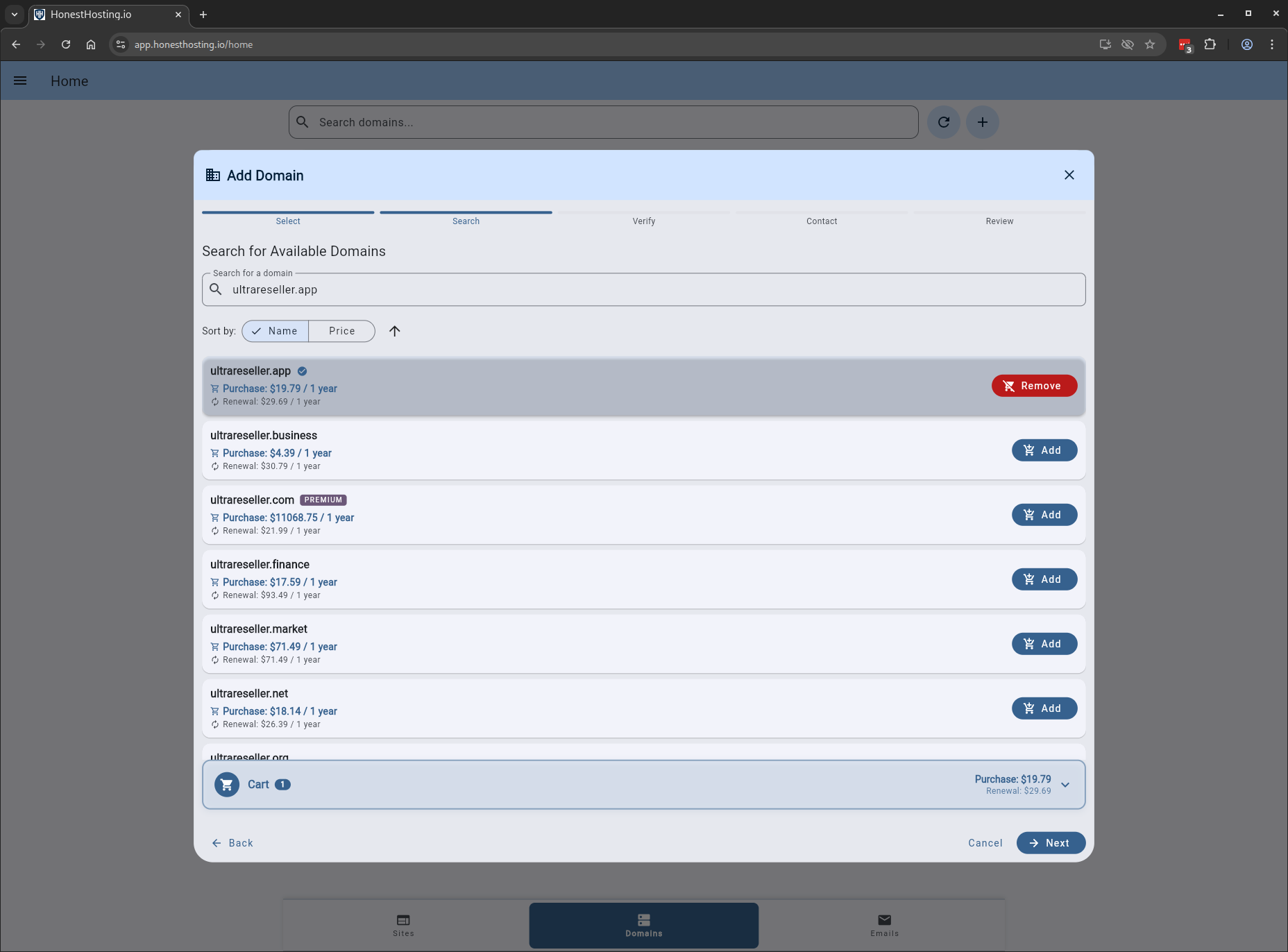
In this case, we are going to search for a new domain, ultrareseller.app, add it to our cart, and continue.
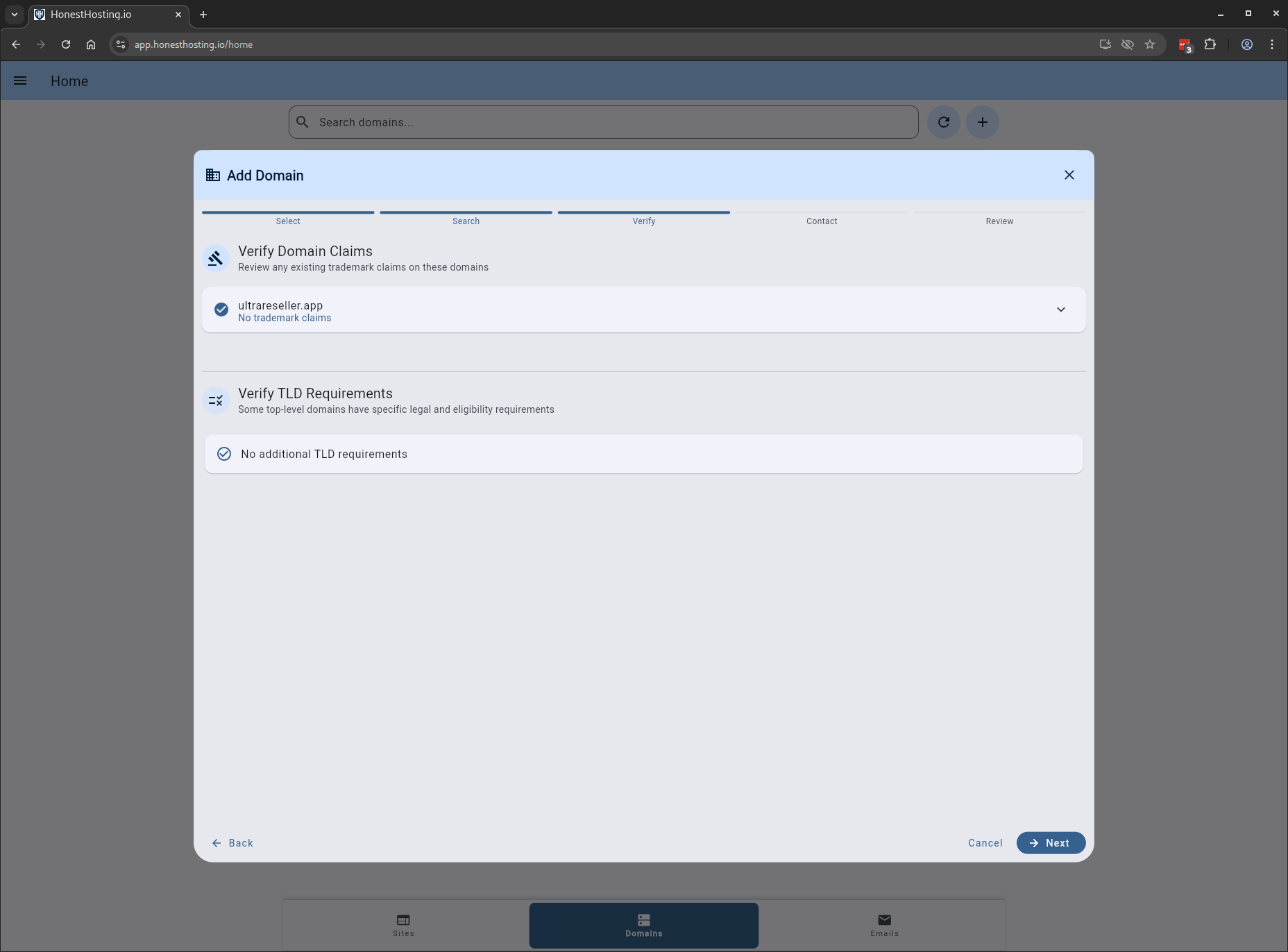
If the domain has claims (copyright, etc.,) or additional requirements you must meet, the Verify step will prompt you to
accept the constraints before moving on. In this case, our domain has no additional constraints.
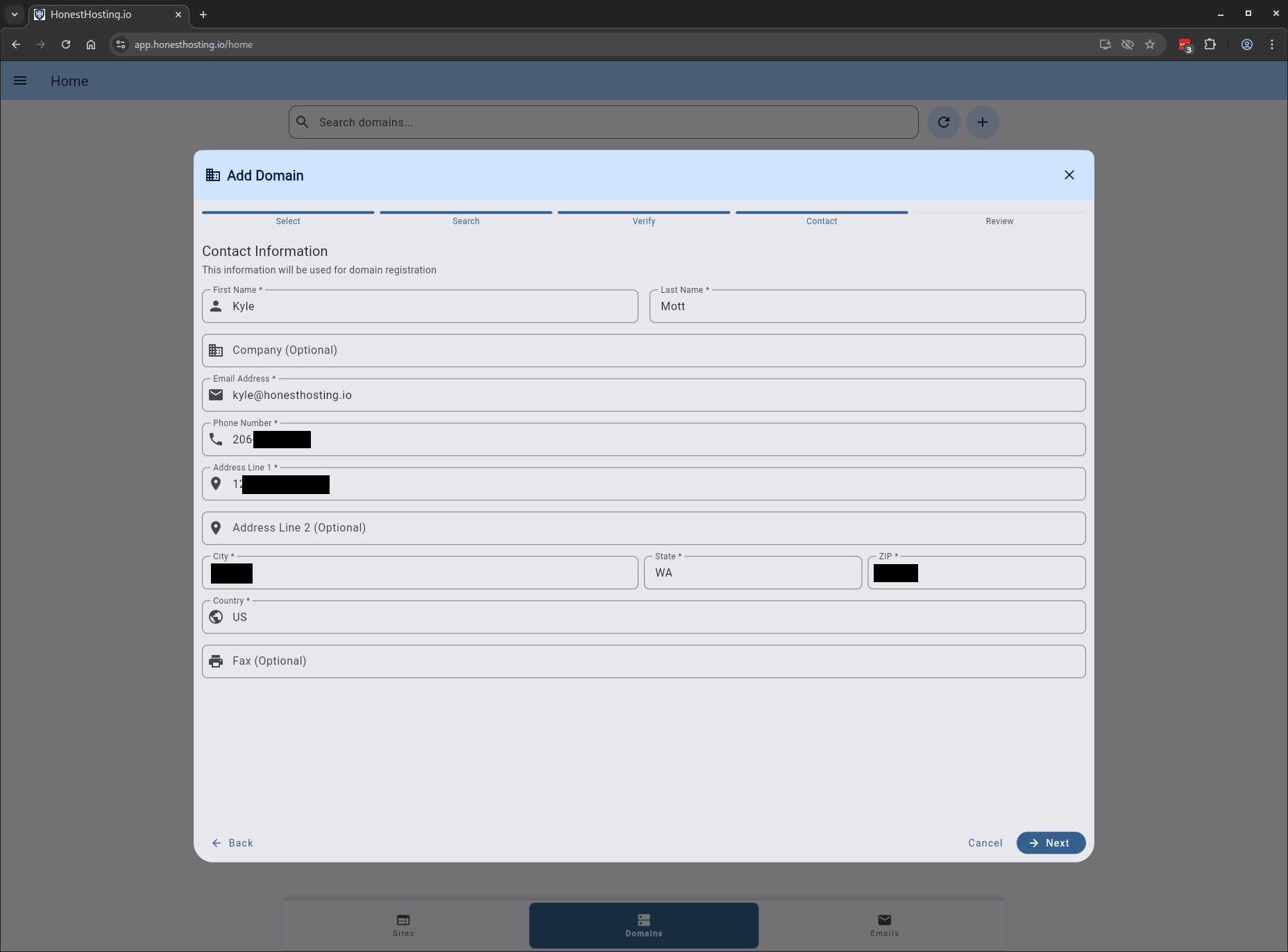
You must specify valid contact info, what may be validated by ICANN and/or the registry.
Specifying false, incorrect, or invalid contact information may result in account suspension and/or forfeiture of the domain.
Lastly, you are presented with a Review step that allows you to review everything before actually continuing with the purchase.
Once you verify the information, click on Confirm and Pay, and you will be redirected to Stripe for payment. This will also
automatically setup a new Invoice for you with a 1-year subscription for the domain.
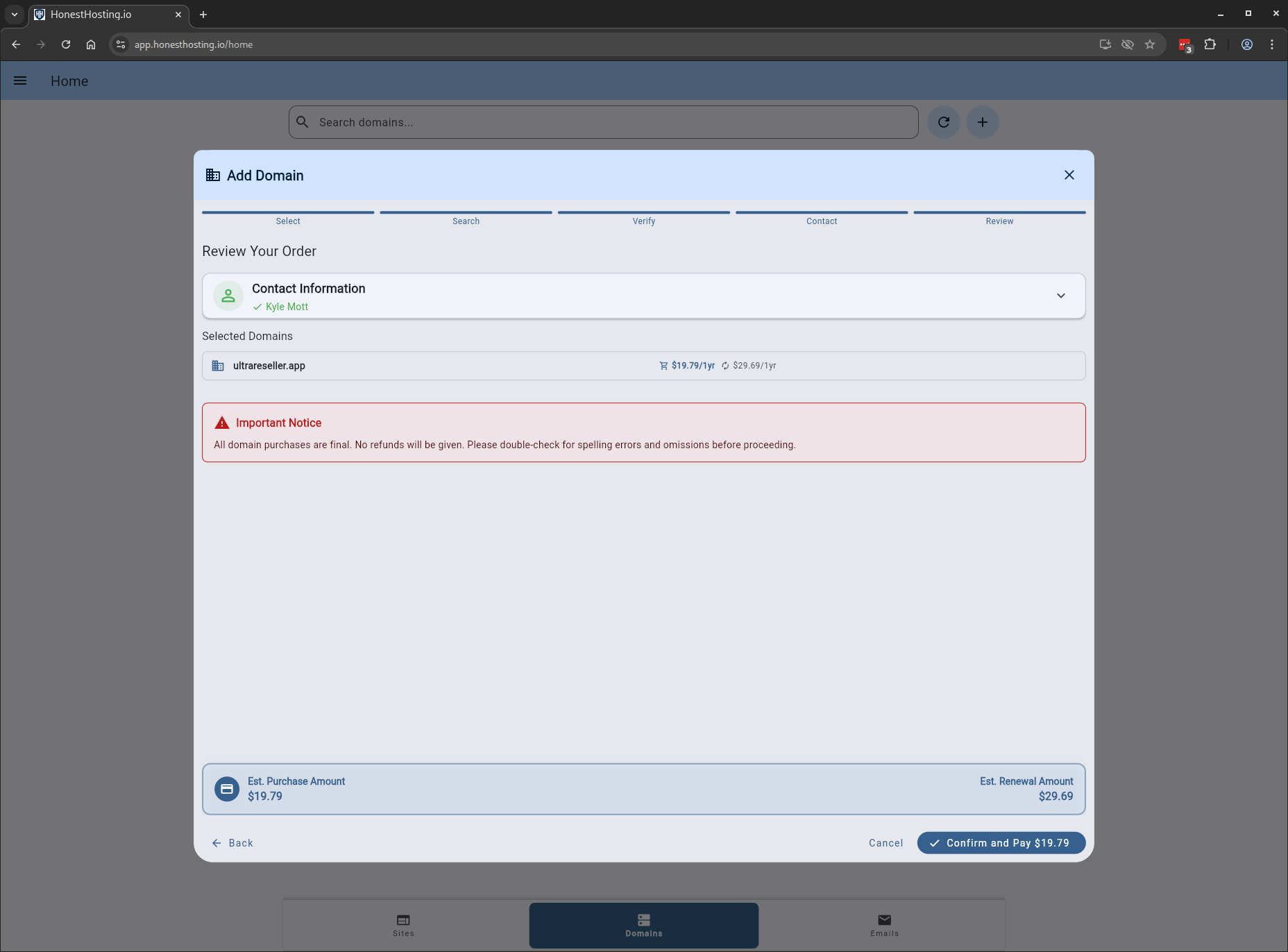
All domain purchases are final and are NOT subject to refund policies. Before confirming a purchase, please DOUBLE CHECK EVERYTHING–HonestHosting.io will not be held liable for spelling errors or omissions!
Transfer In a Domain You Own
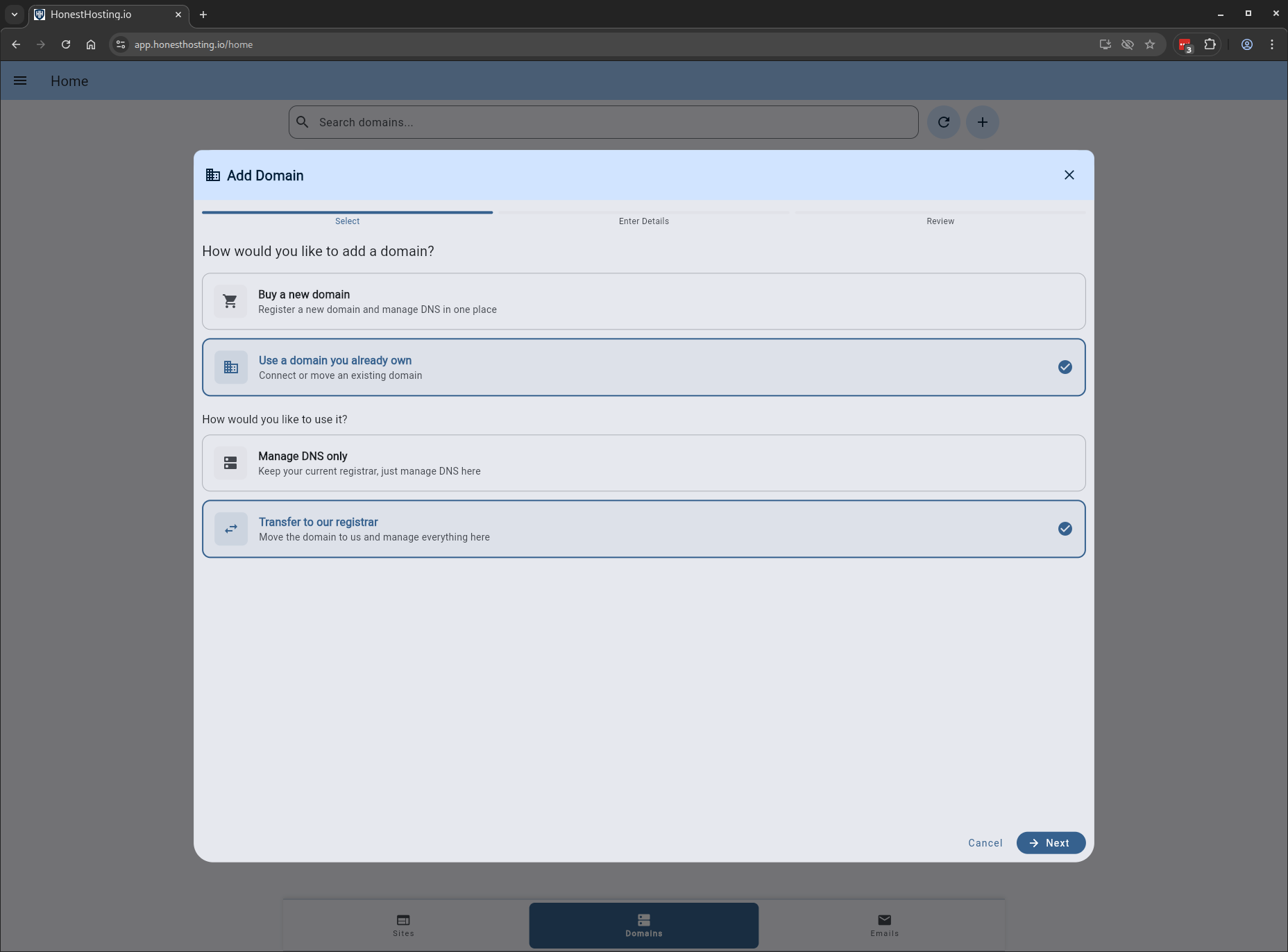
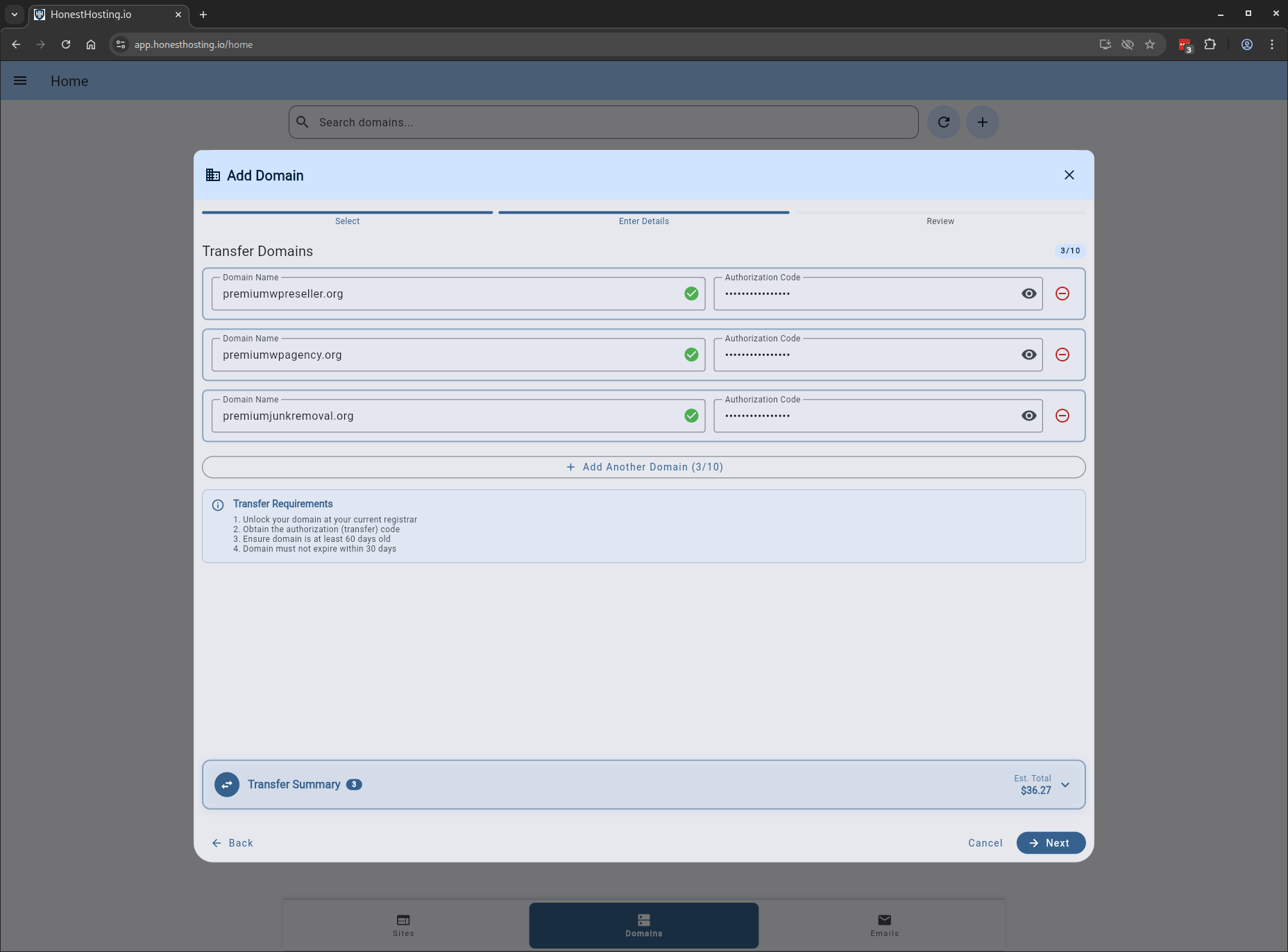
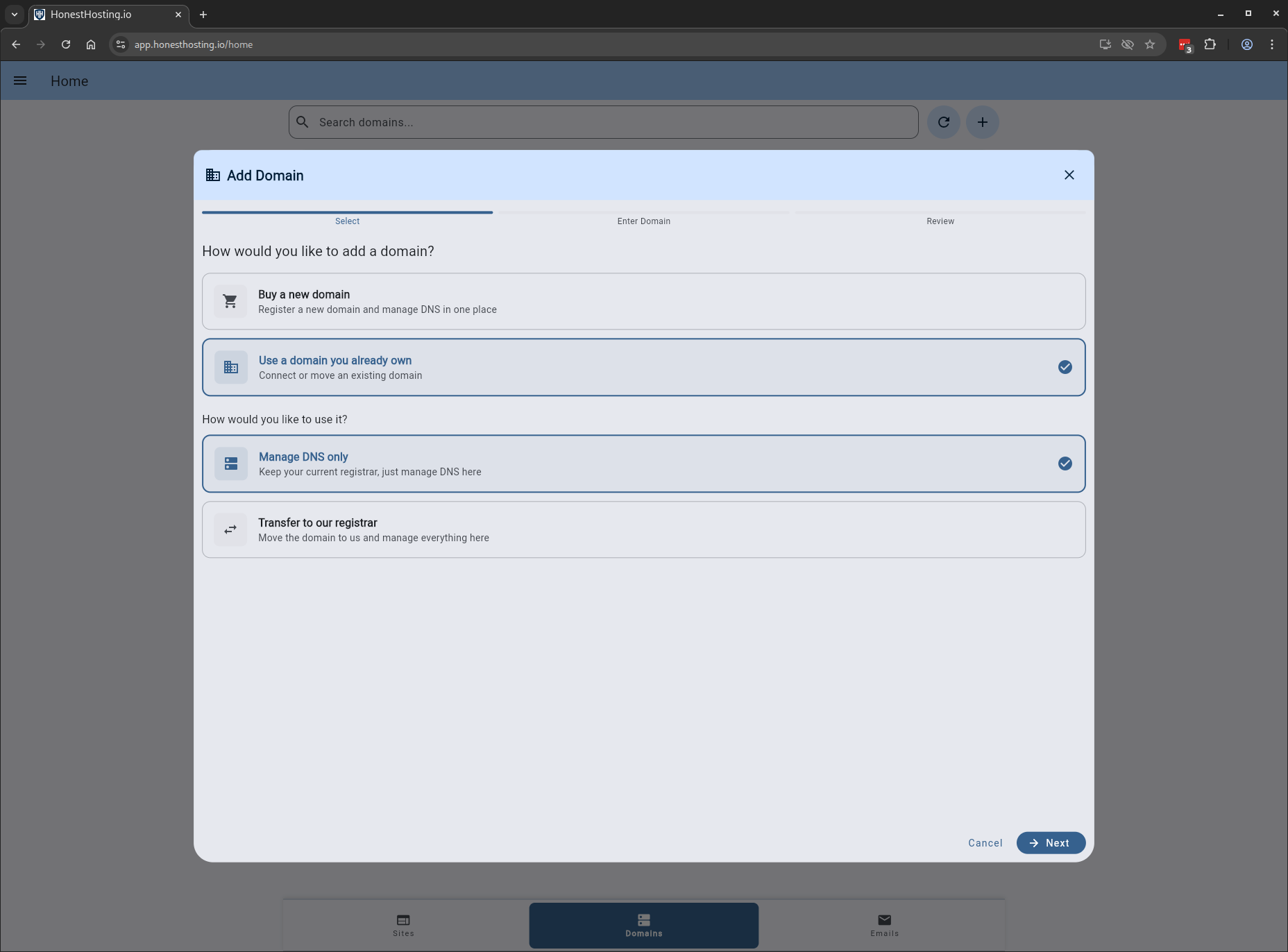
When transferring a domain in to the platform, you select transfer and then click Next.
You can transfer up to 10 domains at once.
Verify you have the following information before continuing your transfer:
- Domain is unlocked at current registrar
- Obtain authorization code (EPP code) for domain
- Ensure domain is at least 60 days old
- Domain must not expire in 30 days
We will be transferring the following domains in our example:
premiumwpreseller.orgpremiumwpagency.orgpremiumjunkremoval.org
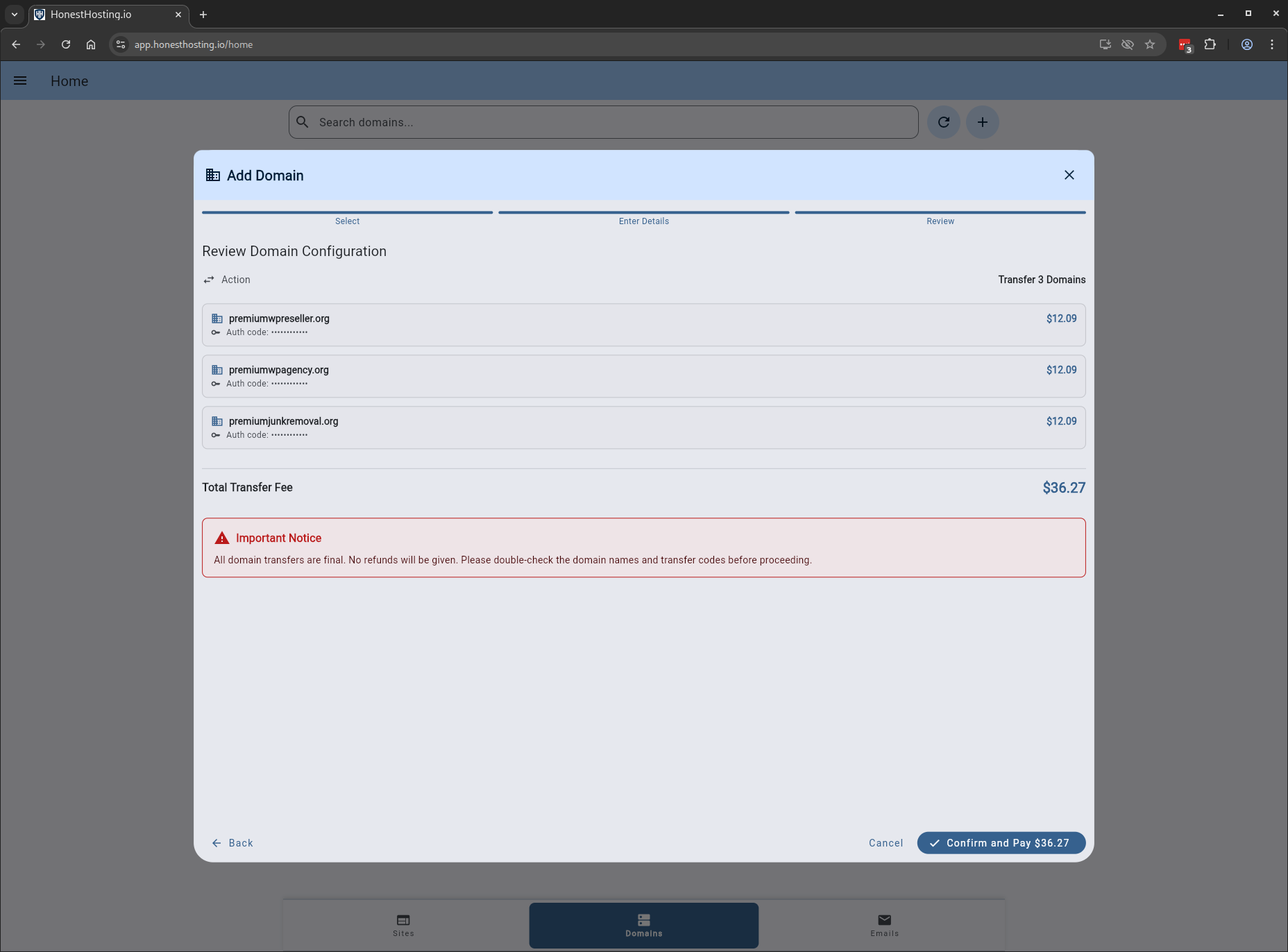
The last step will be to verify the domains, and confirm the purchase. Once confirmed, you will be redirected to Stripe for payment.
Once the domain transfer is in-progress, you will need to go to the losing registrar
and approve the transfer out. Failure to do Approve in a timely manner may result in the transfer failing!
Manage DNS Records Only
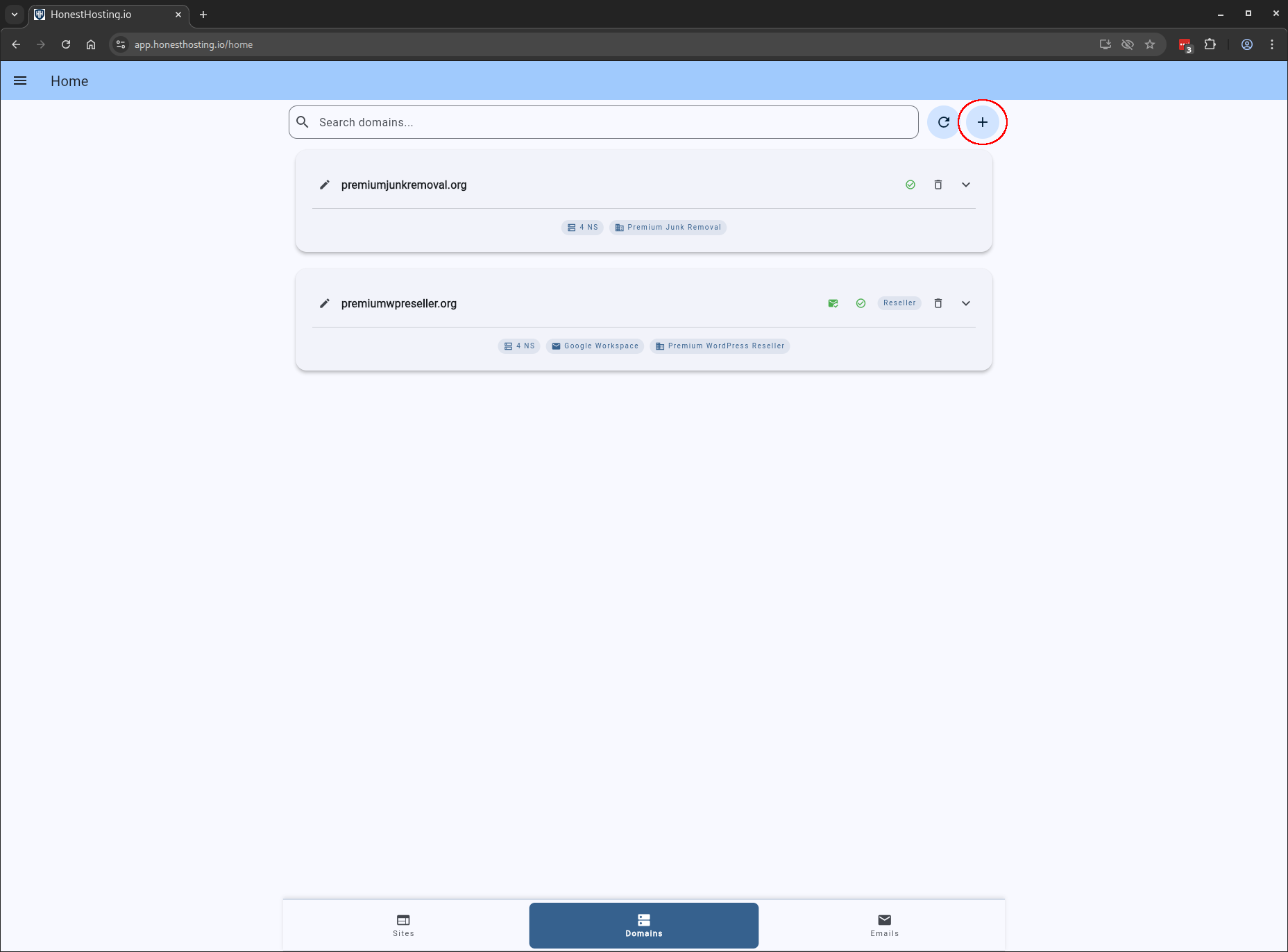
Browse to to the Domains tab, then click on the + button:
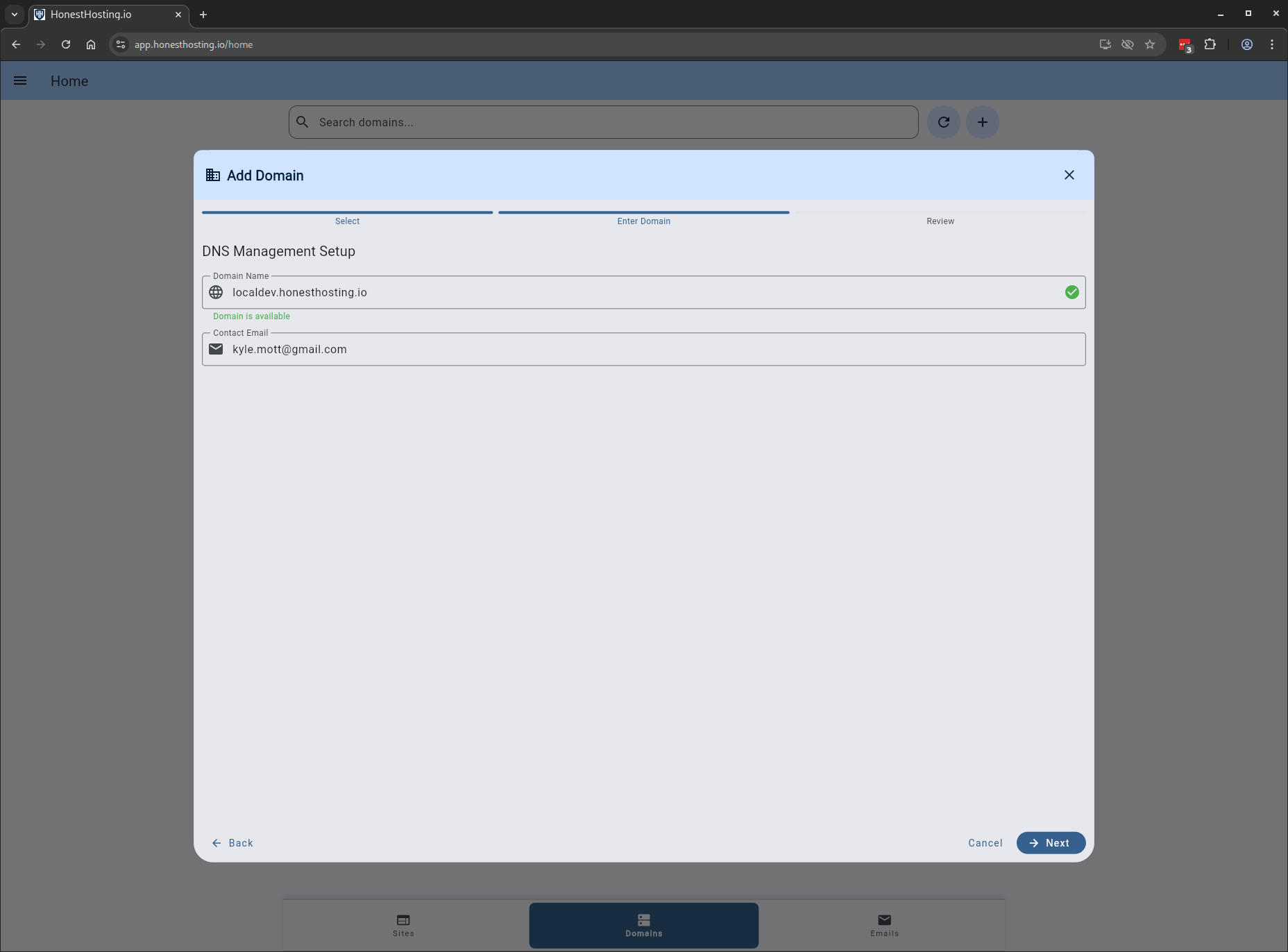
Specify the information (must be a Fully Qualified Domain Name, FQDN), and
click Save.
| Field | Description |
|---|---|
| Domain Name | A fully-qualified domain name (FQDN) |
| Contact Email | The primary contact email (admin) for the new Domain |
| Property | An optional Property the Domain is associated with |
After saving your changes, expand the domain and click on the Nameserver Status icon to the left
of the trash icon to view the nameserver status in Public DNS.
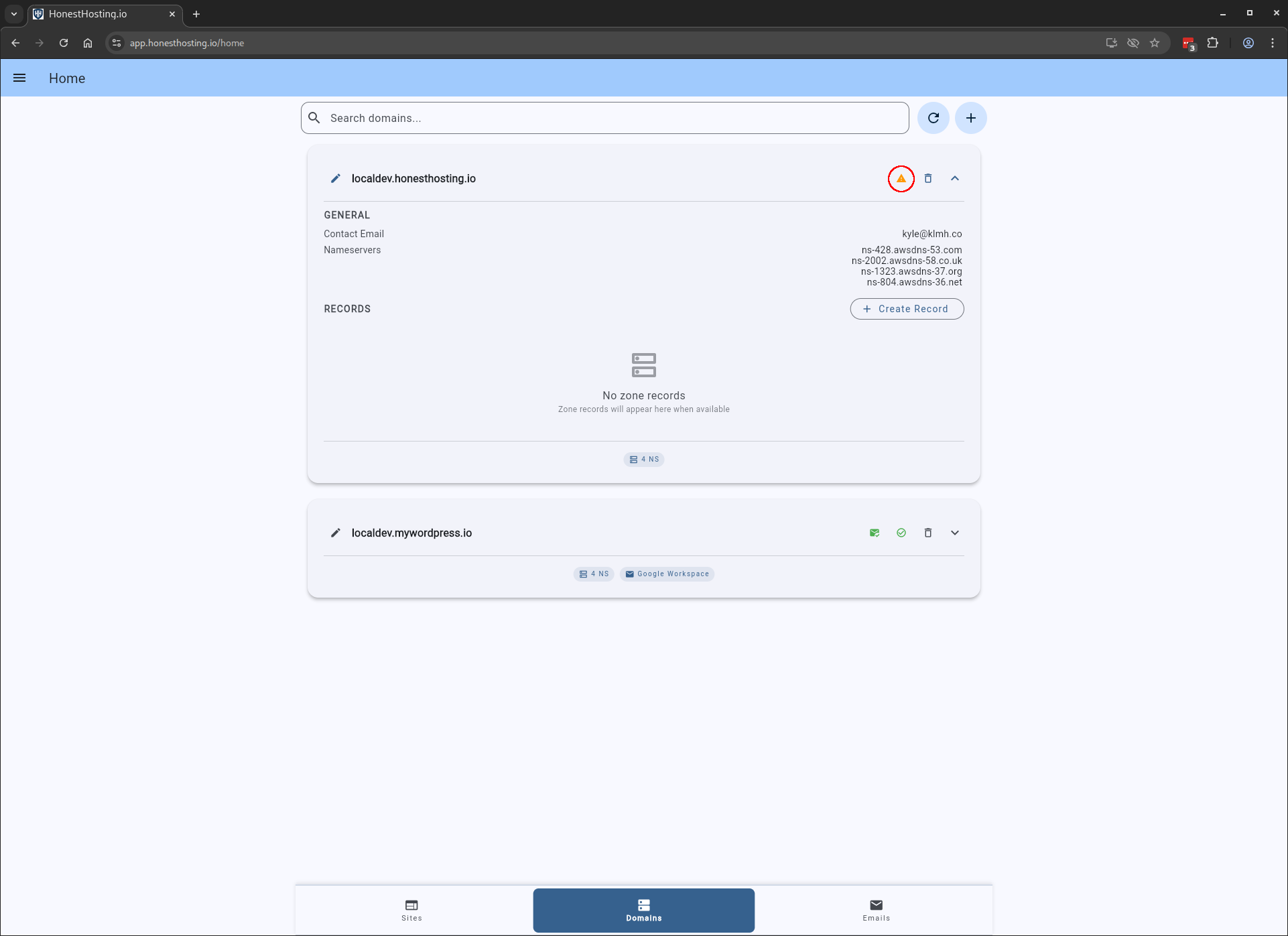
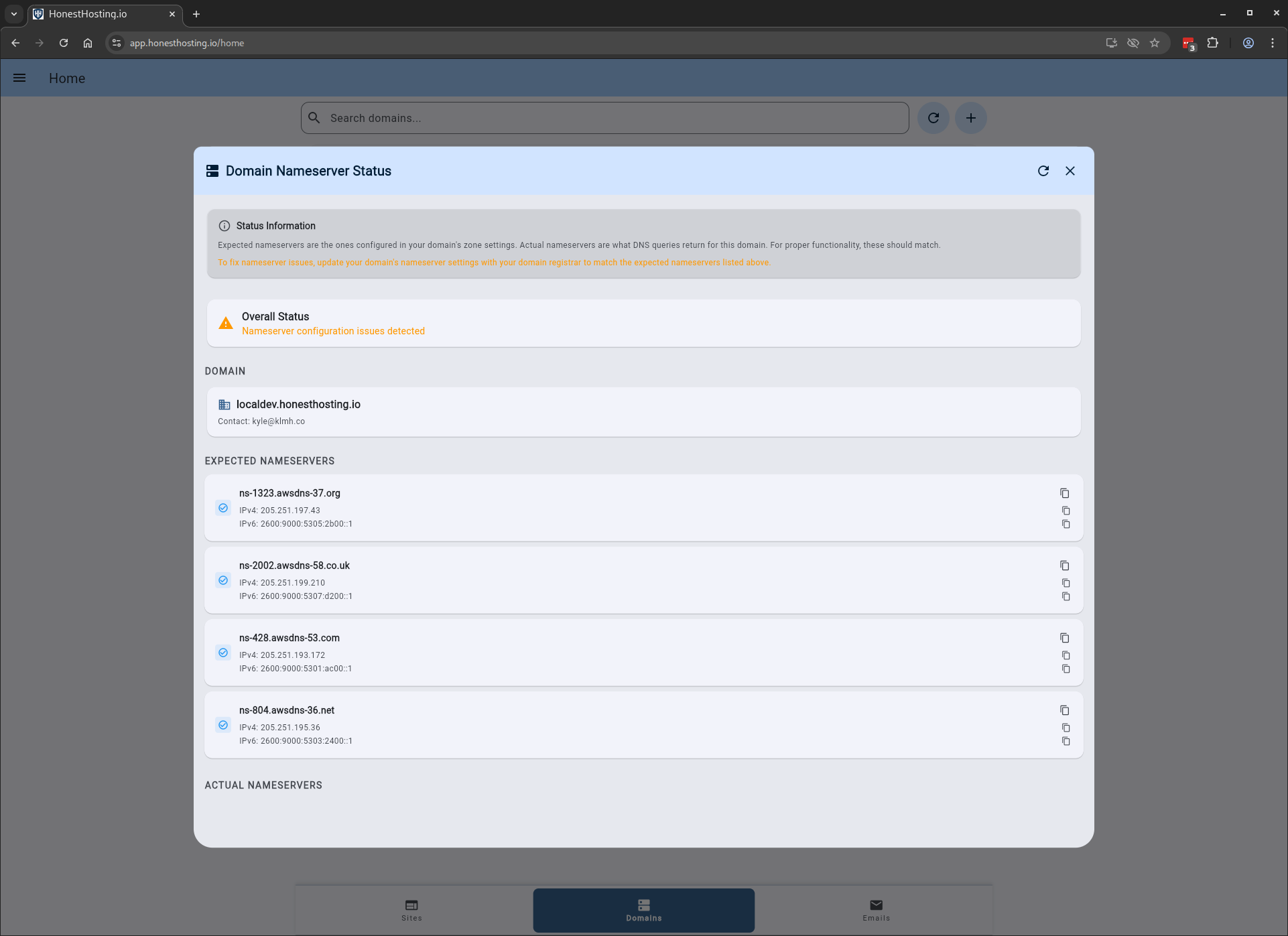
This will bring up a new dialog box that shows nameserver status in Public DNS. In the case below, I have configured a child-domain of my main ‘hhost.io’ domain, so I would need to add a child-domain with NS records before it will work in Public DNS.
Verify Registrar Contact
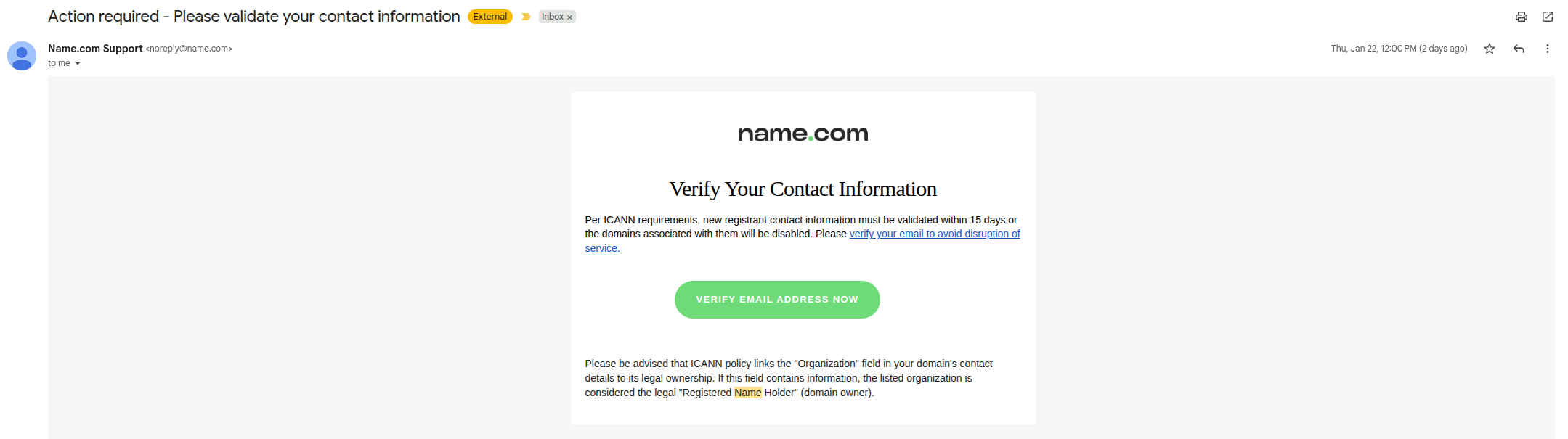
When a domain is registered or transferred, you may get an email asking for contact verification.
Make sure to click the link provided in a timely manner, otherwise the upstream registrar may suspend the domain.
Verified Example
This is what an example looks like once everything is setup correctly and verified:
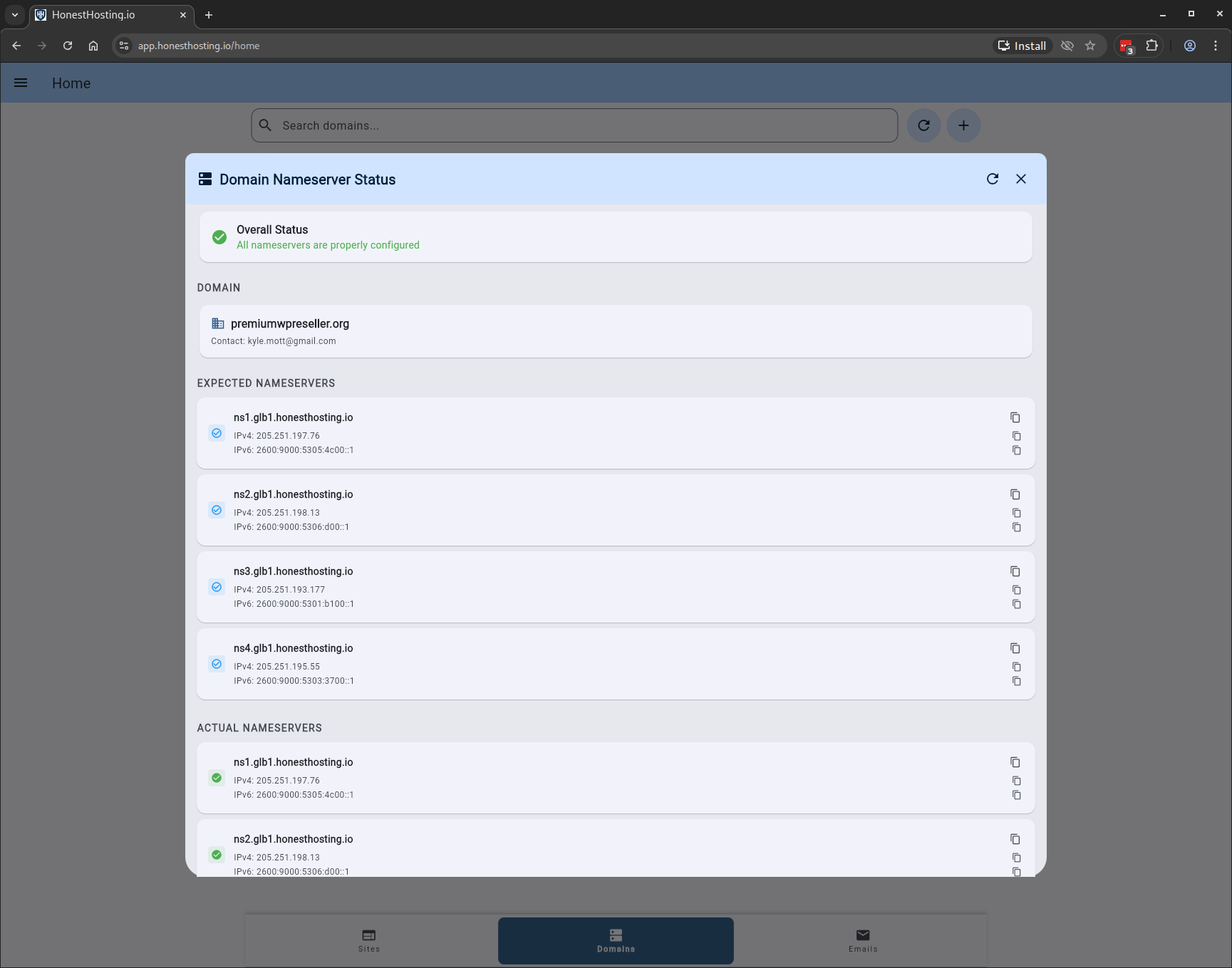
Due to the way DNS works, when you refresh the status of your nameservers, it may change between verified and unverified. This is normal, as it takes time to propagate the changes across the public internet. If it is still unverified after 2h, please contact us.
Add Records
We do not allow adding or editing DNS records for NS or SOA, as those are self-managed by the HonestHosting platform.
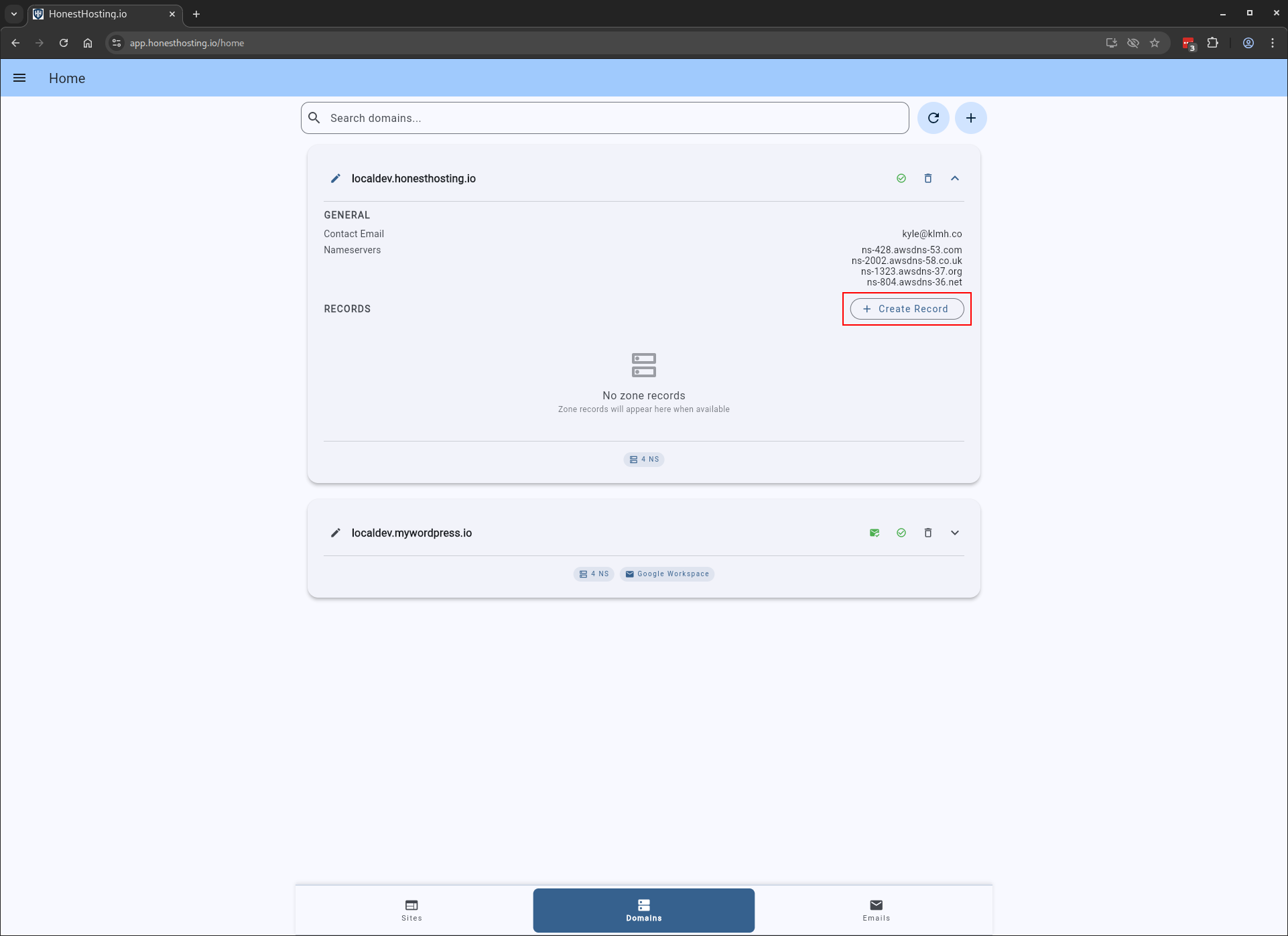
In order to add Records, click on Create Record:
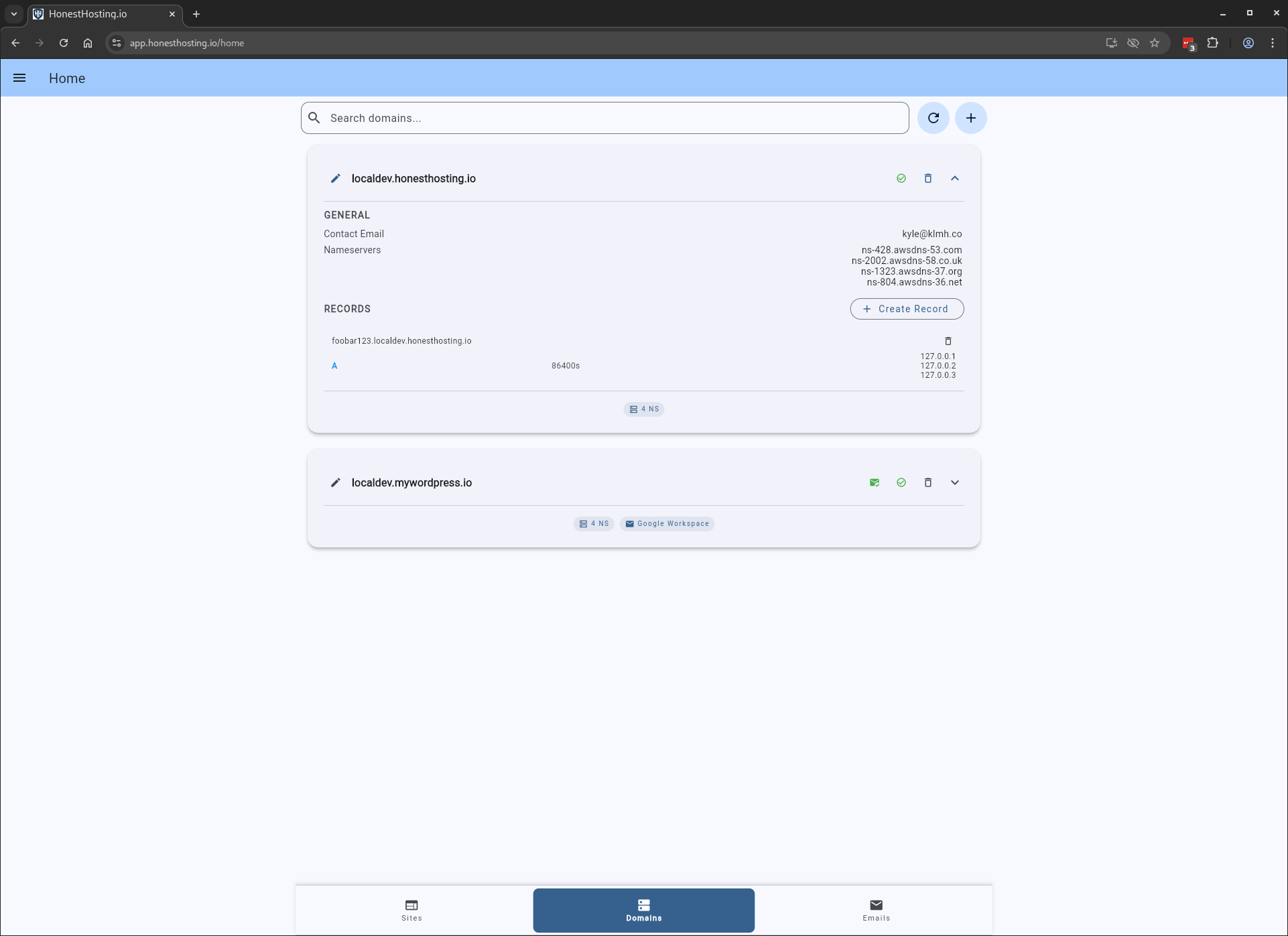
Assuming we are creating a record foobar123.localdev.honesthosting.io that will resolve to the IP Addresses
127.0.0.1, 127.0.0.2, 127.0.0.3 using an A record, this is what it should look like:
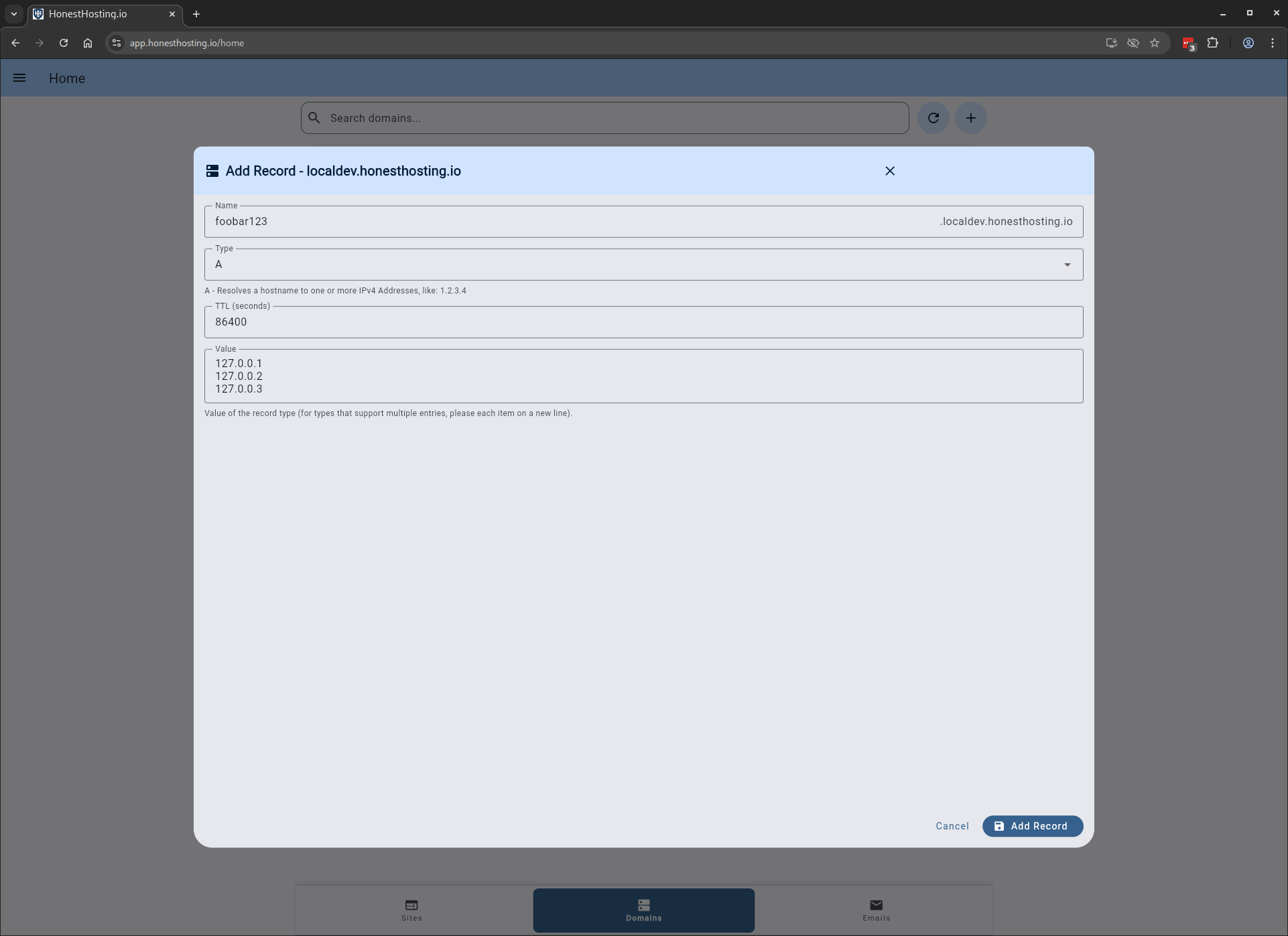
After saving the Record, it will show up in your list of Records for the Domain.