Summary
An Email Account allows you to optionally send and receive emails for your business using Google Workspace.
To create emails, first configure the domain you would like to send and receive emails from, and then add accounts under
the Emails tab.
Google Workspace email accounts are only available for Domains managed by the HonestHosting platform.
Enable Google Workspace
To enable email accounts for your Domain, select the Domain tab and edit the Domain. Enable the toggle for Google Workspace Email.
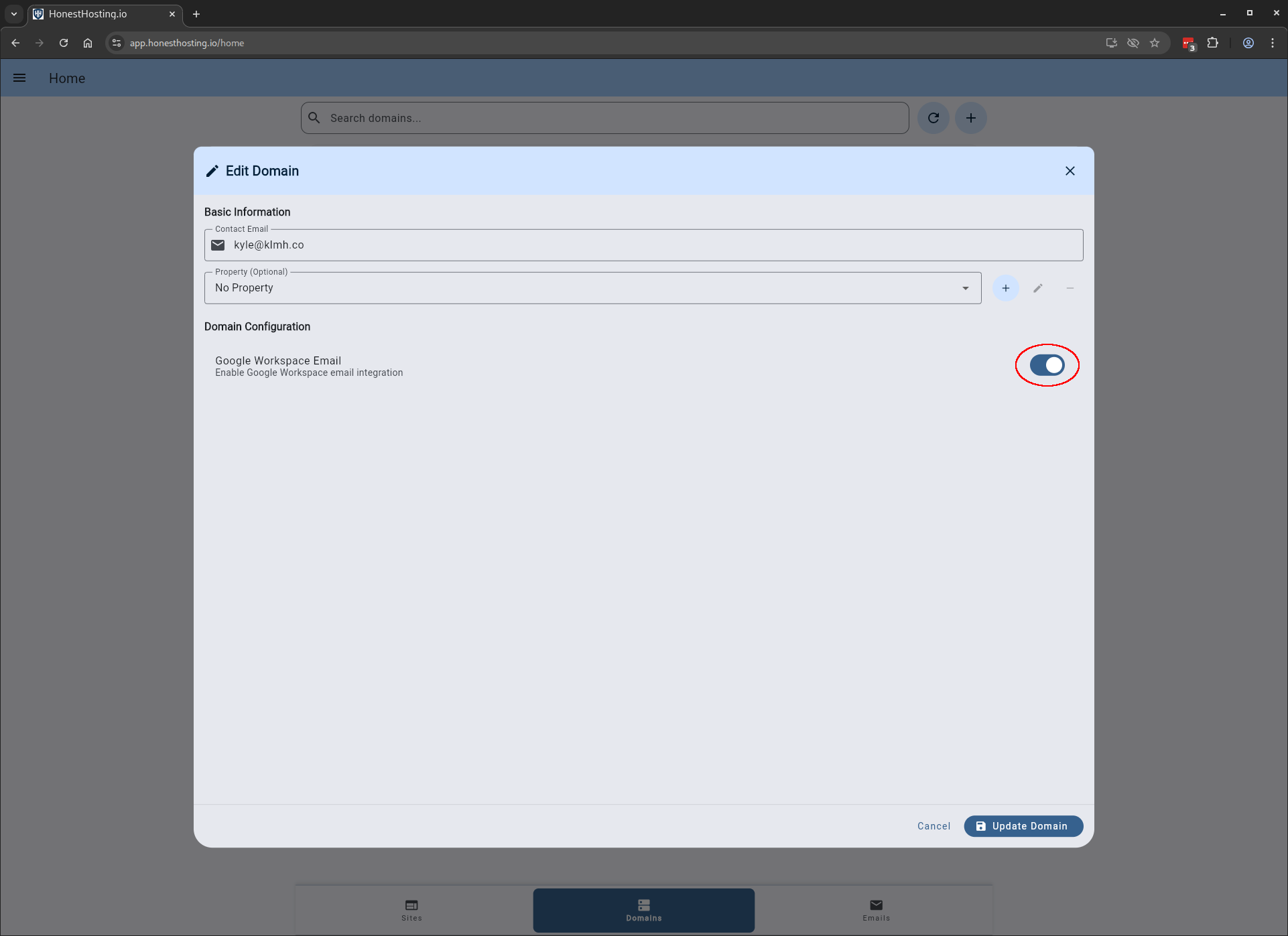
After saving your changes, the system will perform the following steps:
- Remove any existing MX records for the domain, if they exist.
- Setup new MX records that point to Google Workspace account (managed by HonestHosting).
- Attempt to verify the domain with Google, which can take up to 24 hours.
HonestHosting will attempt Google Domain verification every 10 minutes. It can take quite some time (24-48h) to enable and verify the domain with Google Workspace. If you notice the domain is NOT verified after 24 hours, please contact us via our Contact Form, and we will be happy to take a look.
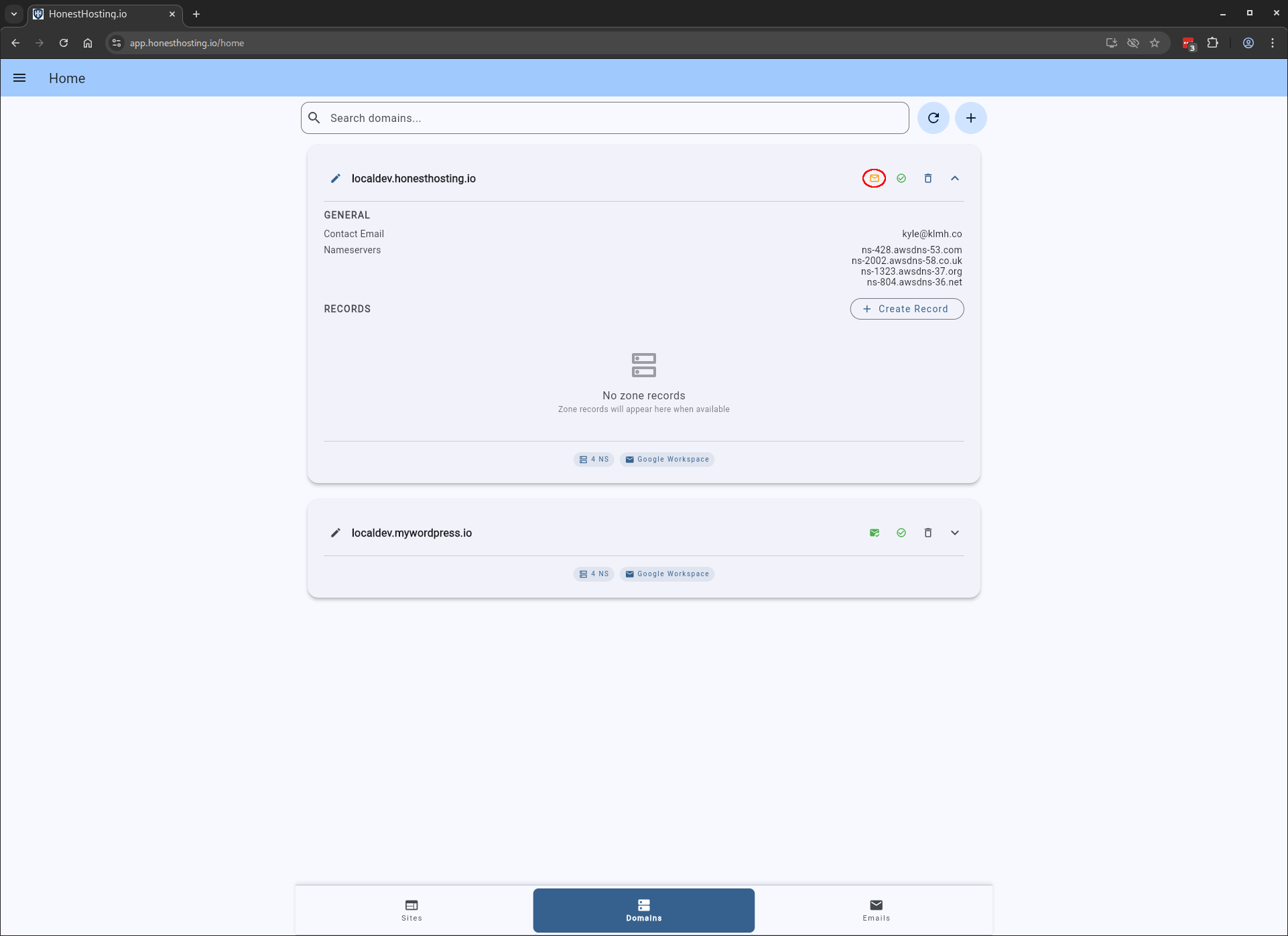
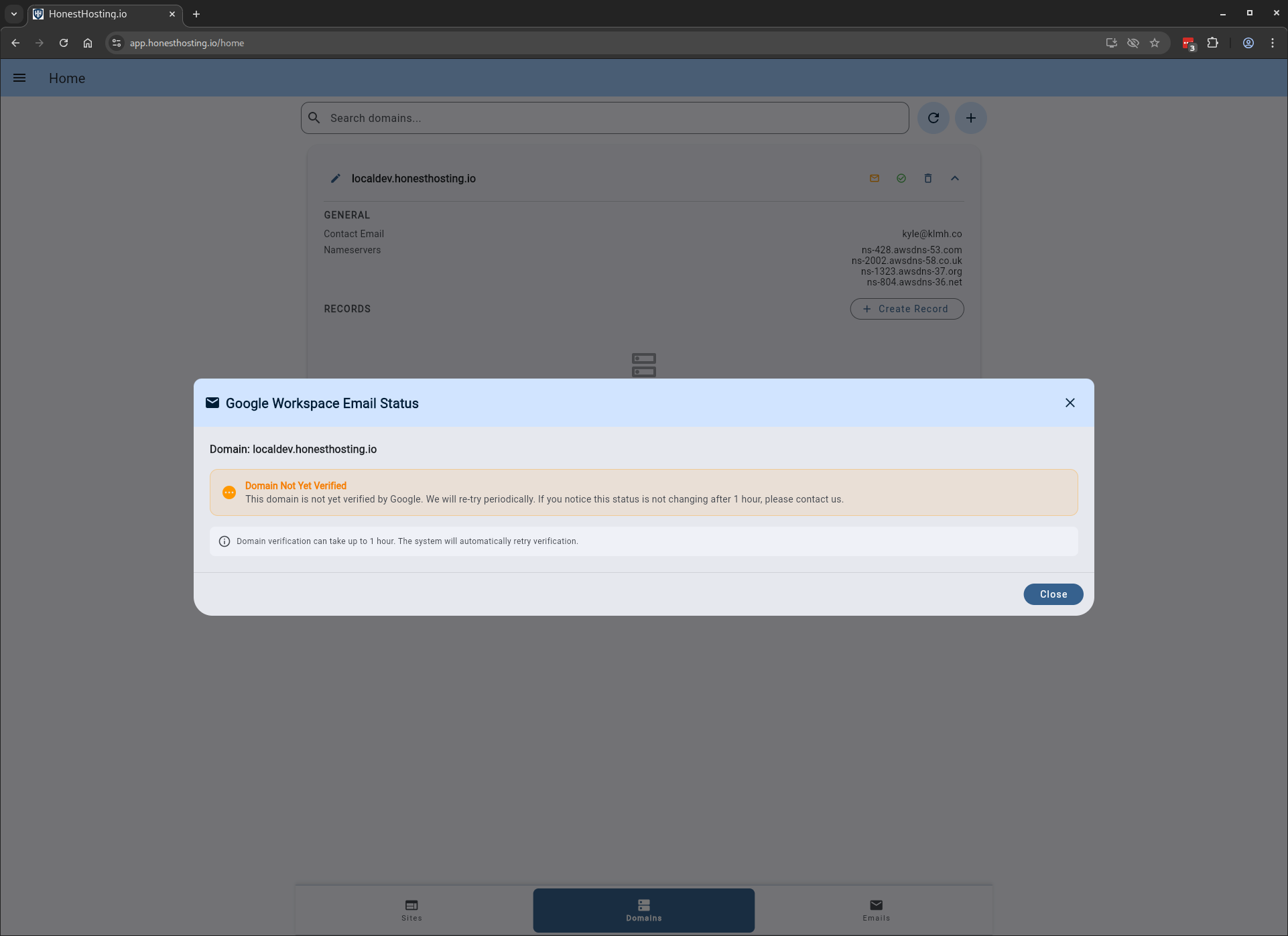
Additionally, you can click on the Email Status icon to view more information about the verification process.
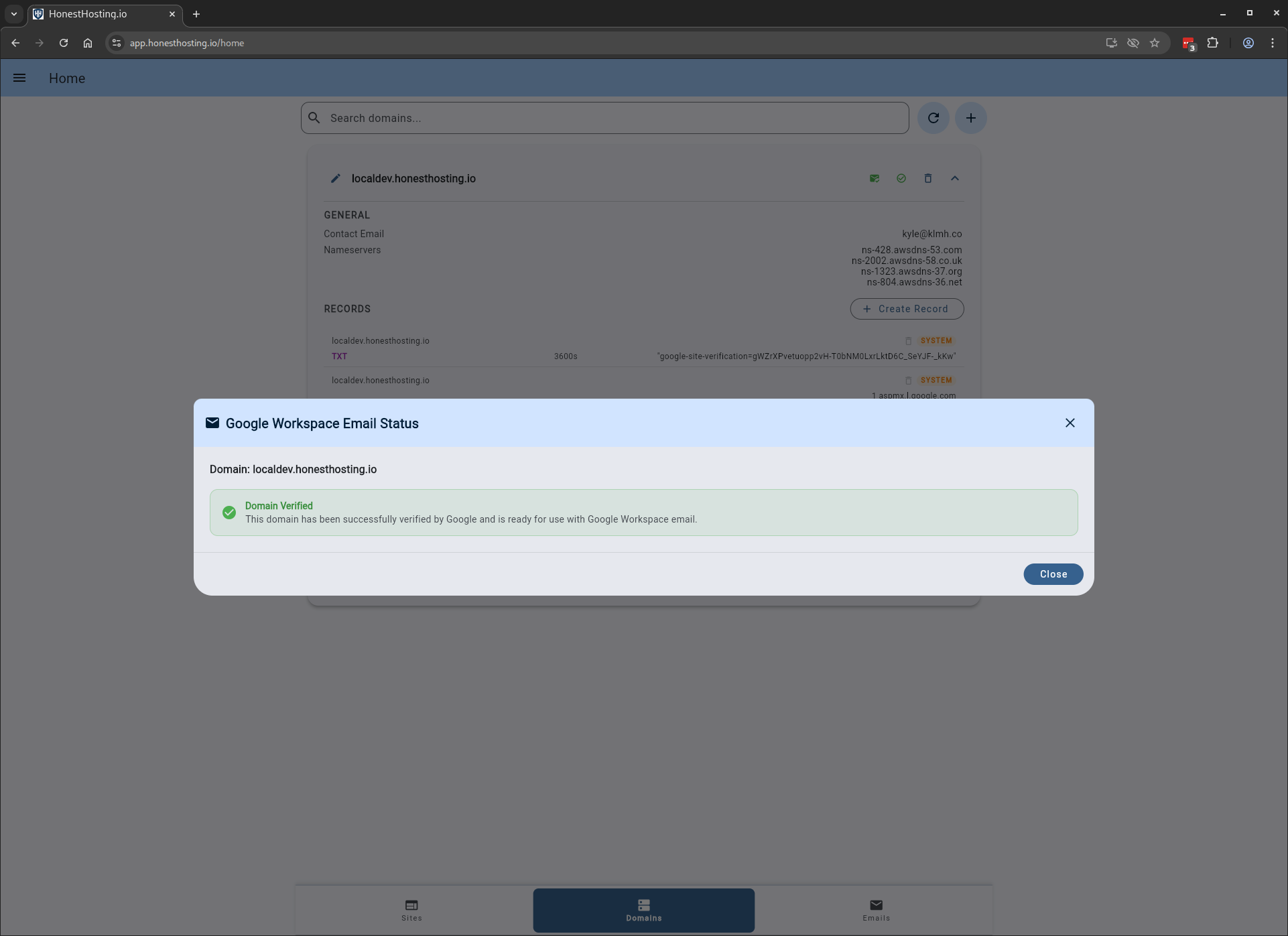
Once successfully verified, the status will turn green:
Create Email
You can only create email accounts AFTER the domain is verified by Google Workspace.
Once the domain is verified, you can now click on the Emails tab and add an email.
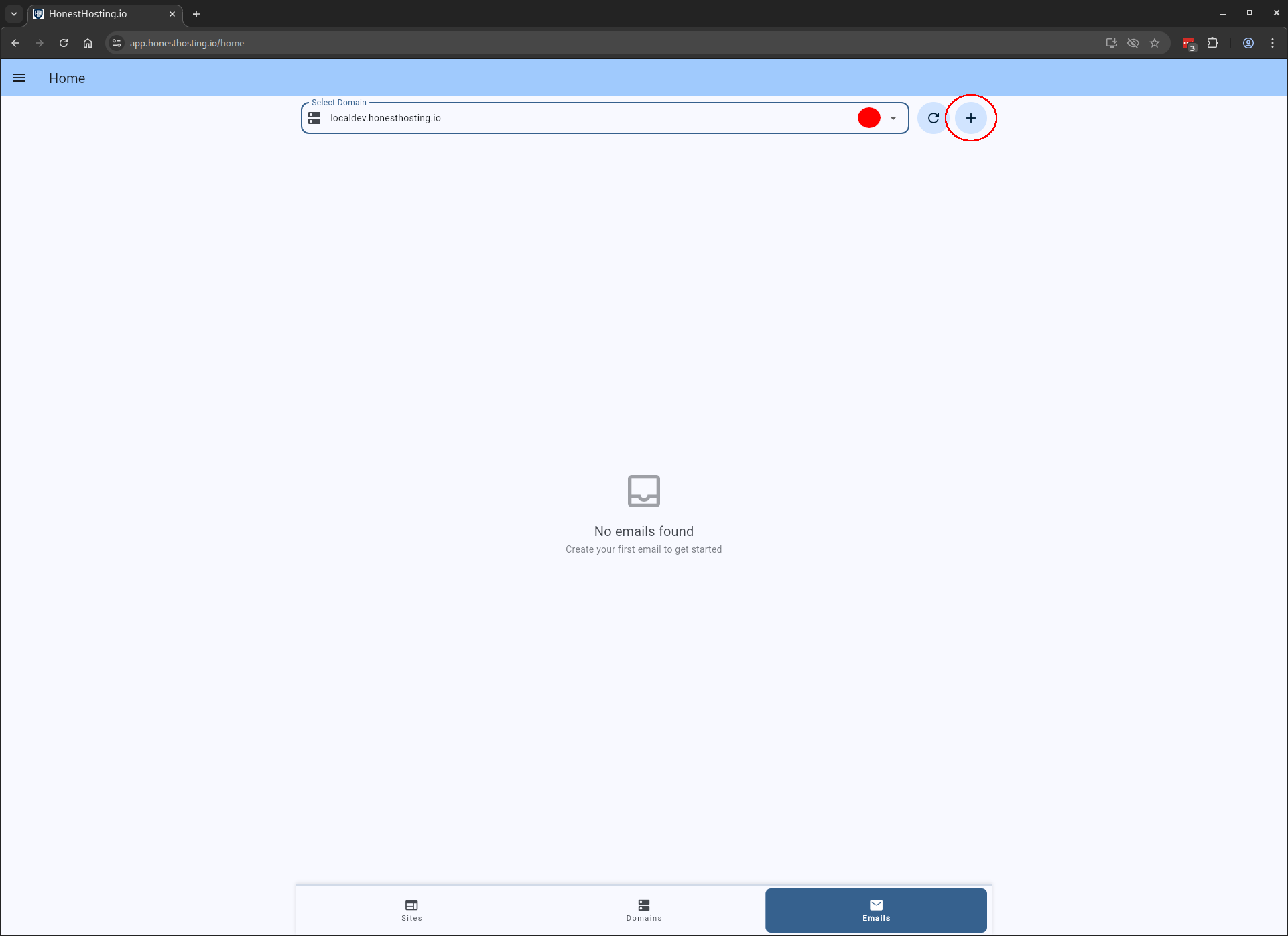
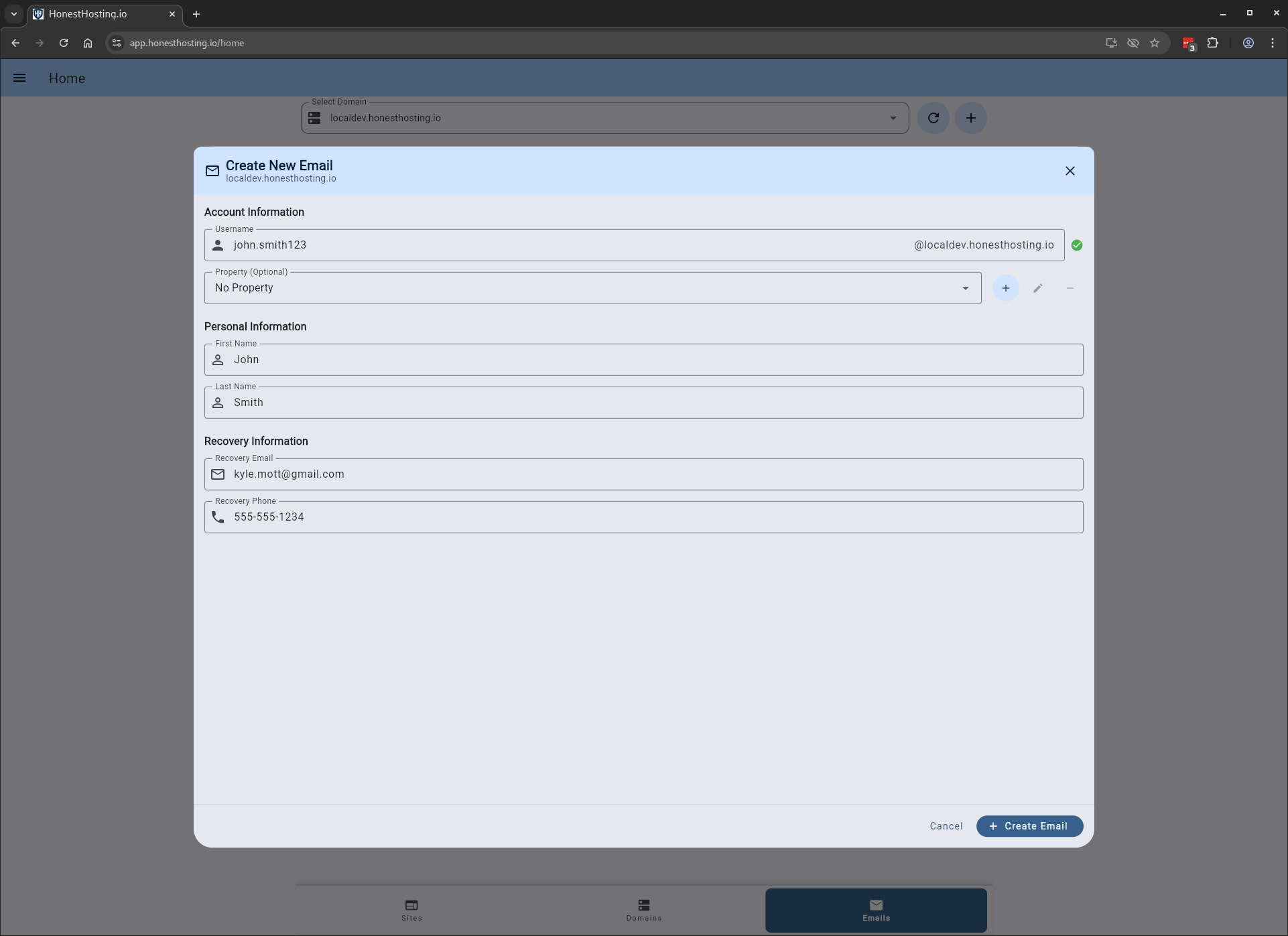
Fill out the information for the user, and save your changes:
| Field | Description |
|---|---|
| Username | The first part of the email as the users username |
| Property | An optional Property the Email is associated with |
| First Name | The users first name |
| Last Name | The users last name |
| Recovery Email | The users recovery email in case of lost access |
| Recovery Phone | The users recovery phone number in case of lost access |
After saving the account, it will now show up in your Emails tab (depending on which Domain you have selected).
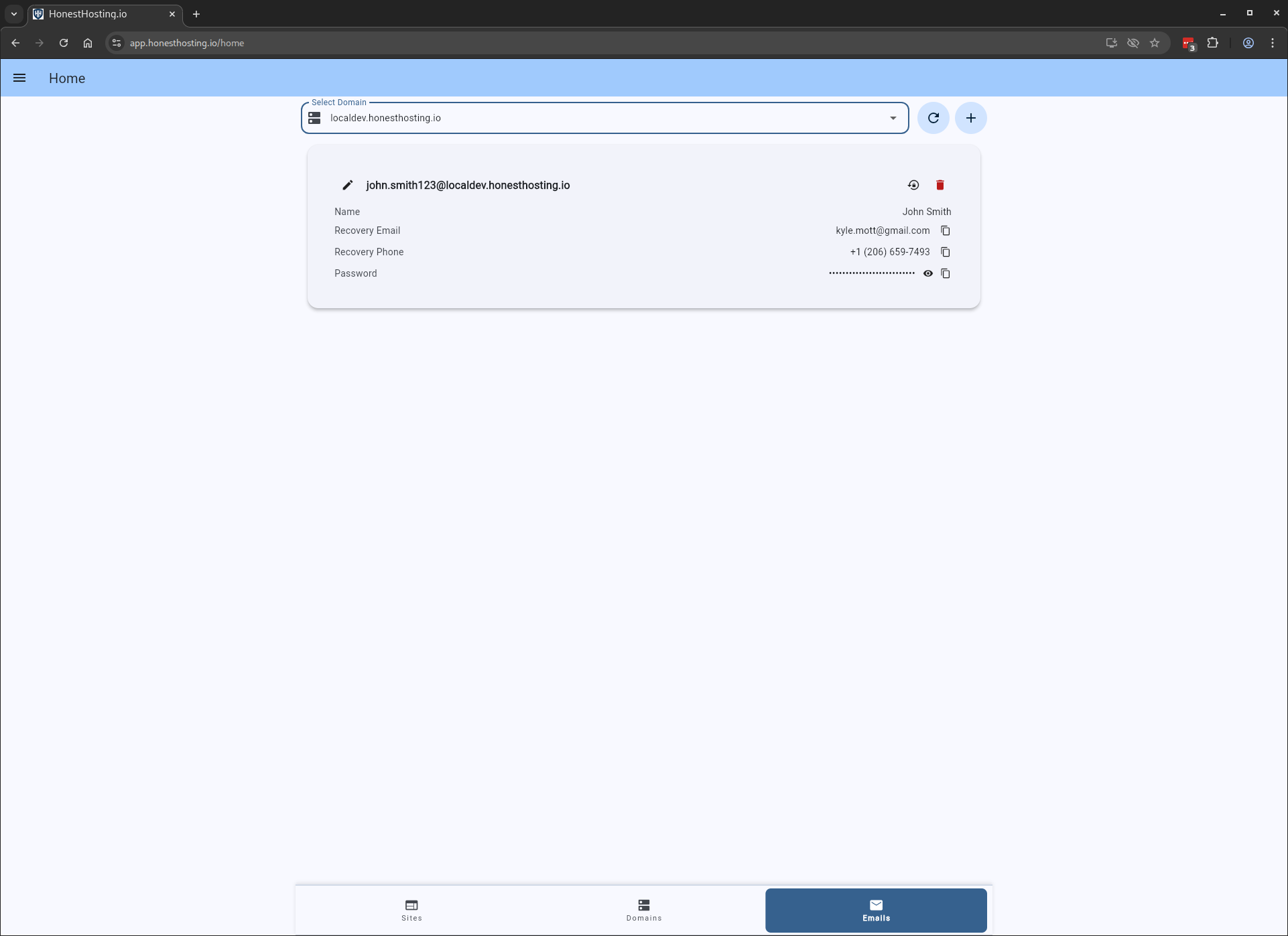
An initial password will be created for the user, which you can view in the list of users. Send that temporary password and login instructions to your user. After they log in the first-time, Google Workspace will prompt the user to change their password, and the temporary password will no longer work.
Reset Email Password
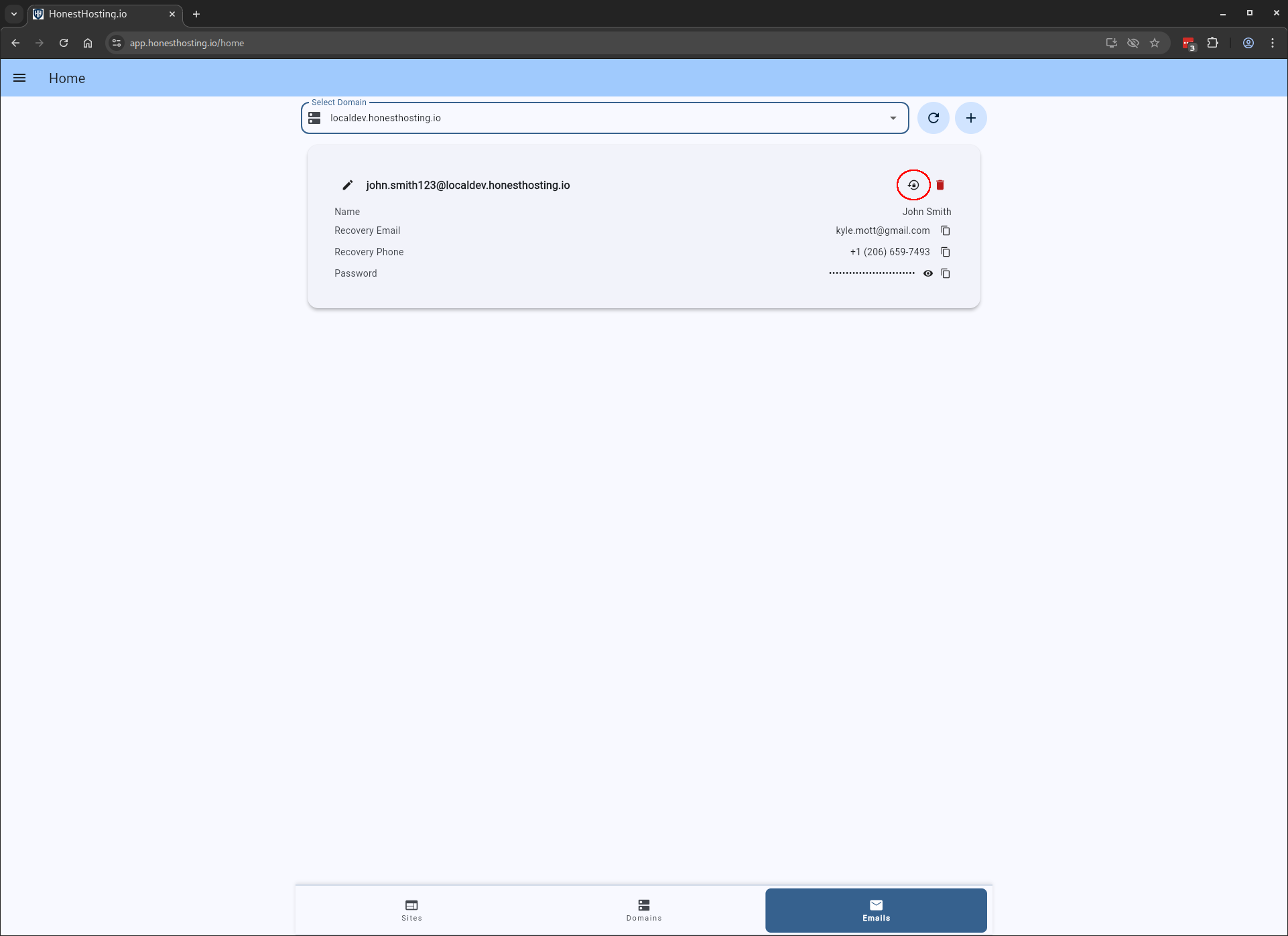
If a user loses access to their account, you can reset their password by clicking Reset Password for their email
account. A new temporary password will be generated for them, which you can then send to the user.
Alternatively, the user can also follow the Google Recovery steps and recover their account using the email and/or phone number they provided to you when you initially created the account.
Delete Email
When deleting an email account, this operation is irreversible. All data for the users account will be DESTROYED PERMANENTLY. Before deleting the account, verify with the user that they have downloaded their data locally.