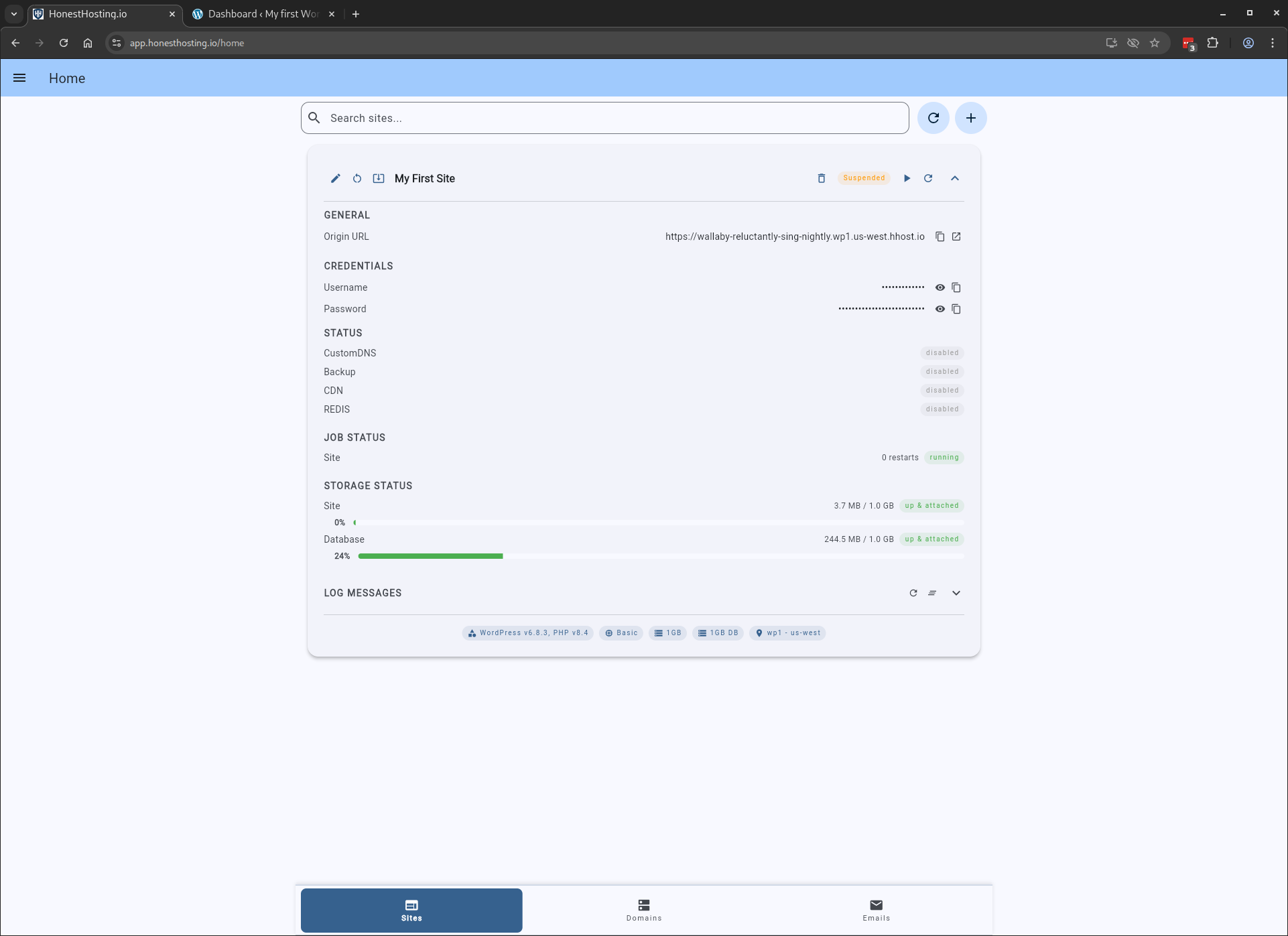
Site
Summary
The Site tab lets you create new sites and view a list of existing sites. Sites can be assigned to a Property for
organization.
To get started, click on the + Site button:
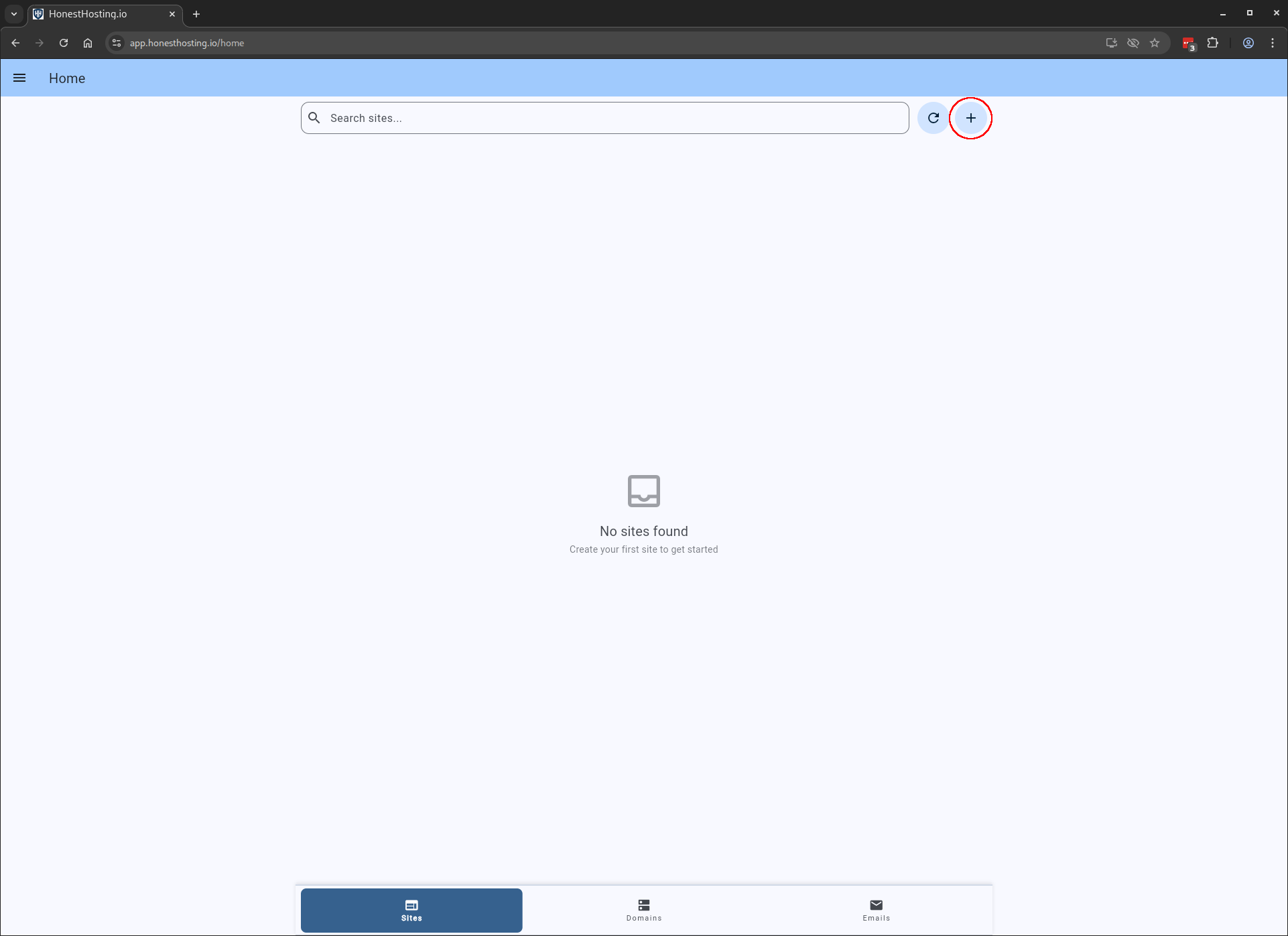
Create
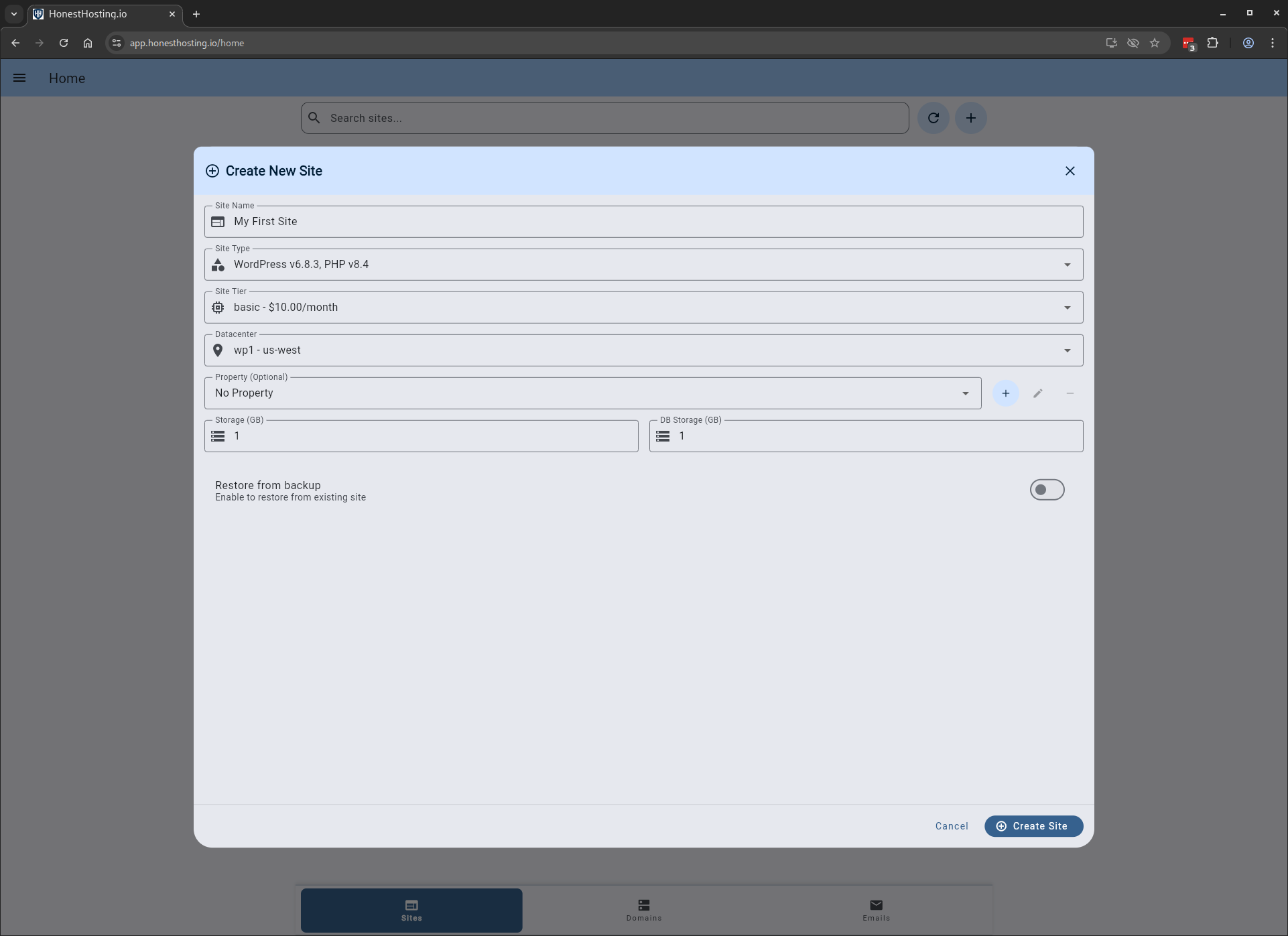
Create your Site by specifying the following settings:
| Field | Description |
|---|---|
| Site Name | A useful name for the website |
| Site Type | The website type and version |
| Site Tier | The resources (CPU, Memory) for the Site |
| Datacenter | The datacenter where the website will run |
| Property | An optional Property the Site is associated with |
| Storage GB | The amount of file storage for the website in gigabytes |
| DB Storage GB | The amount of database storage for the website in gigabytes |
| Restore? | Restore the Site from a previous backup |
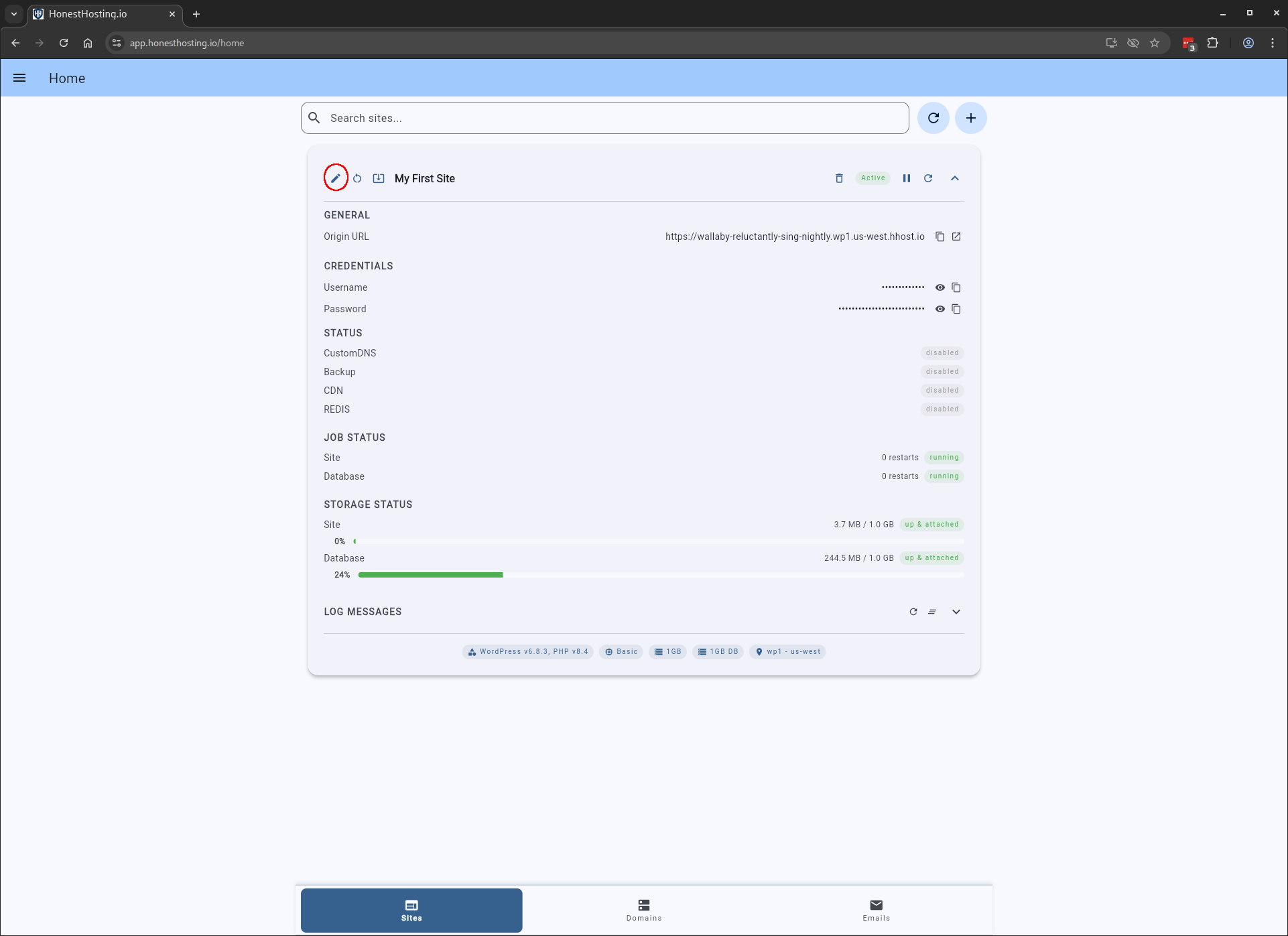
Edit
Once created & deployed successfully, you can edit the Site and update additional settings:
Specify the following settings for the Site you are editing:
| Field | Description |
|---|---|
| Site Name | A useful name for the website |
| Site Type | The current Site Type (readonly) |
| Site Tier | The resources (CPU, Memory) for the Site |
| Storage | The amount of file storage for the website in gigabytes (readonly) |
| Database Storage | The amount of database (MariaDB) storage for the website in gigabytes (readonly) |
| Property | An optional Property the Site is associated with |
| CDN Enabled | Enable Content Delivery Network (CDN) for the Site |
| REDIS Enabled | Enable REDIS Object + Page Cache for the Site |
| Backup Enabled | Perform a daily backup of the Site (files + database) |
| FileManager Enabled | Enable FileManager access (web + sftp) |
| phpMyAdmin Enabled | Enable phpMyAdmin access (web) |
| Domain Enabled | The domain for the website (if empty, accessible via origin domain directly) |
| Custom DNS | Use custom or self-managed DNS for the Site |
| Primary Hostname | The primary hostname for the website, if Domain is non-empty. If you want to use the apex domain (e.g., reseller.org in our example), leave this field empty. |
| Alias Hostnames | Additional hostname(s) for the website, which all redirect to the Primary Hostname value automatically in the users browser. |
| Advanced | Advanced settings for the website (see below for more info) |
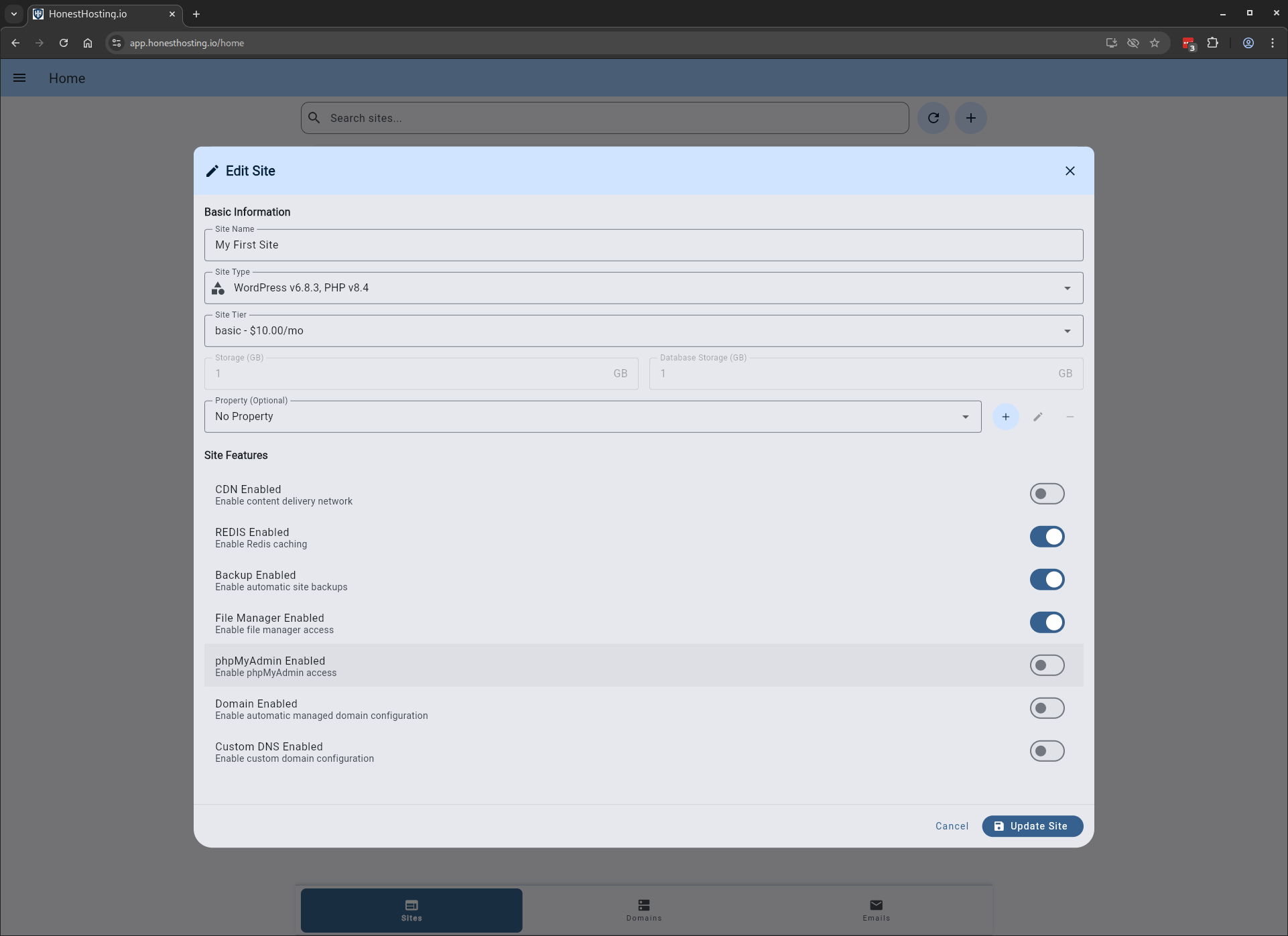
The example above is not exhaustive, and only shows creating a simple test site. For a Production site, you would
also probably want to enable CDN, REDIS, and Backup toggles, and select a validated Domain from the drop-down so
DNS is also automatically configured for you. If you are using DNS services outside of HonestHosting (e.g., CustomDNS),
review the Custom DNS section in the docs.
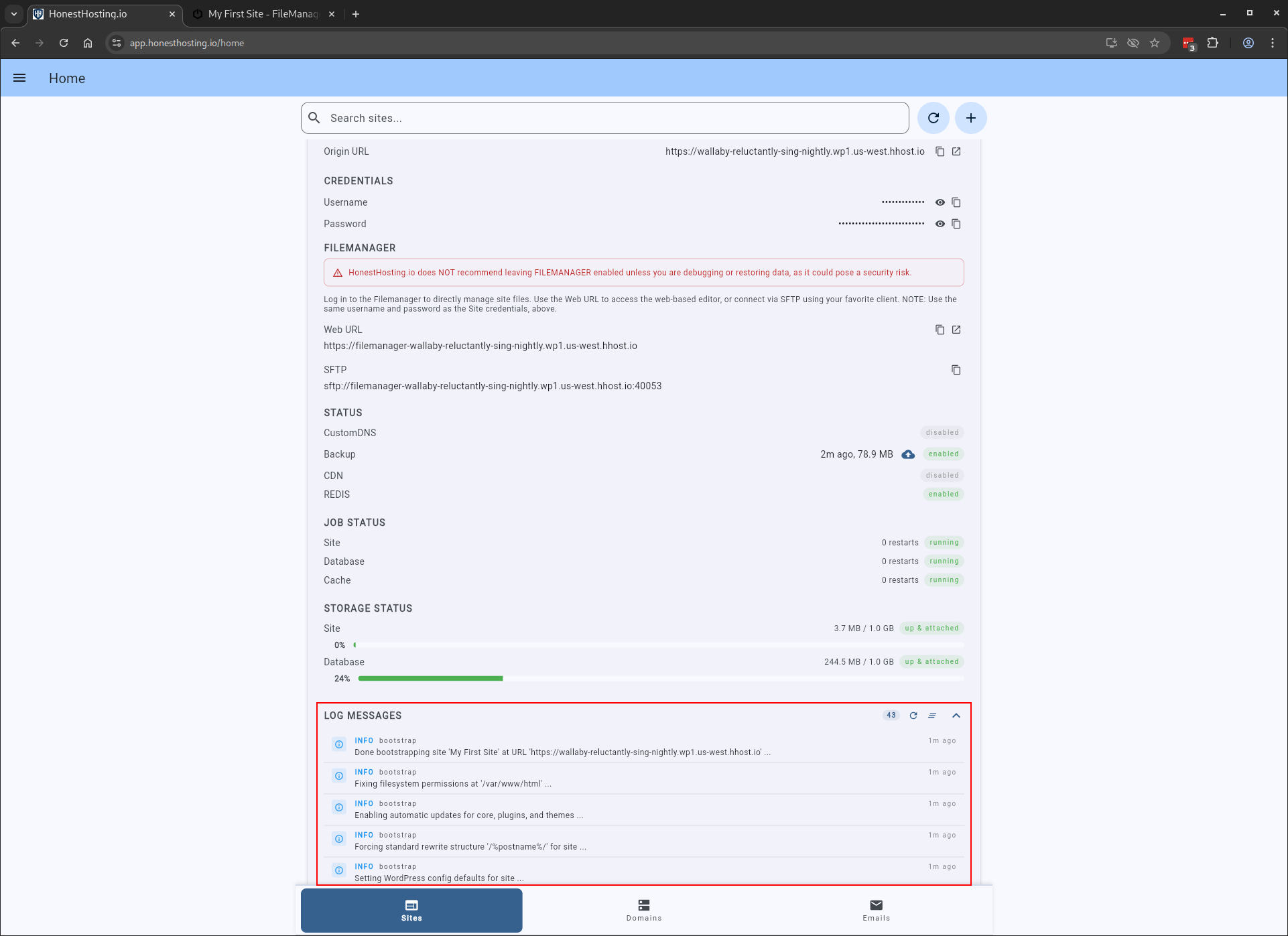
After saving your Site, the platform will update the deployment automatically. You can refresh the Site details to see
the updated settings, and also expand the Logs section to view more info about the Site deployment:
Domain
You will only be able to select a Domain for a domain that is correctly setup in public DNS. If you have not yet configured
your registrar info, or it has not been updated yet, you will not be able to select that Domain.
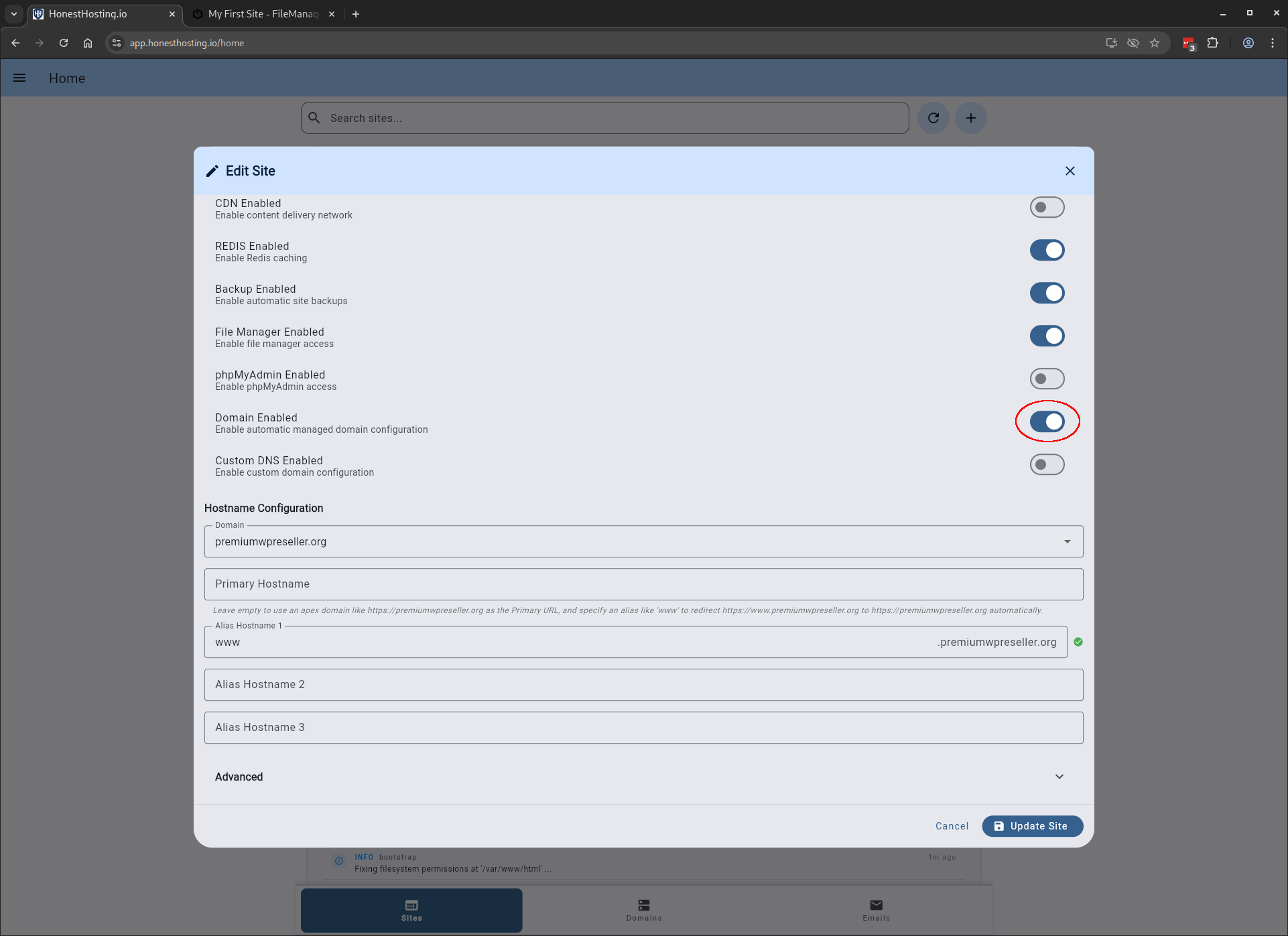
When editing a Site and adding a Domain, select the Domain from the list, and type in the hostname(s) you want (and up to 10
aliases that automatically redirect to the primary hostname).
Aliases hostnames can use either the Primary Domain Name, or you can override and specify an alternative Domain Name for the
alias. For example, if the primary domain is premiumwpagency.org, you can leave the Primary Domain Hostname blank and specify
the first alias as www. Then, you can add another alias, override the Primary Domain name, and type a different hostname.
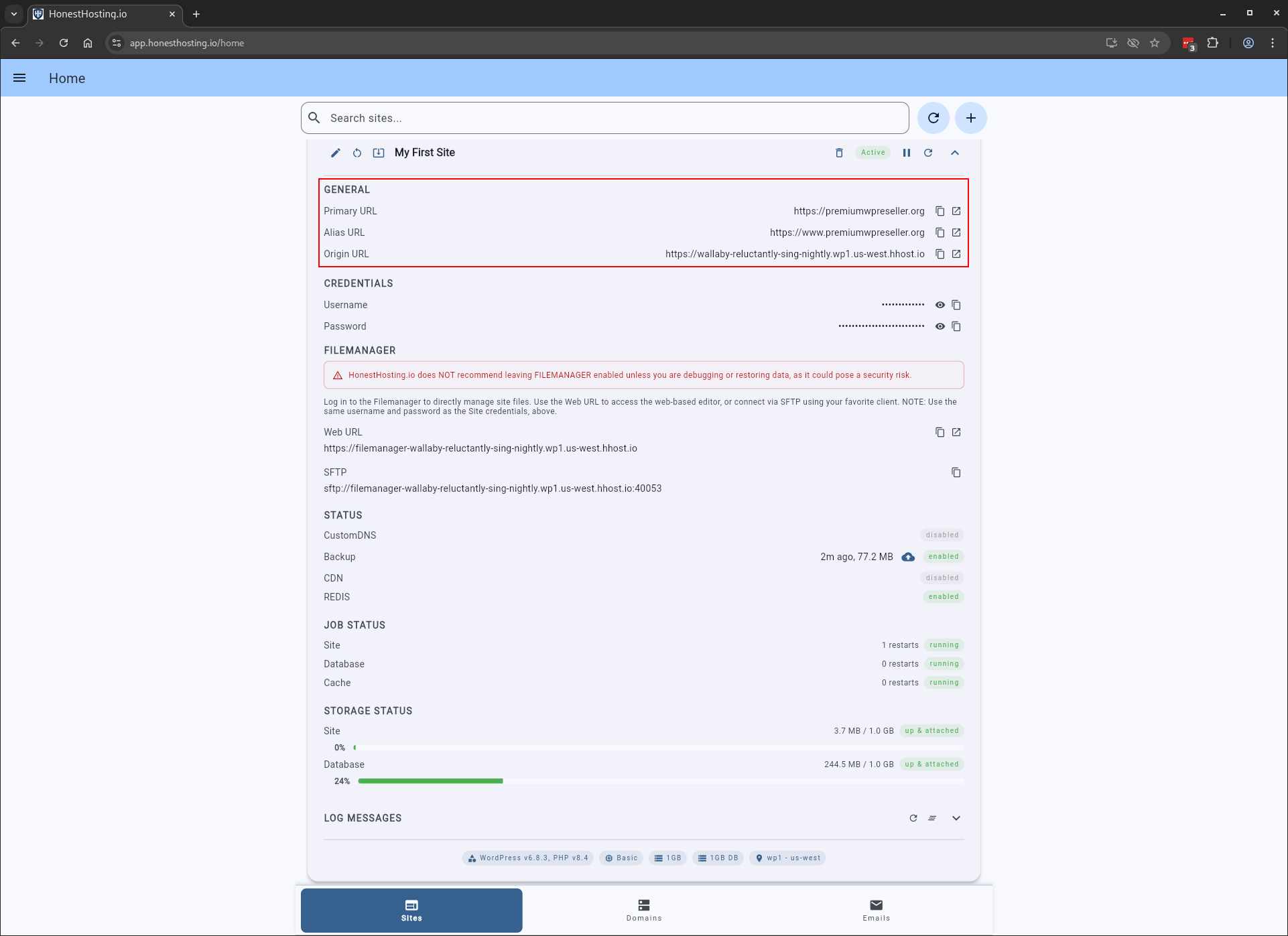
After saving the Site with the new Domain and Hostnames, the platform will update the deployment automatically, configuring
hostnames as-needed.
CustomDNS
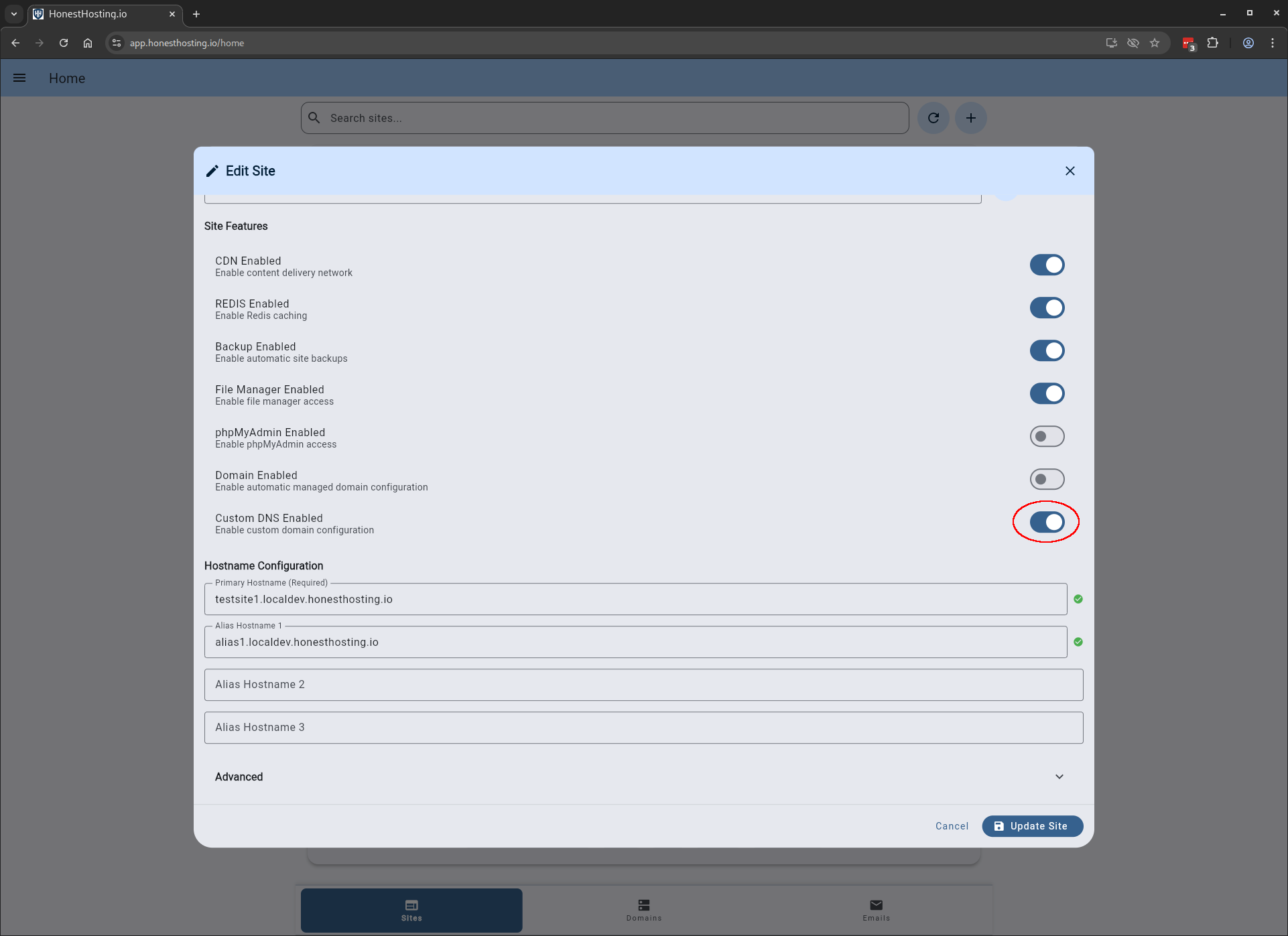
If your Domain is not configured in the HonestHosting platform, you can enable CustomDNS, and setup DNS records yourself to point
at the Site. Edit the Site, and enable the toggle for CustomDNS. Specify at least a primary hostname and up to 3 aliases hostnames.
In the case below, we are not only enabling CustomDNS, but also enabling CDN, so there are a few additional records that must be
configured in public DNS before the Site will become fully ready.
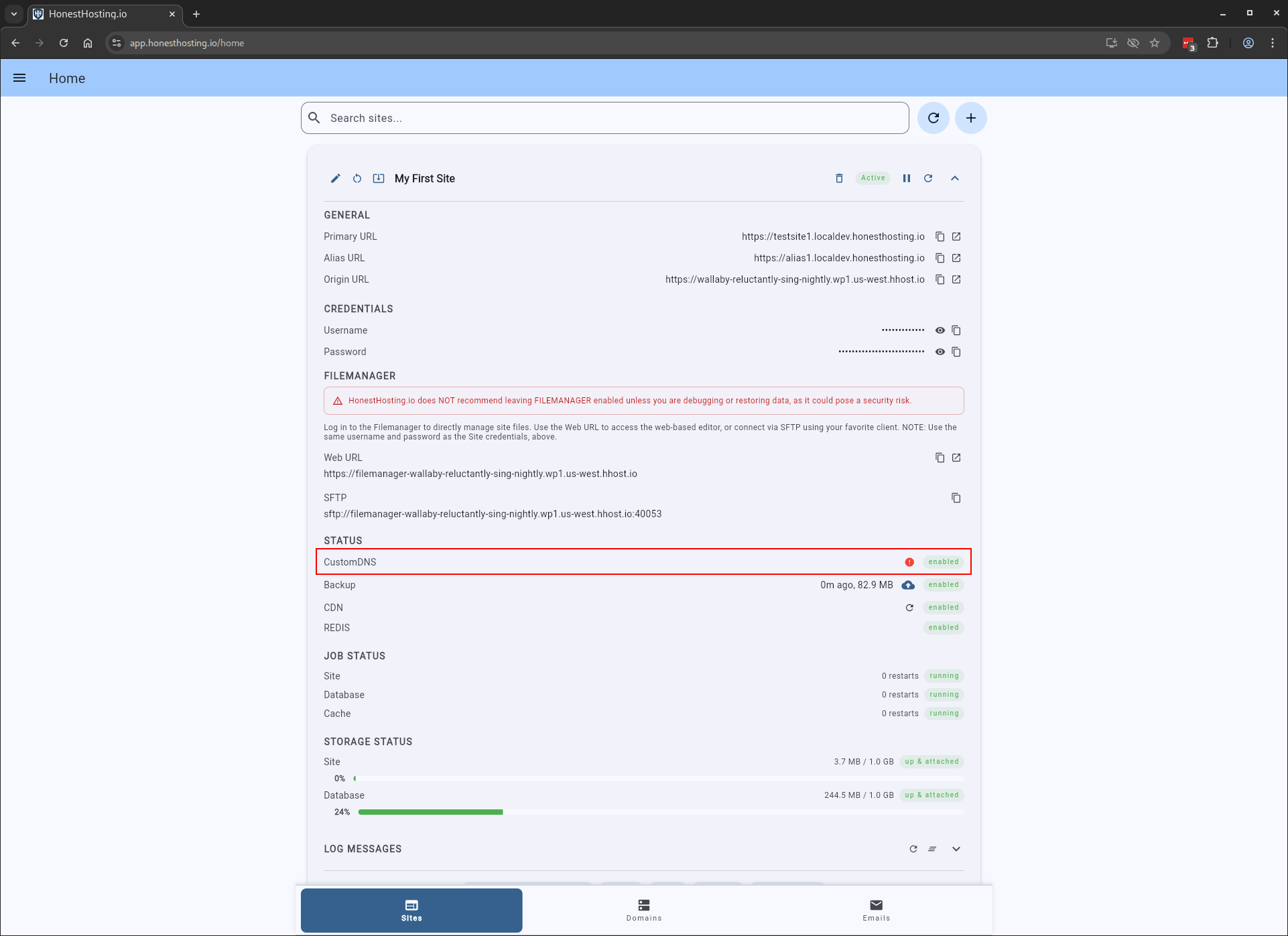
Once saved, the system will perform the initial Site update & deployment, but it will then wait for public DNS to be updated. You can
view the status of expected vs actual Public DNS records by clicking on the icon button in the CustomDNS status row on the Site
summary card.
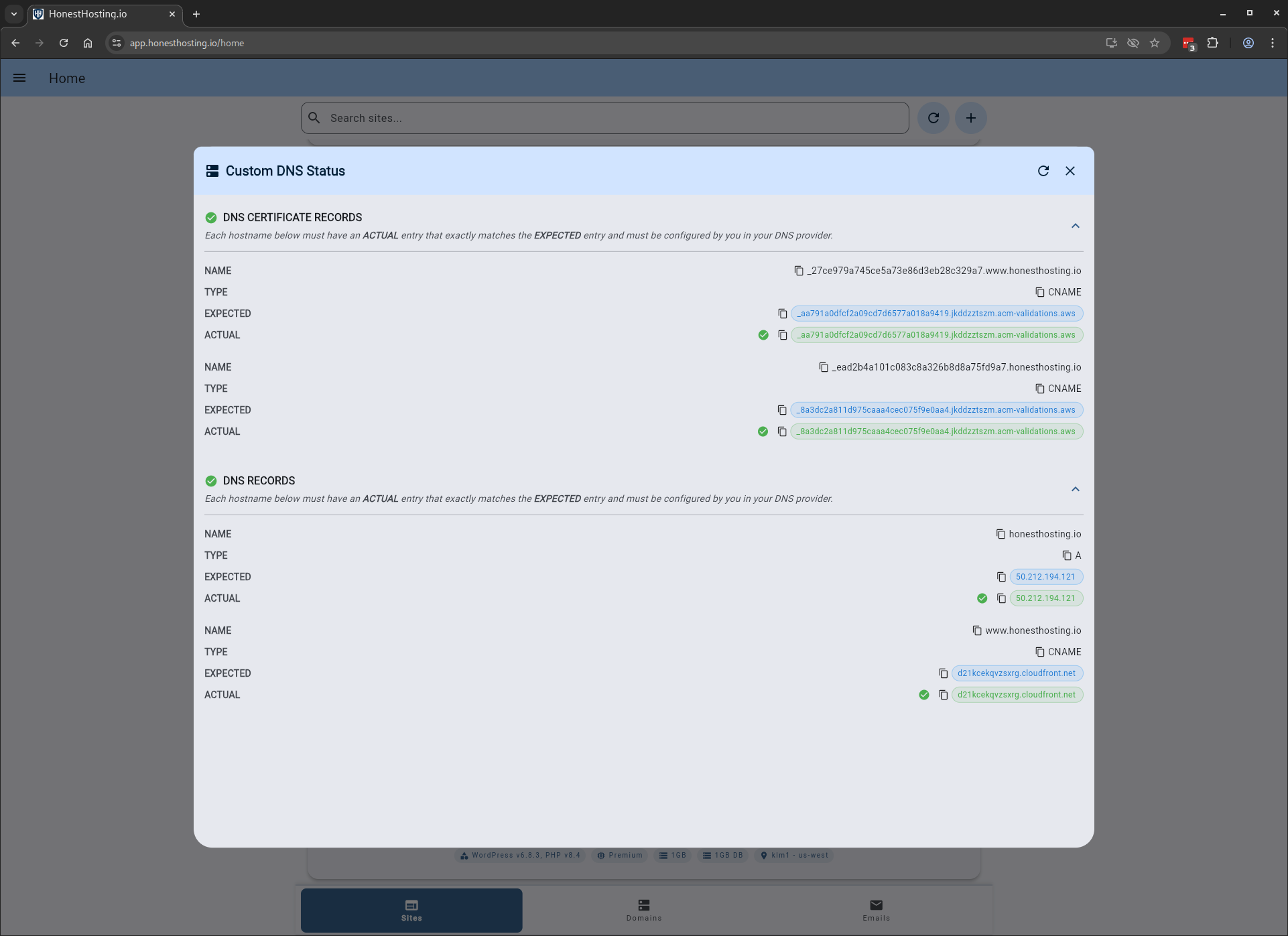
You will see a dialog come up that shows the expected vs actual Public DNS records for the Site. Note that you MUST setup the
Certificate Validation Public DNS records first, then the Site Public DNS records when using CustomDNS
In this example, I am showing you a pre-configured Site that is already validated with CDN enabled, however, the same rules apply.
Configure Certificate Validation Public DNS Records first, wait for validation, then configure Site specific Public DNS records. You
can also view logging information about the validation process in the Site Logs section.
Advanced Settings
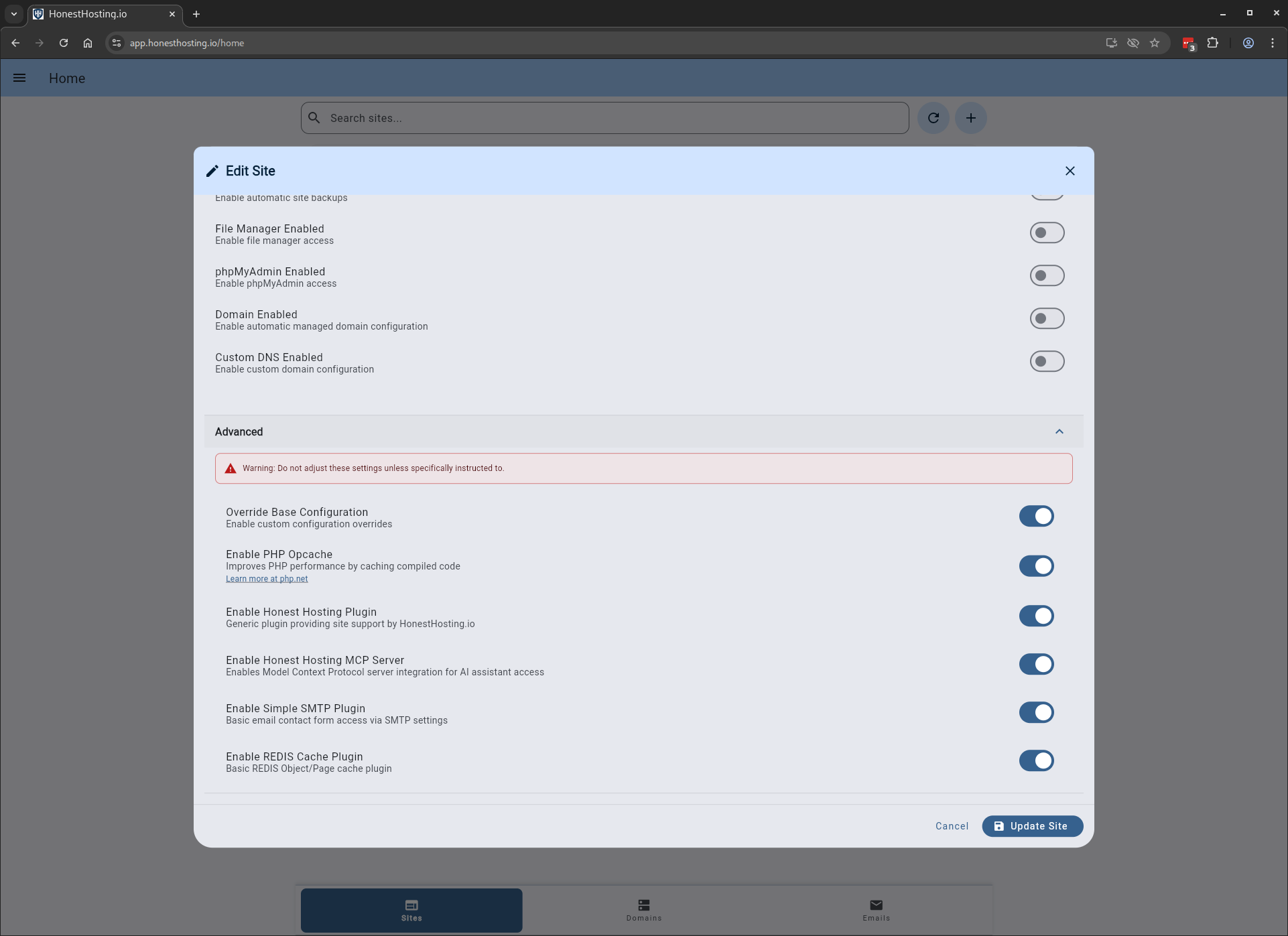
Modifying Advanced Settings is not recommended unless specifically instructed by the HonestHosting team. Modifying
these settings may lead to Site instability or corruption. PROCEED AT YOUR OWN RISK!
To update Advanced settings, edit the Site and update the Advanced section toggles. NOTE: You must first enable Override Base Configuration before
modifying any other settings in the Advanced section.
| Option | Description |
|---|---|
| Enable PHP OPCache | Enable or disable PHP OPCache (default: enabled) |
| Enable HonestHosting Plugin | Enable or disable the HonestHosting umbrella plugin for better WordPress integration with the platform (default: enabled) |
| Enable HonestHosting MCP Server | Enable or disable the HonestHosting MCP Server for AI chatbot access (default: enabled for WordPress >= 6.8.0) |
| Enable Simple SMTP Plugin | Enable or disable the simple-smtp plugin for basic Site email notifications, managed by HonestHosting (default: enabled) |
| Enable REDIS Cache Plugin | Enable or disable the redis-cache plugin for basic Site page and object cache (default: enabled) |
| Enable Theme Auto Updates | Enable automatic updates of all themes on the site (default: enabled) |
| Enable Plugins Auto Updates | Enable automatic updates of all plugins on the site (default: enabled) |
| Auto Update Core Major Version | Enable automatic to new WordPress core major verions, like 6.X.X -> 7.X.X (default: disabled) |
| Auto Update Core Minor Version | Enable automatic to new WordPress core minor verions, like 6.7.X -> 6.8.X (default: enabled) |
| Auto Update Core Dev Version | Enable automatic to new WordPress core dev verions, like 6.7.5 -> 6.7.6 (default: enabled) |
| Disallow File Editor | When set to true, file editor access is disabled for the site in wp-admin area (default: disabled) |
Restart
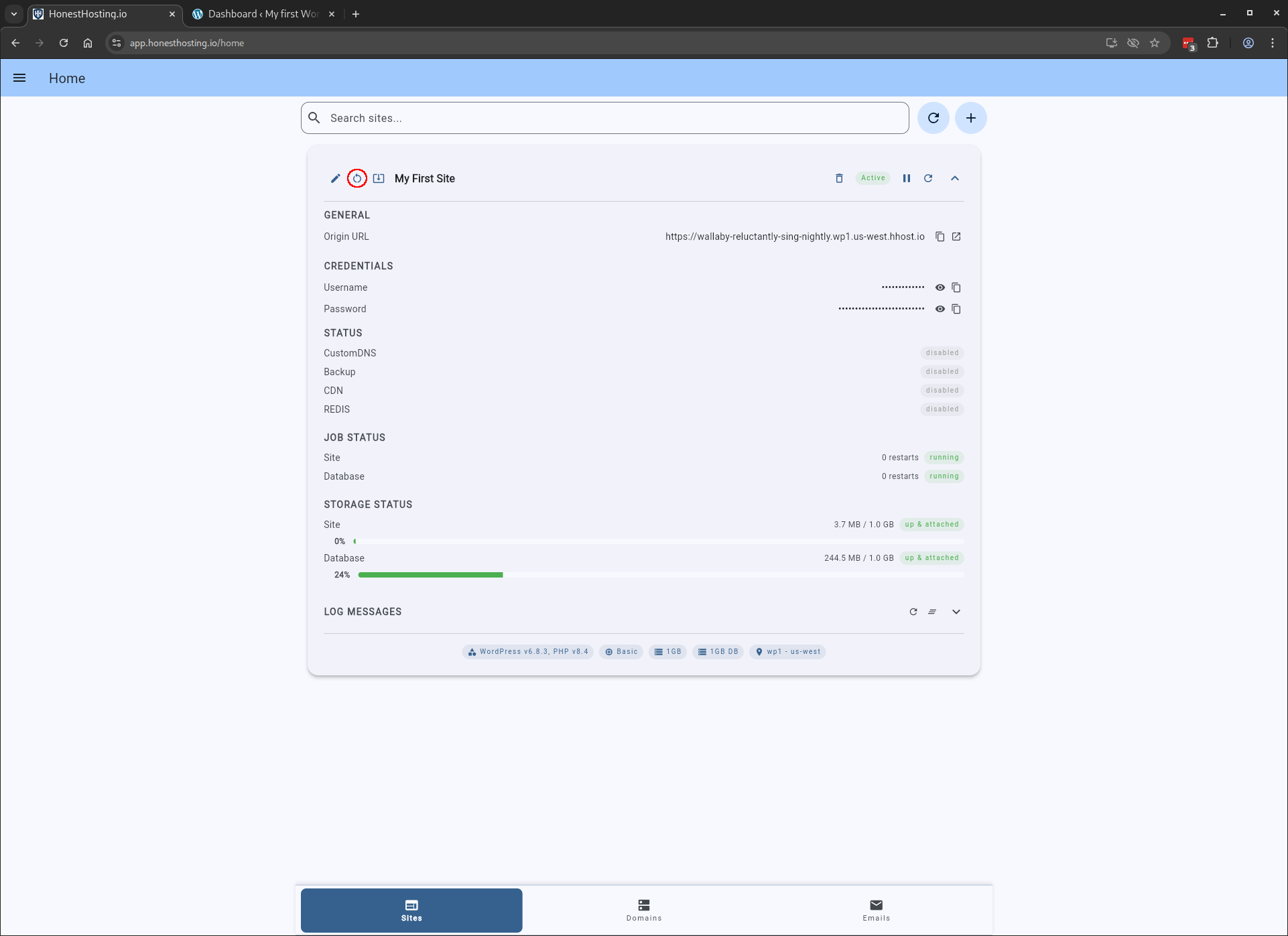
For a given site, you can restart it by clicking the Restart icon. This will restart the
site (which will be temporarily unavailable until the process completes, which usually takes ~60 seconds):
Reinstall
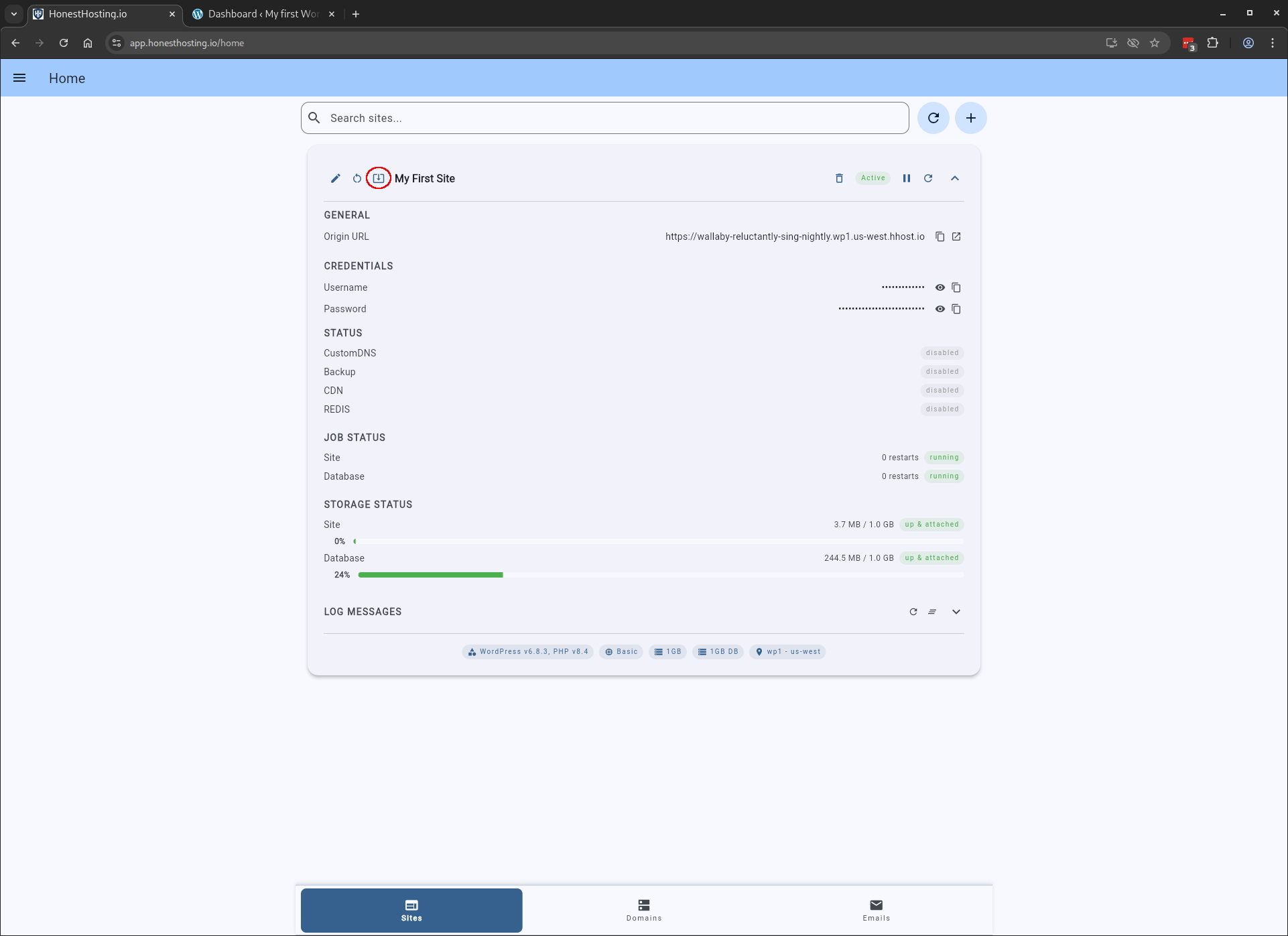
For a given site, you can reinstall the base files by clicking the Reinstall icon button. This will reinstall the
site software and files, but will not affect the database or any other settings (the Site will be temporarily unavailable
until the process completes):
The reinstall process does not require a Site to be running, and can be used as a recovery mechanism if the site
is not accessible or becomes corrupt.
Suspend
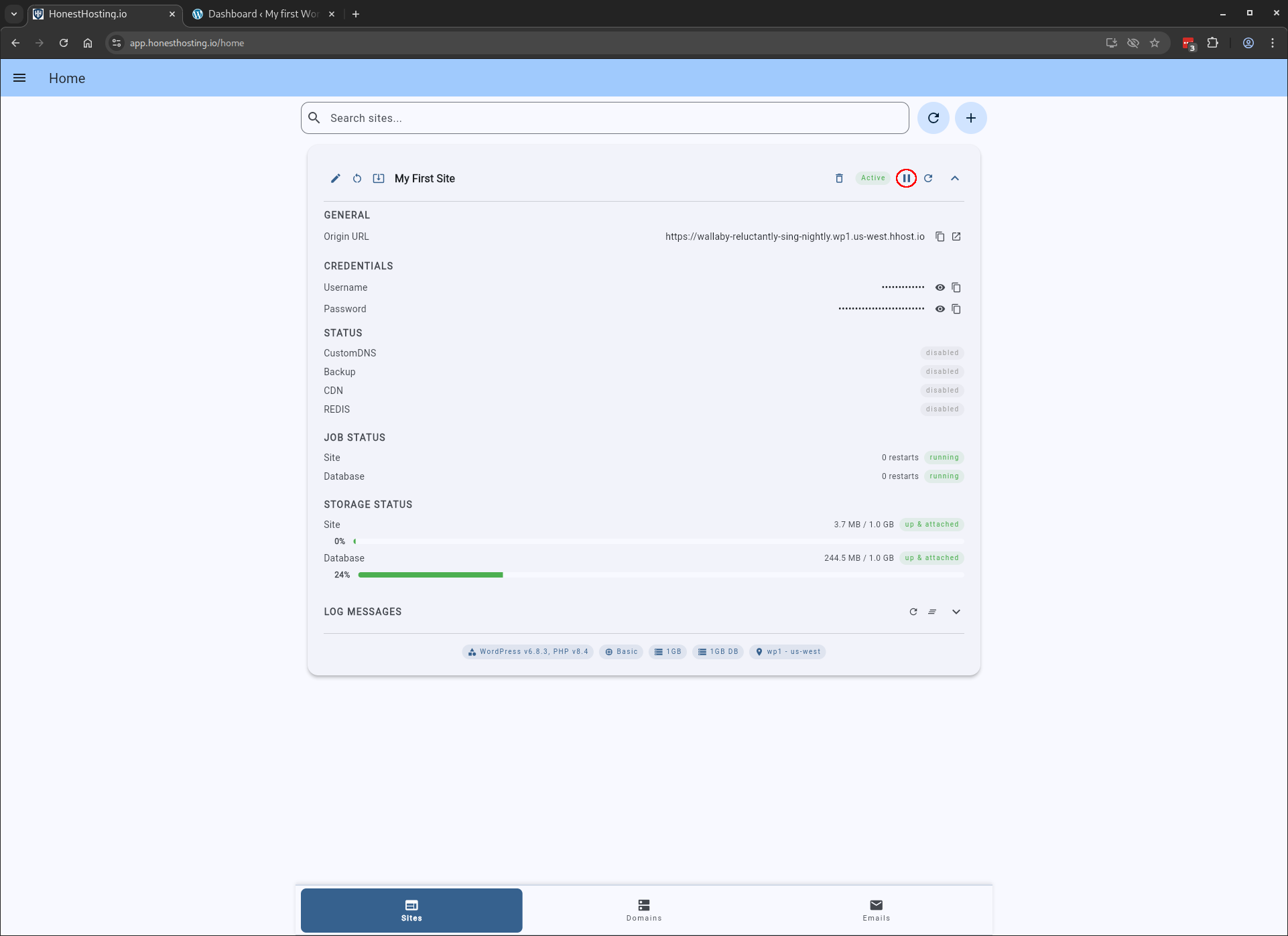
For a given Site, you can suspend it by clicking the Suspend icon button.
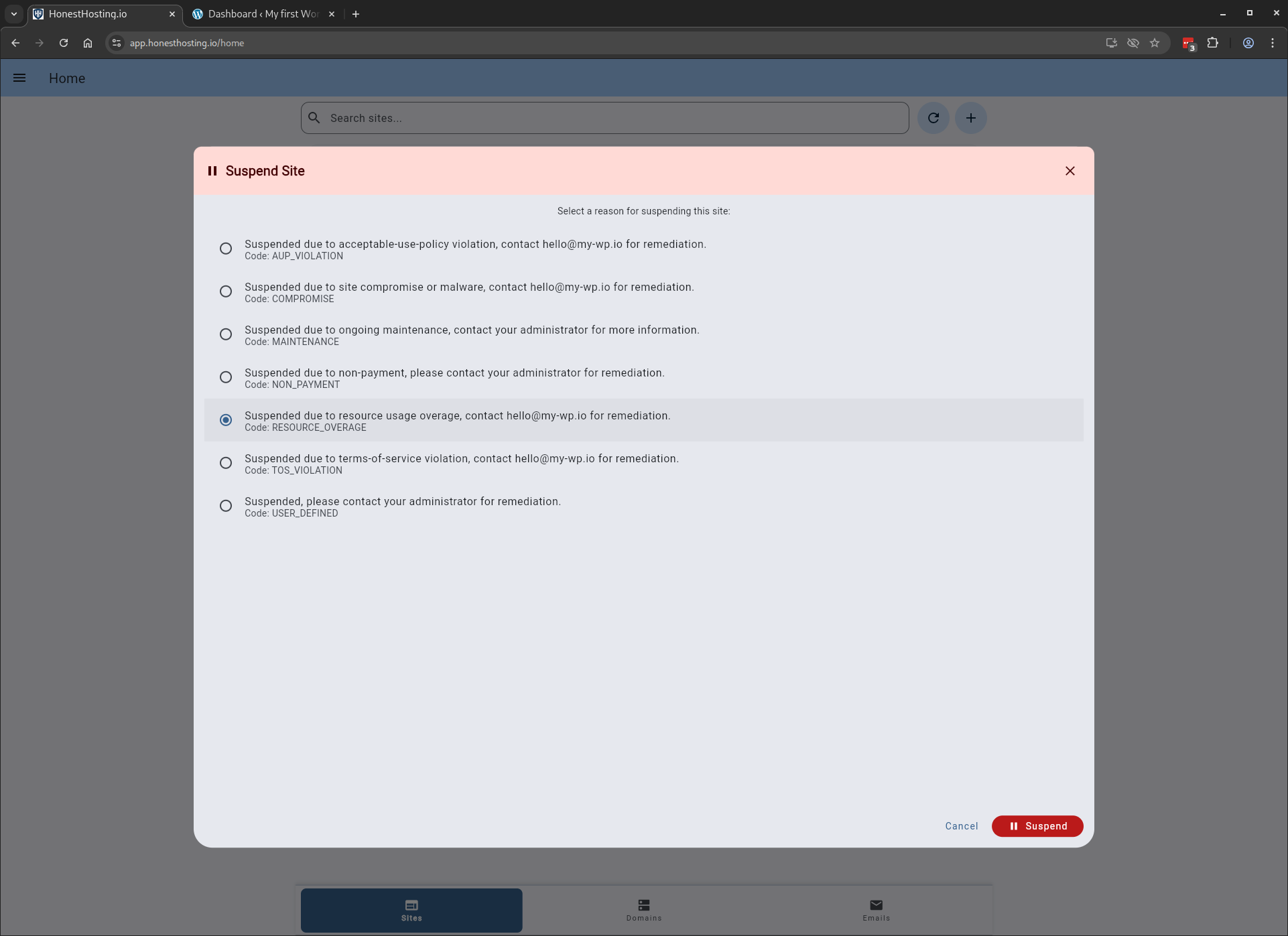
A dialog box will open letting you select a reason for the suspension (violation, overage, non-payment, etc). The Site will
be updated & re-dpeloyed–however, when a user accesses it, they will be redirected to a suspension landing page on
https://www.honesthosting.io.
Once the Site is saved with the Suspension reason, it will show up in the Site list as Suspended, and when accessed by users,
they will be redirected to a suspension landing page on https://www.honesthosting.io