New Session
New Session
Every conversation runs in a context, which is what Cooper is working on. You pick one of two:
- Platform — your HonestHosting account as a whole: sites, DNS, backups, metrics, billing.
- Site — a single WordPress site running
6.8.0or newer, with the HonestHosting MCP plugin enabled.
Sites that don’t meet those requirements still appear in the picker, marked (MCP disabled), and can’t be selected.
The MCP Server is disabled by default on every Site. To enable it, edit the Site, turn on
Override Base Configuration in the Advanced section, and enable
Enable HonestHosting MCP Server. It requires WordPress 6.8.0 or newer — on older versions it is
not available.
In a Site context, Cooper discovers what it can do by reading that site’s own abilities-api registrations and
exposing them as MCP tool calls. There is no hardcoded list — this works with ANY plugin that registers
abilities through the abilities-api.
Platform Context
The Platform context works against the HonestHosting platform itself. Ask Cooper to list your sites, find
performance problems, update PHP versions, and much more:
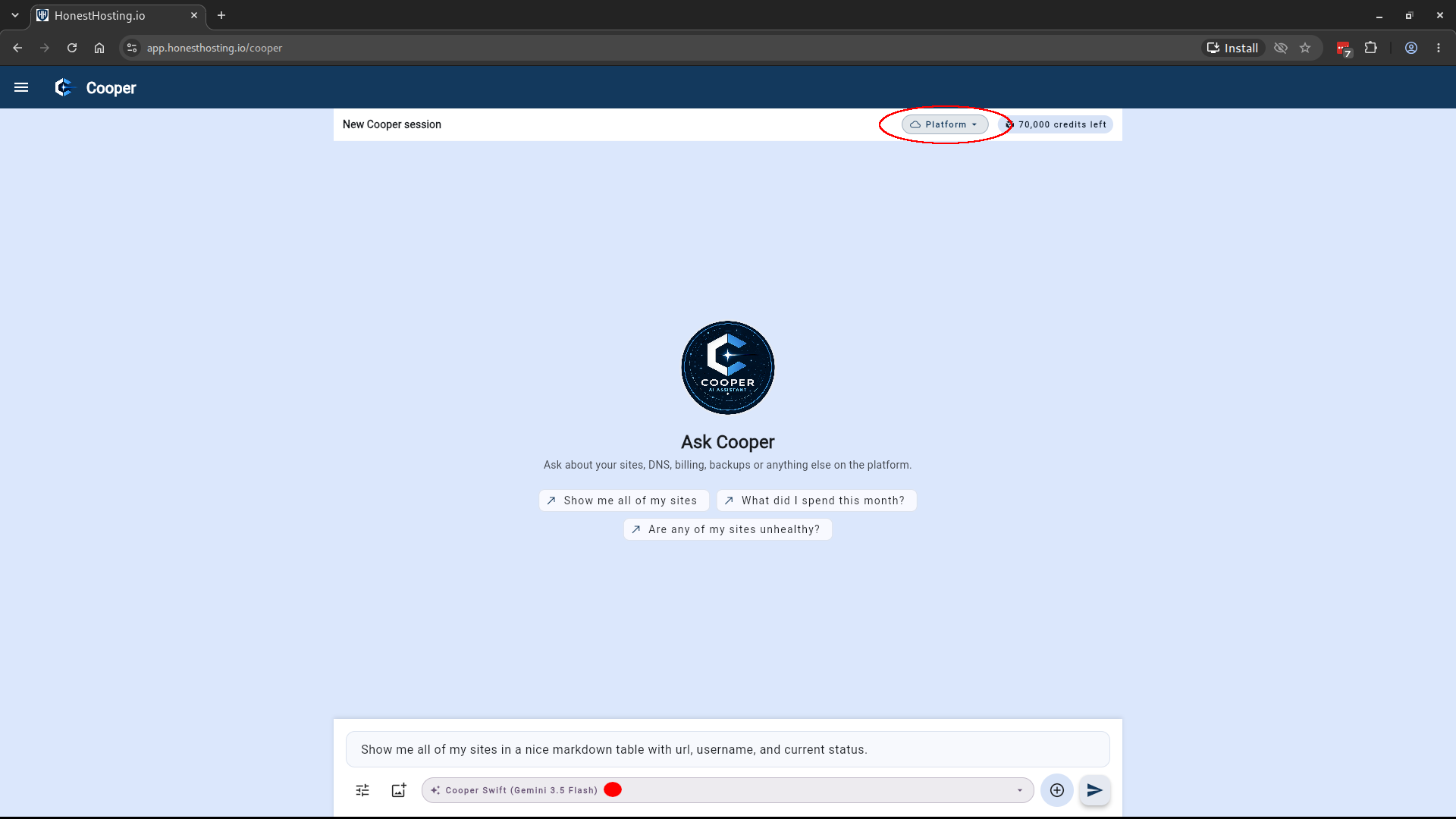
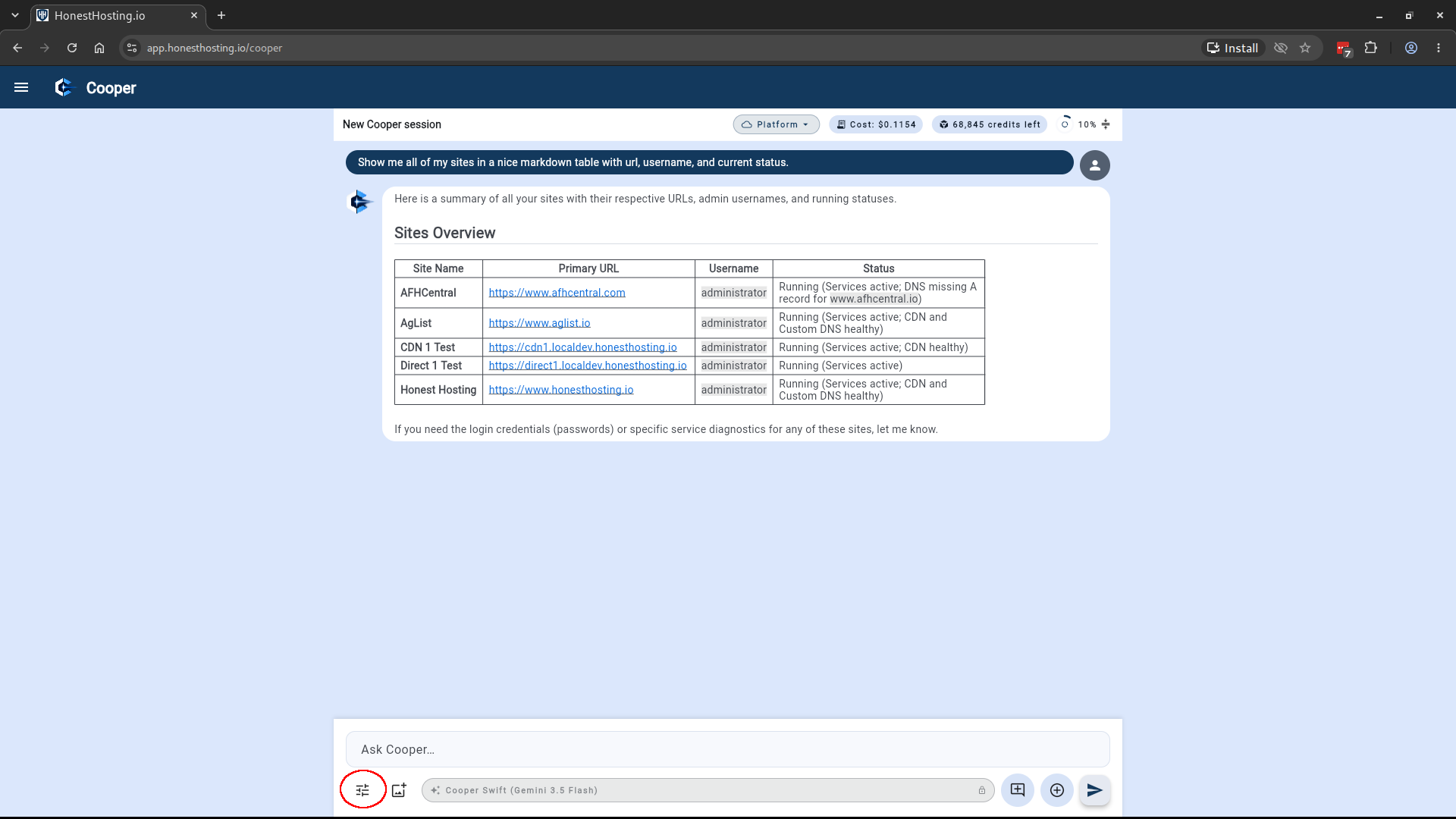
Here we ask it to list our sites with URL, username, and status:
Site Context
We change toi a Site context and ask Cooper to list the pages on that site. It discovers the abilities registered by the
MCP plugin and uses them to get the list:
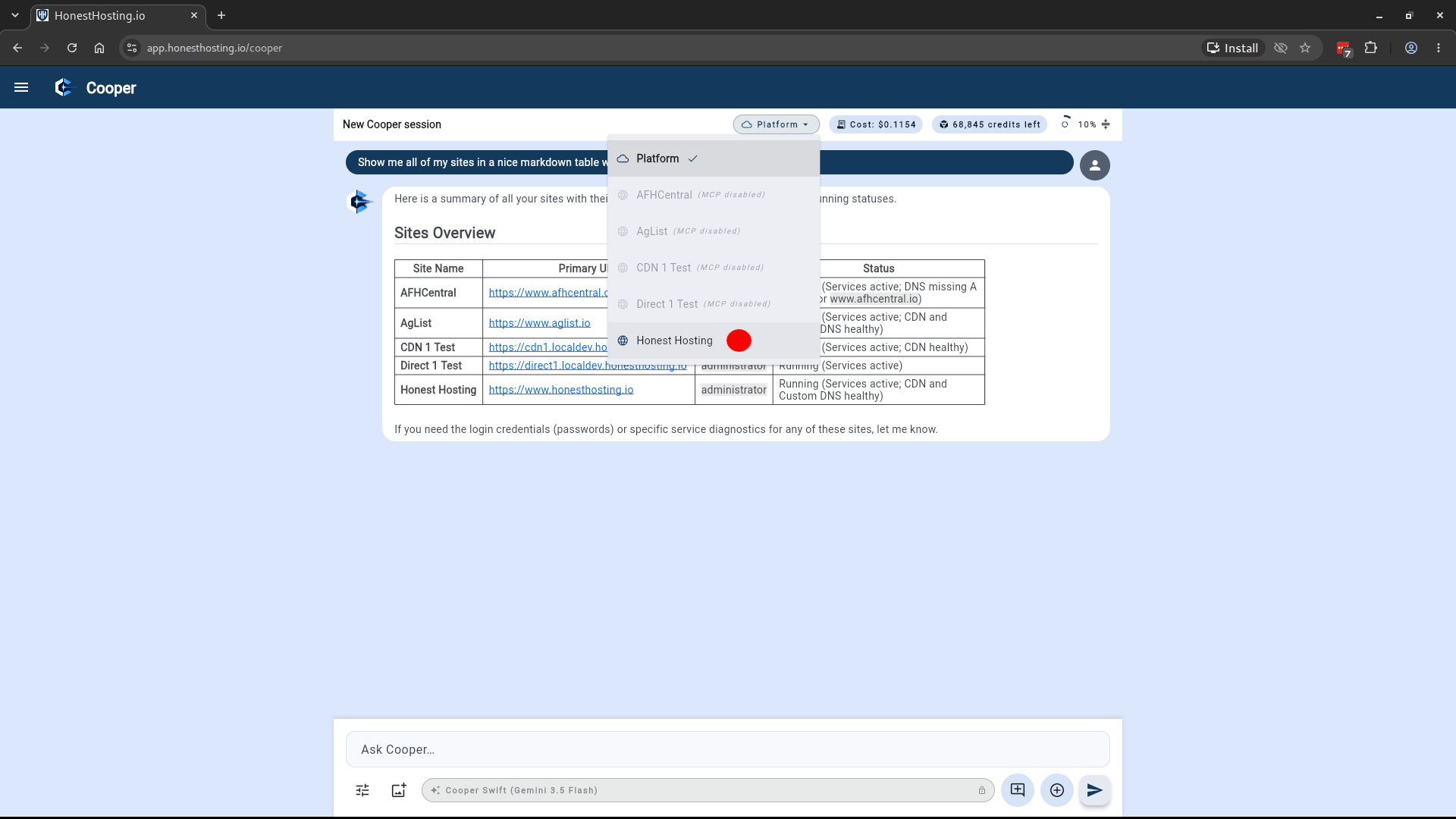
This is an example ONLY–depending on the installed plugins on your site, your response(s) may be different!
Because the ability list is discovered rather than fixed, you can ask Cooper what it has access to at any time. Here we ask it to list the pages on the site:
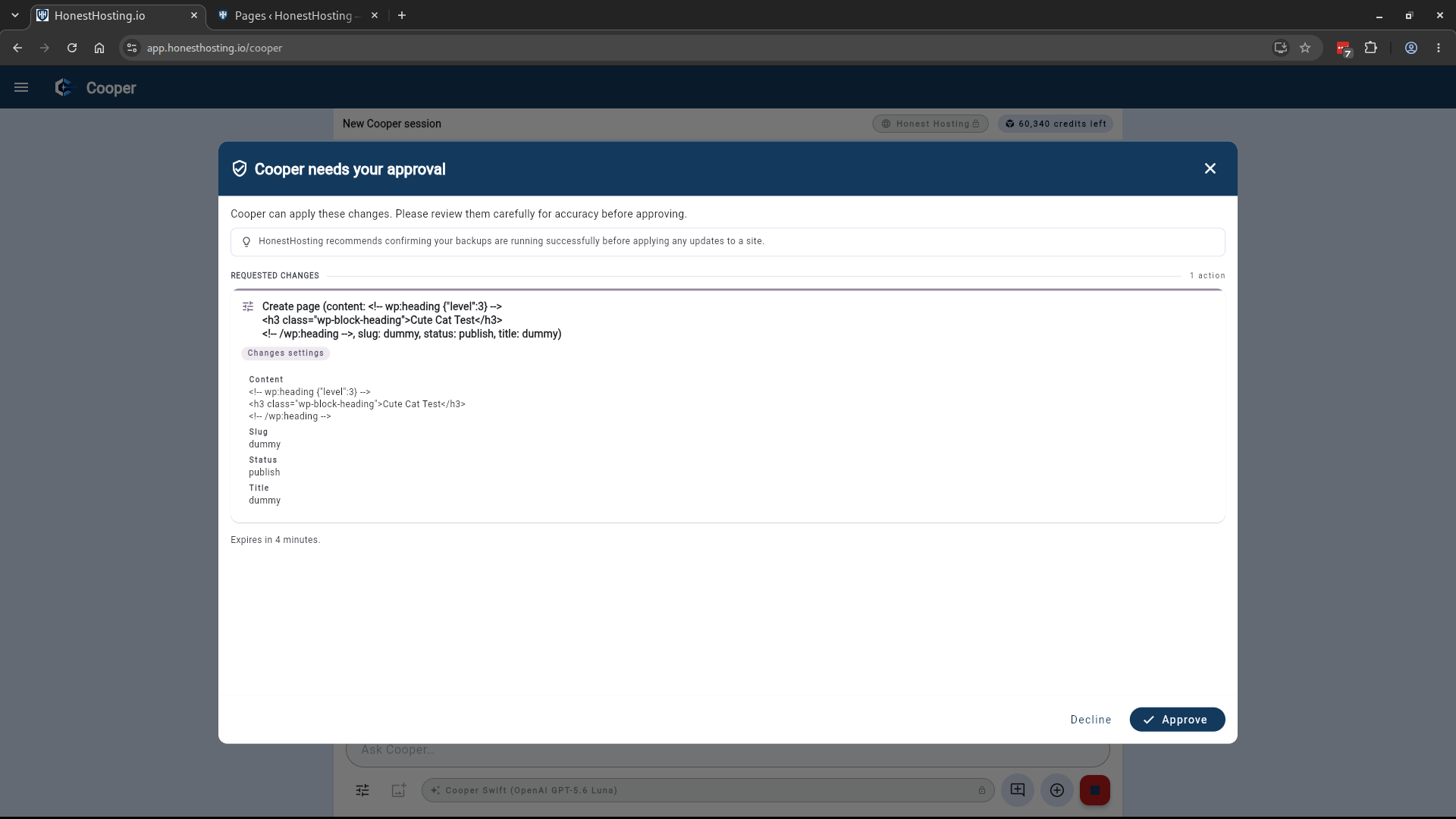
Installing a plugin changes your site, so Cooper pauses and asks you to approve it first. Nothing runs until you answer. See Cooper AI for how approvals work and how to adjust them.
Once installed, the new abilities are picked up automatically. This is what makes the workflow general: installed MCP tooling is discovered and exposed without any platform-side configuration, which keeps deployment simple, keeps AI Credit consumption down, and never exposes LLM keys to your WordPress site.
Image Generation
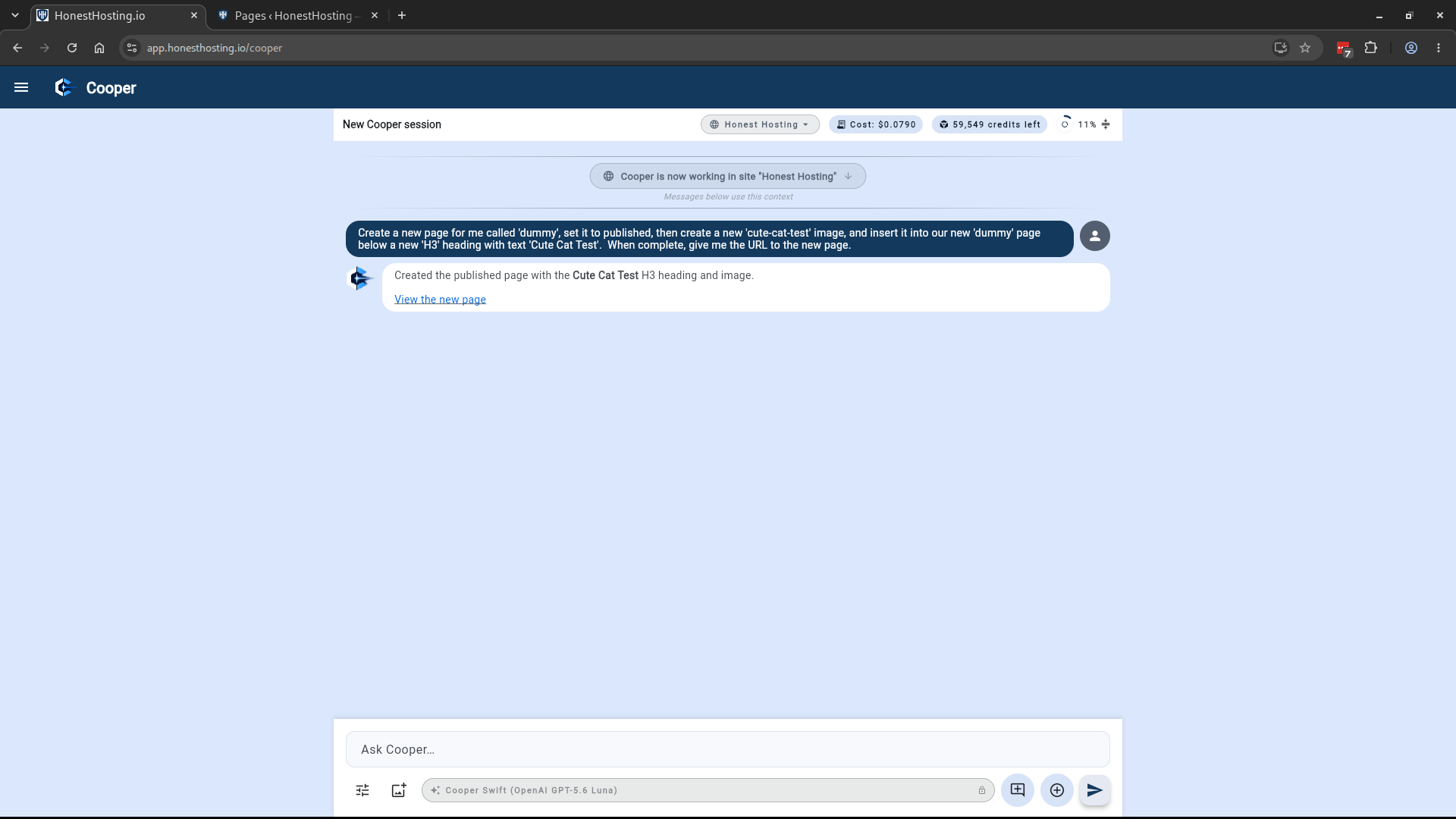
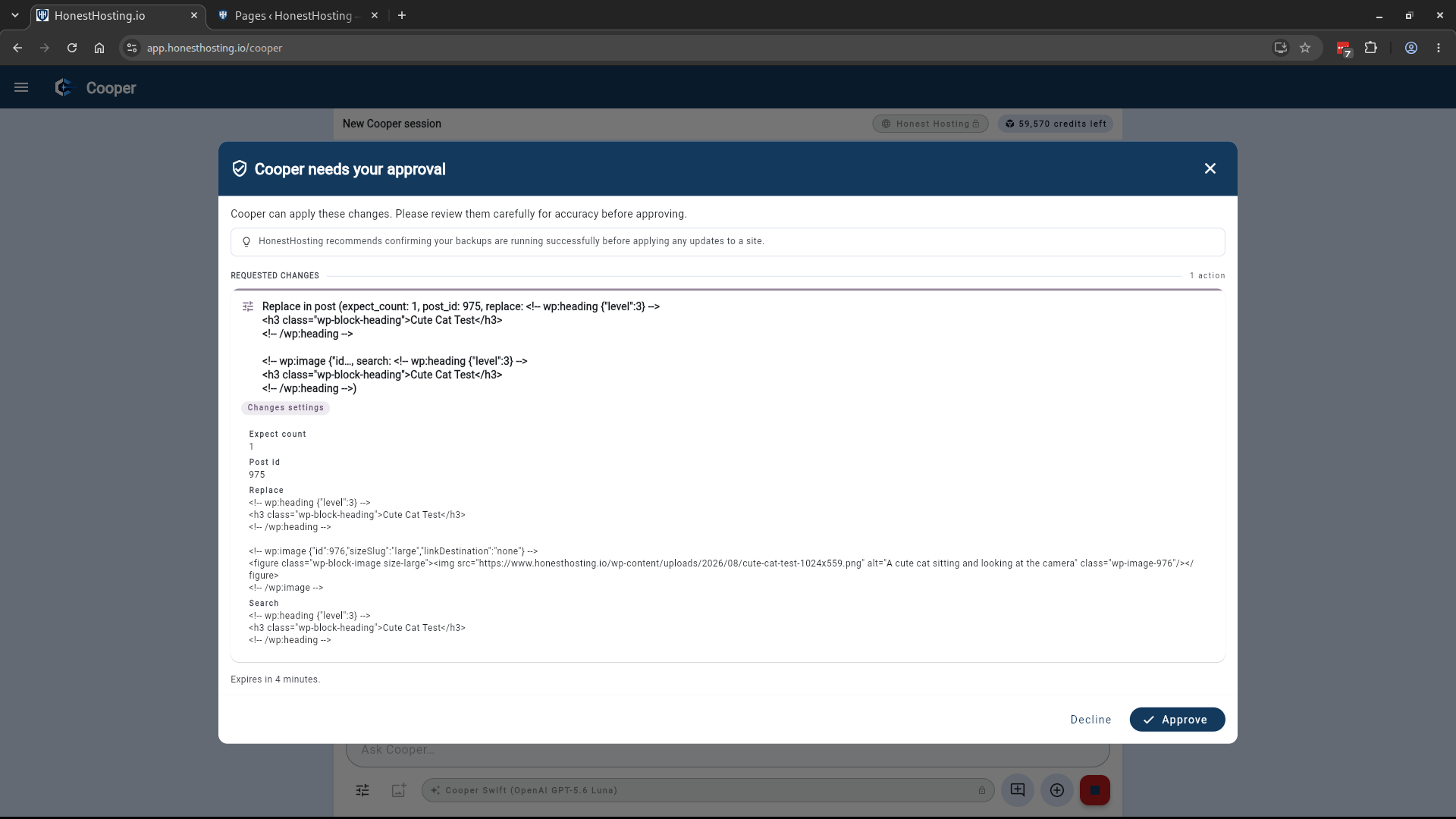
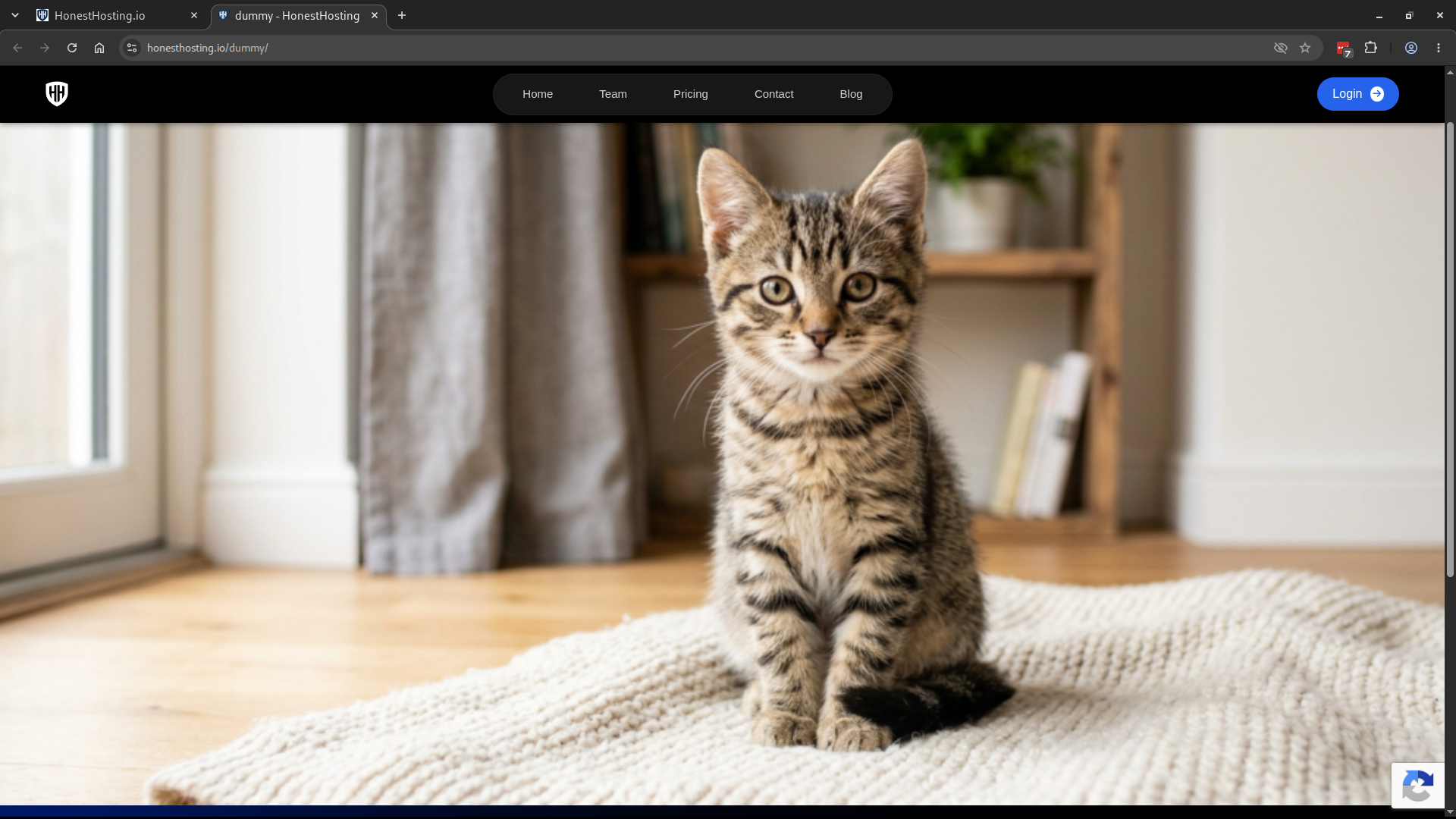
Cooper can also generate images. Here we ask it to create a page, generate a “cute cat” image, insert that image
into the page, and give us the URL. In a Site context the generated image is added to that site’s media library
as part of the same request:
Common Session Options
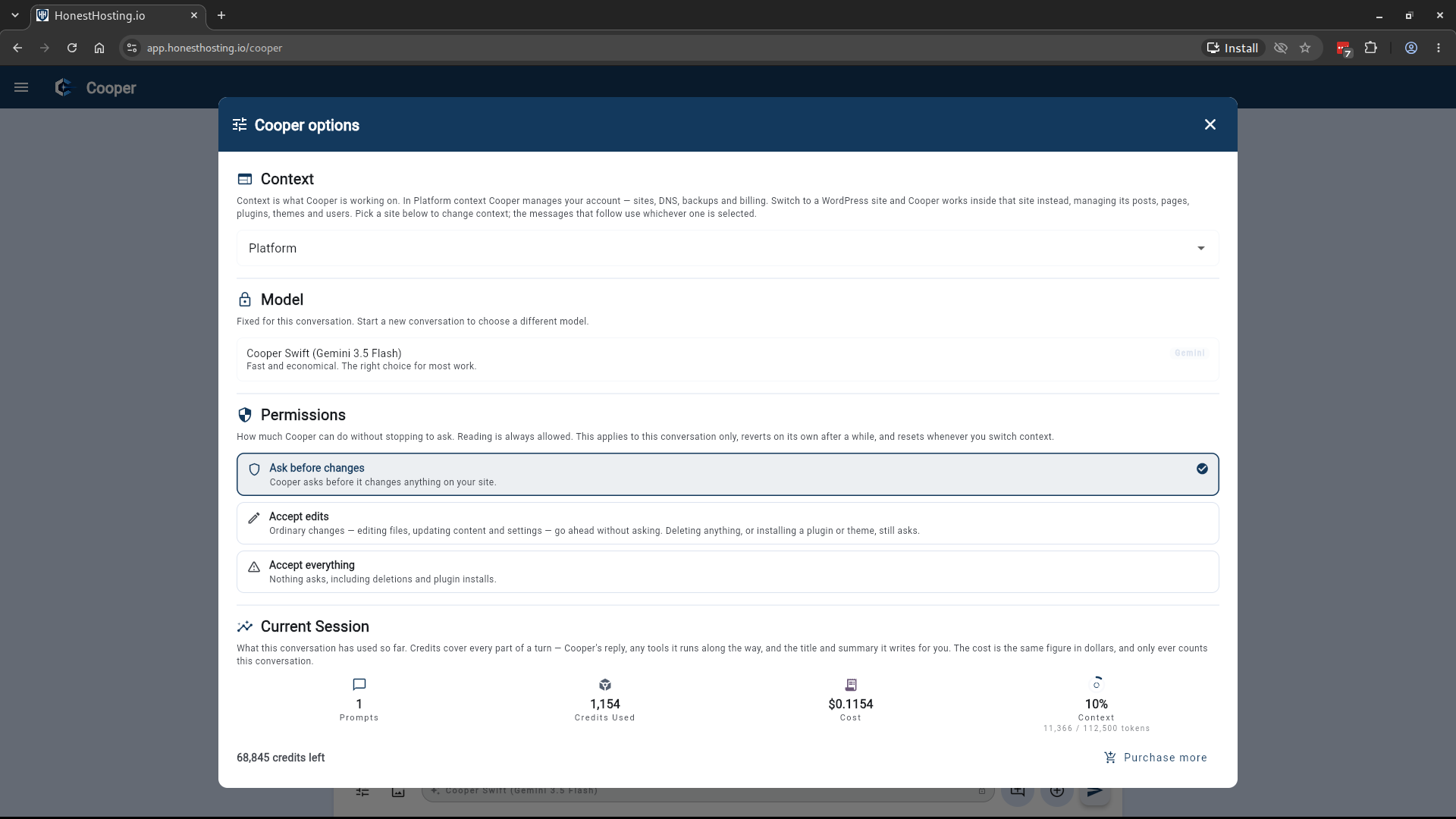
The session options sheet holds the three settings that govern a conversation:
-
Context —
Platformor a WordPress site, as described above. You can switch at any time; the messages that follow use whichever one is selected. -
Model — optional. Cooper uses the default unless you choose another, grouped by capability as
Swift,Balanced, andFrontier. A more capable model costs more AI Credits per turn, so the default suits most work. The model is fixed once the conversation starts — to use a different one, start a new conversation. -
Permissions — how much Cooper may do without stopping to ask. Reading is always allowed.
Ask before changes(default) — Cooper asks before changing anything.Accept edits— ordinary edits to files, content, and settings proceed; deletions and plugin or theme installs still ask.Accept everything— nothing asks.
Relaxed permissions apply to the current conversation only, revert on their own after a while, and reset whenever you switch context.
Context & Compaction
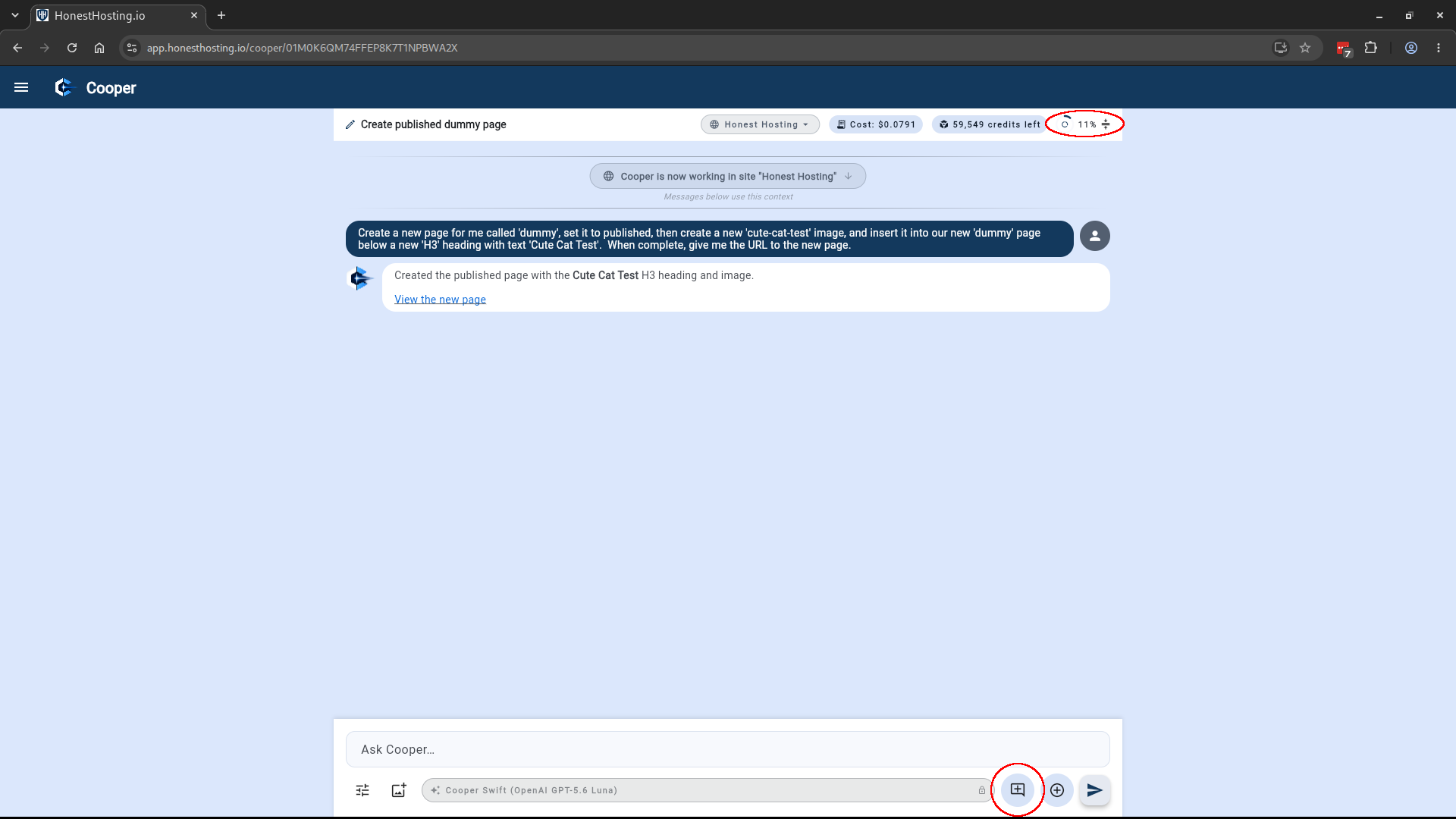
The ring in the upper right shows how full the conversation’s context is. There are two ways to keep it, and your AI Credit consumption, in check:
-
Compact now, beside the ring, condenses the earlier part of the conversation into a summary while keeping recent messages as they are. This also happens automatically as the context fills, and either way it is marked in the transcript so you always know it happened. Use it deliberately when you’re about to ask for something large, rather than waiting for it to happen mid-request. -
New conversation from this summary, in the lower right beside theNew conversationbutton, summarizes the current conversation and starts a fresh one from that summary. The new conversation keeps the same context but begins with a clean slate.
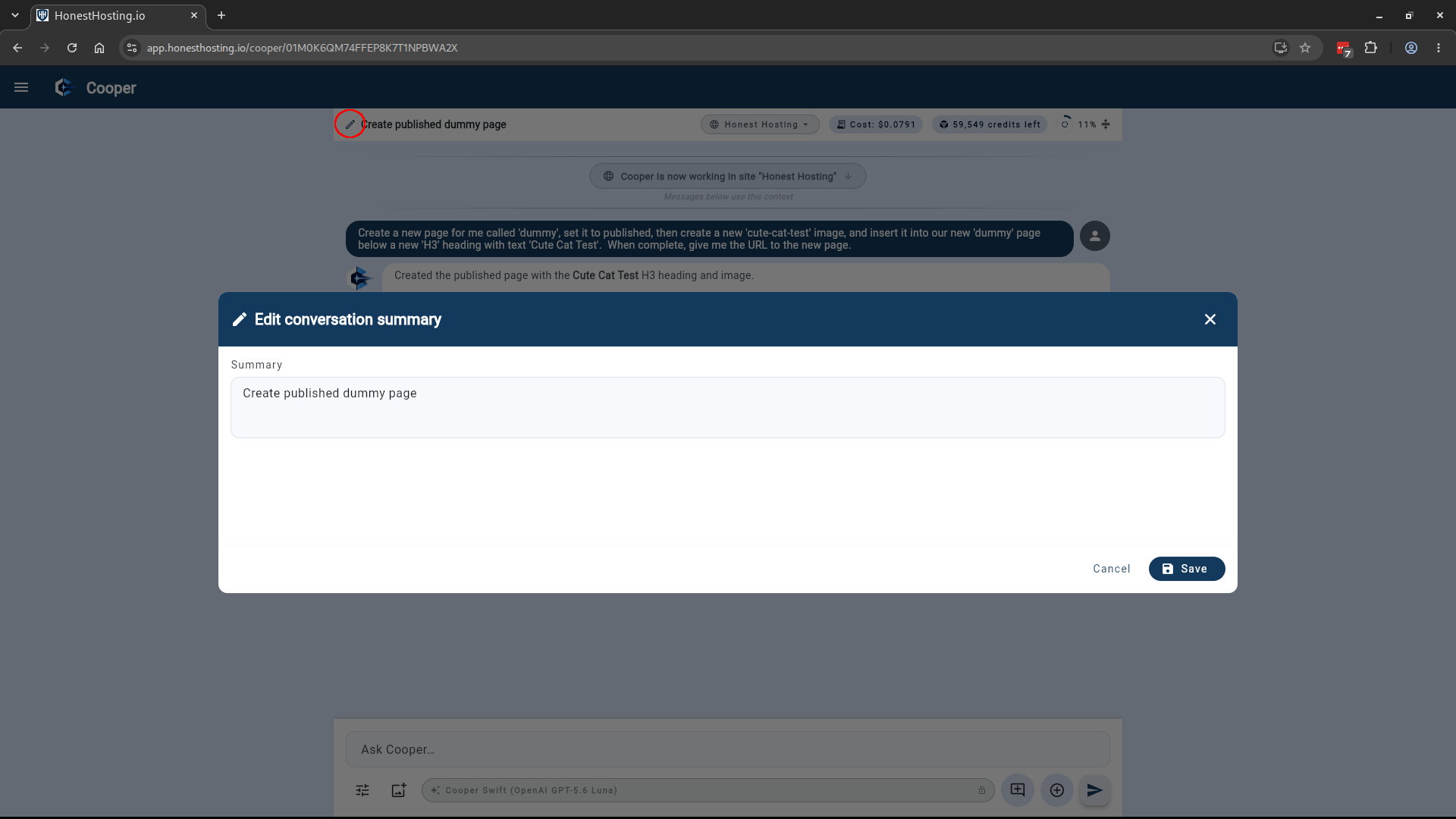
You can also edit the summary to give the conversation a more useful name:
Context Window management and Summarization is still an active work-in-progress. If you notice issues or problems, report them to hello@honesthosting.io or on Discord.