Add Domain
Add Domain
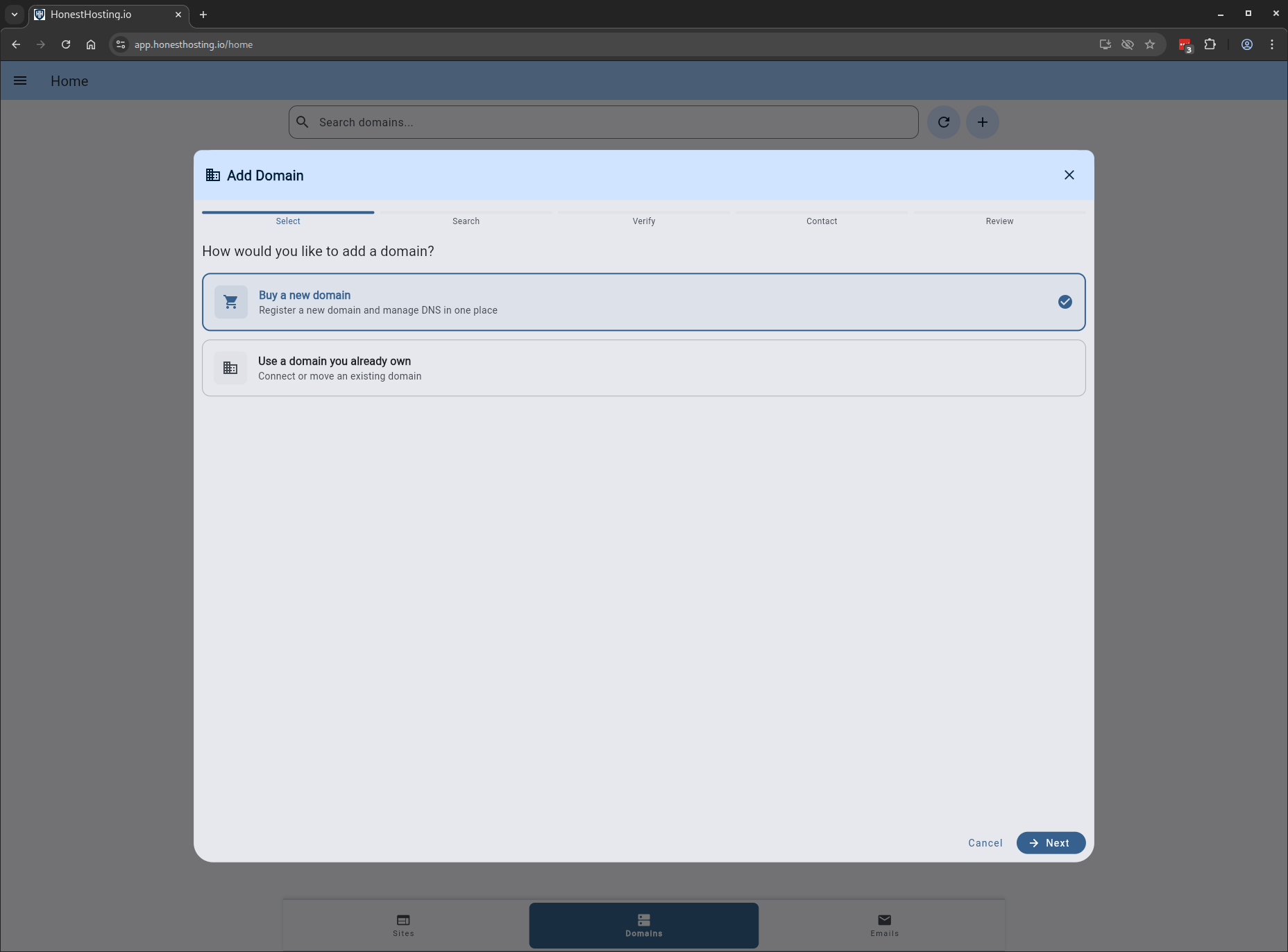
There are 3 main options when adding a Domain to the platform:
- Buy a new domain
- Transfer a domain you own
- Manage DNS records only
Buy a new Domain
When purchasing a new domain, the platform allows you to buy several domains at once, walking you through each step.
After purchase, you will be billed on your next invoice cycle for the cost of the domain(s).
All domain purchases are final and are NOT subject to refund policies. Before confirming a purchase, please DOUBLE CHECK EVERYTHING–HonestHosting.io will not be held liable for spelling errors or omissions!
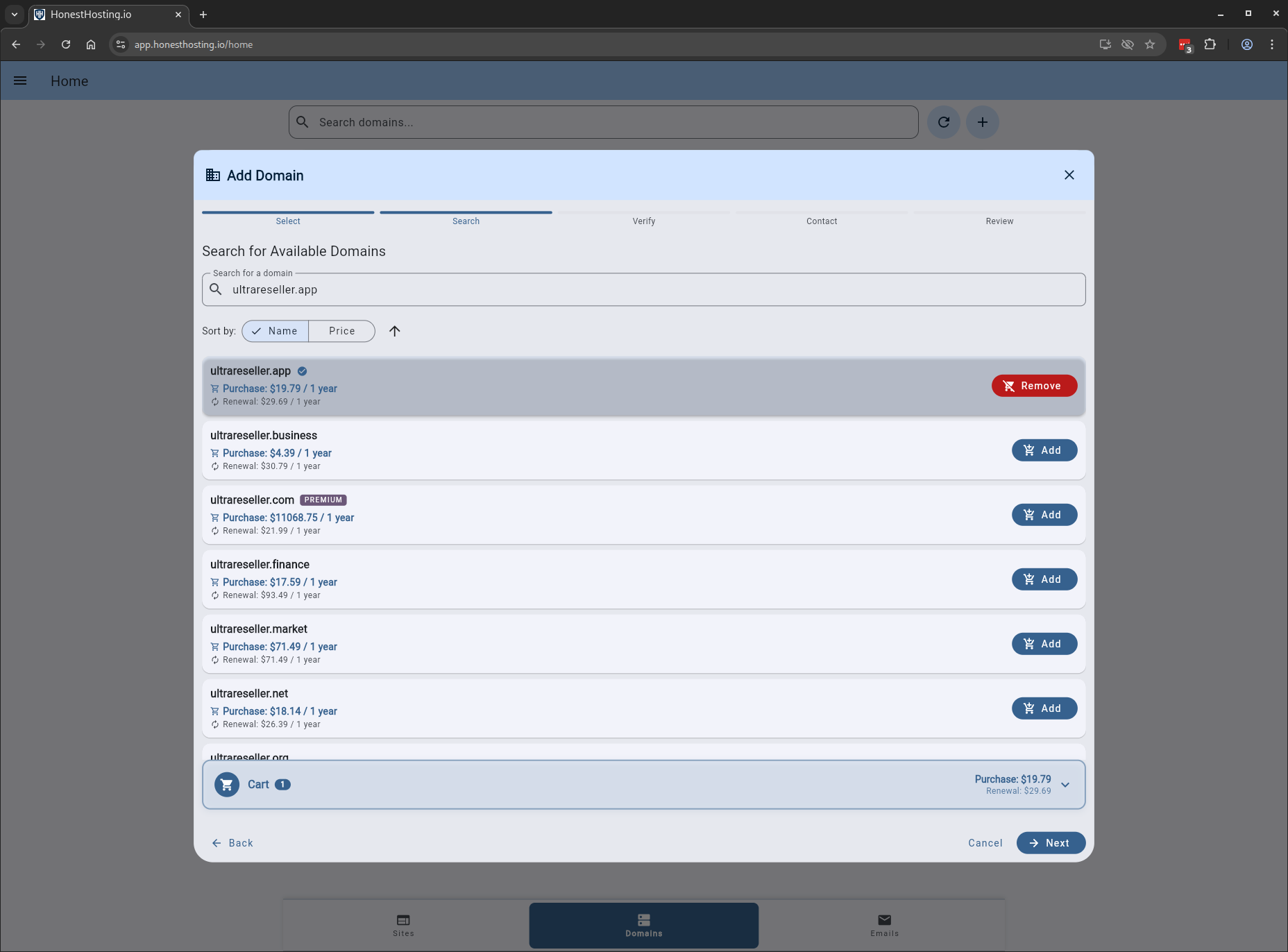
In this case, we are going to search for a new domain, ultrareseller.app, add it to our cart, and continue.
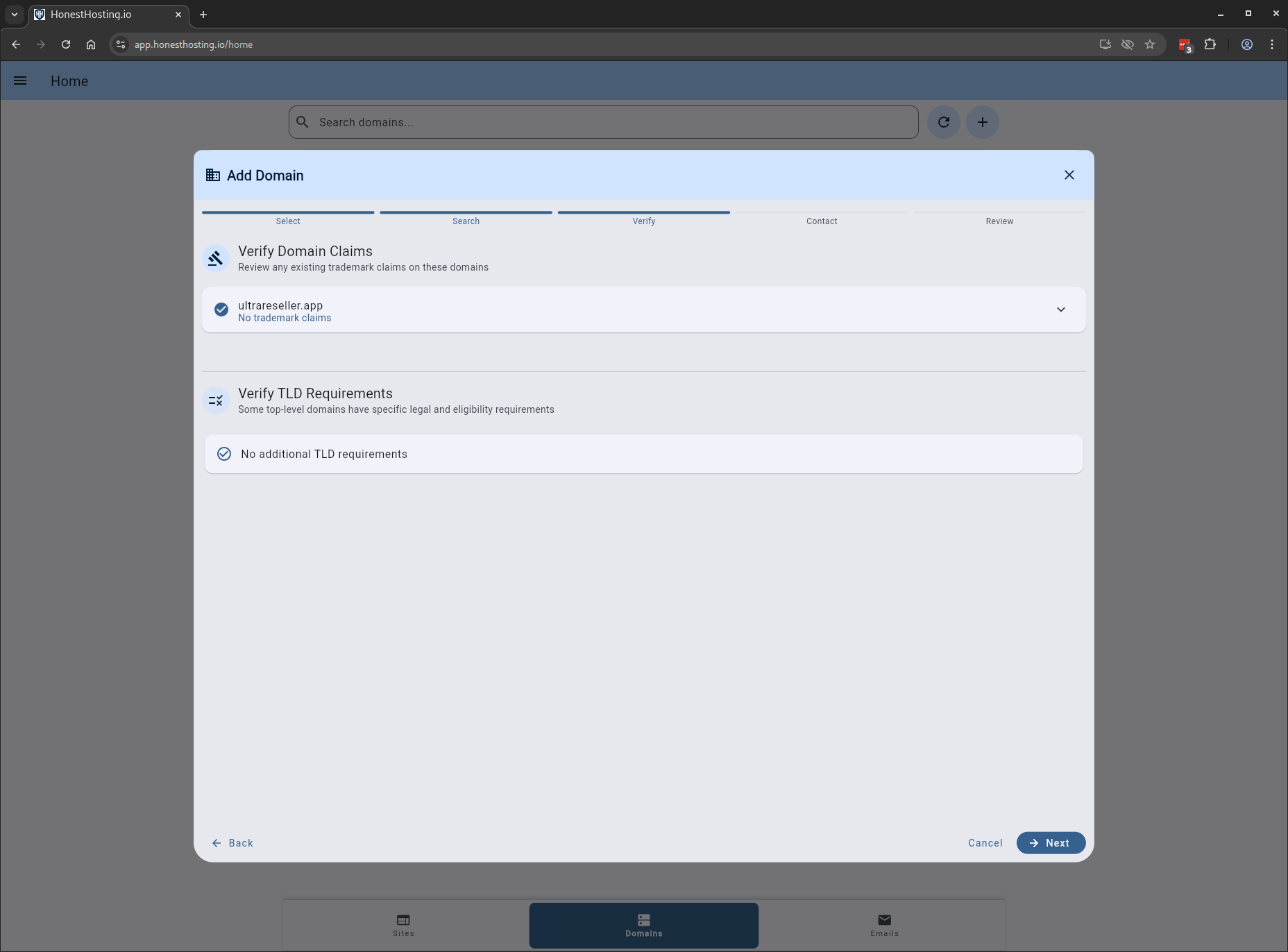
If the domain has claims (copyright, etc.,) or additional requirements you must meet, the Verify step will prompt you to
accept the constraints before moving on. In this case, our domain has no additional constraints.
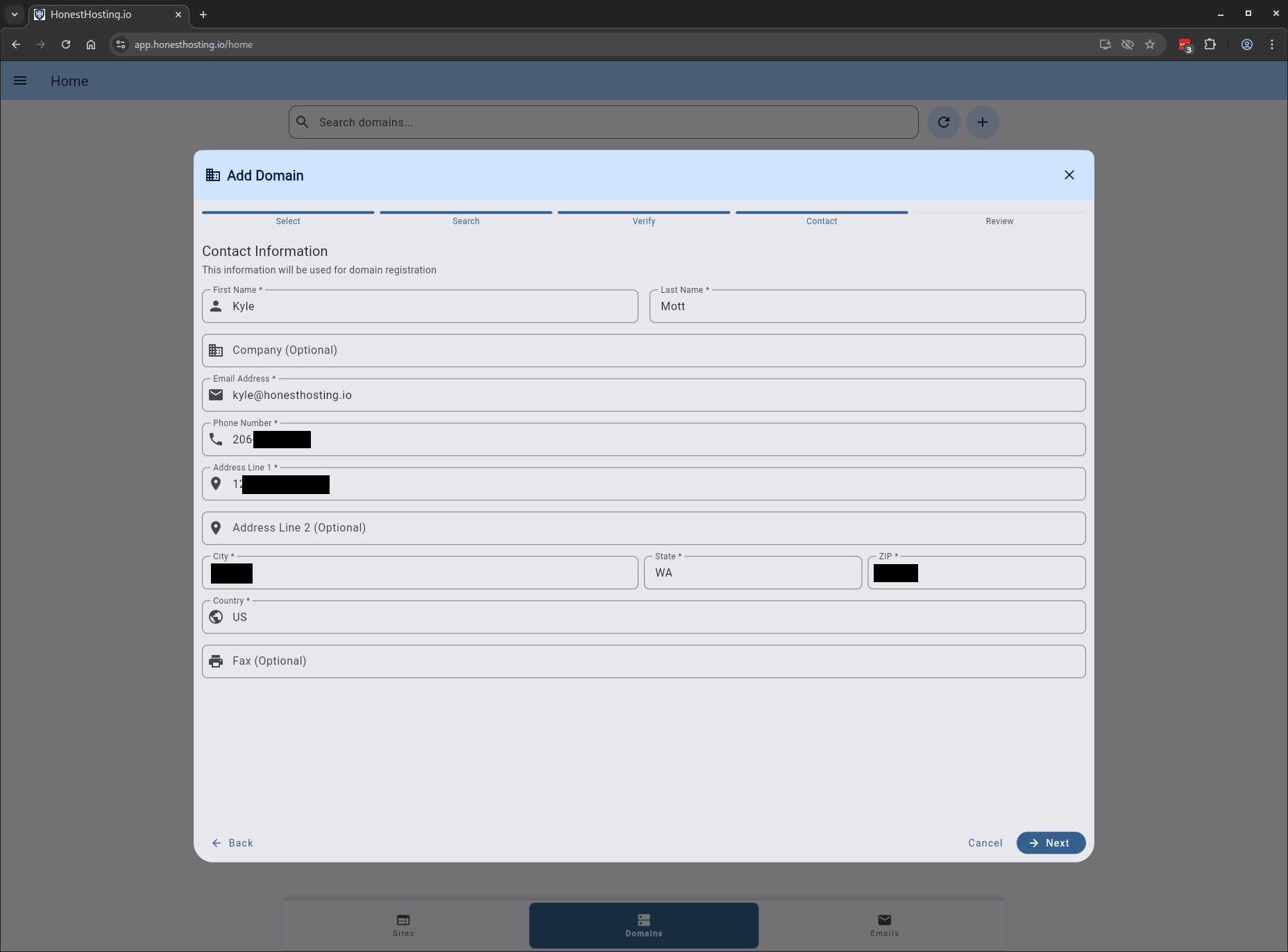
You must specify valid contact info, what may be validated by ICANN and/or the registry.
Specifying false, incorrect, or invalid contact information may result in account suspension and/or forfeiture of the domain.
Lastly, you are presented with a Review step that allows you to review everything before actually continuing with the purchase.
Once you verify the information, click on Confirm which will associate the domain to your account, and bill you for the purchase
during your next invoice cycle. You will then be able to manage the domain and its DNS records from the platform.
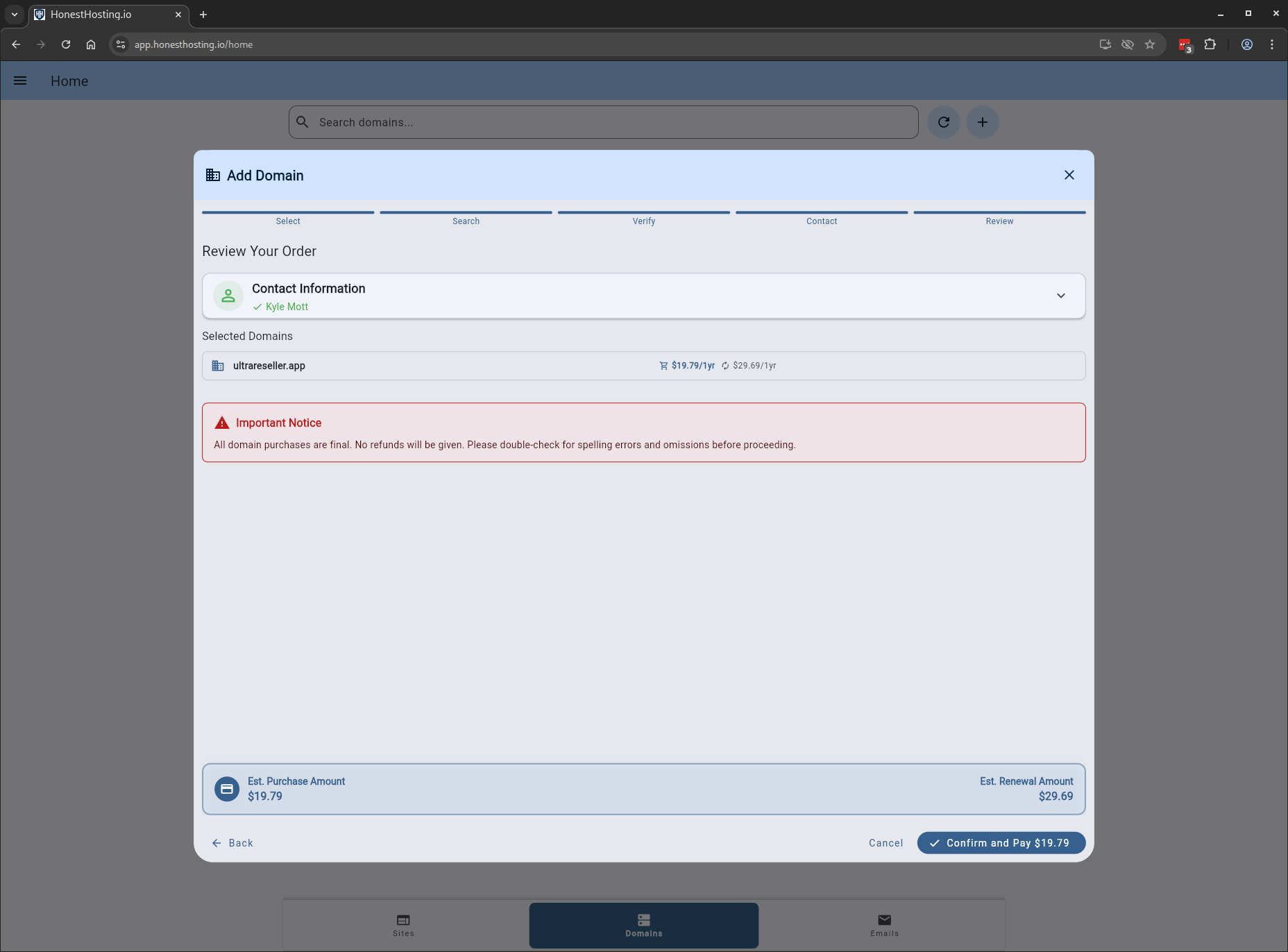
All domain purchases are final and are NOT subject to refund policies. Before confirming a purchase, please DOUBLE CHECK EVERYTHING–HonestHosting.io will not be held liable for spelling errors or omissions!
Transfer In a Domain You Own
When transferring a domain in to the platform, you select transfer and then click Next.
You can transfer up to 10 domains at once.
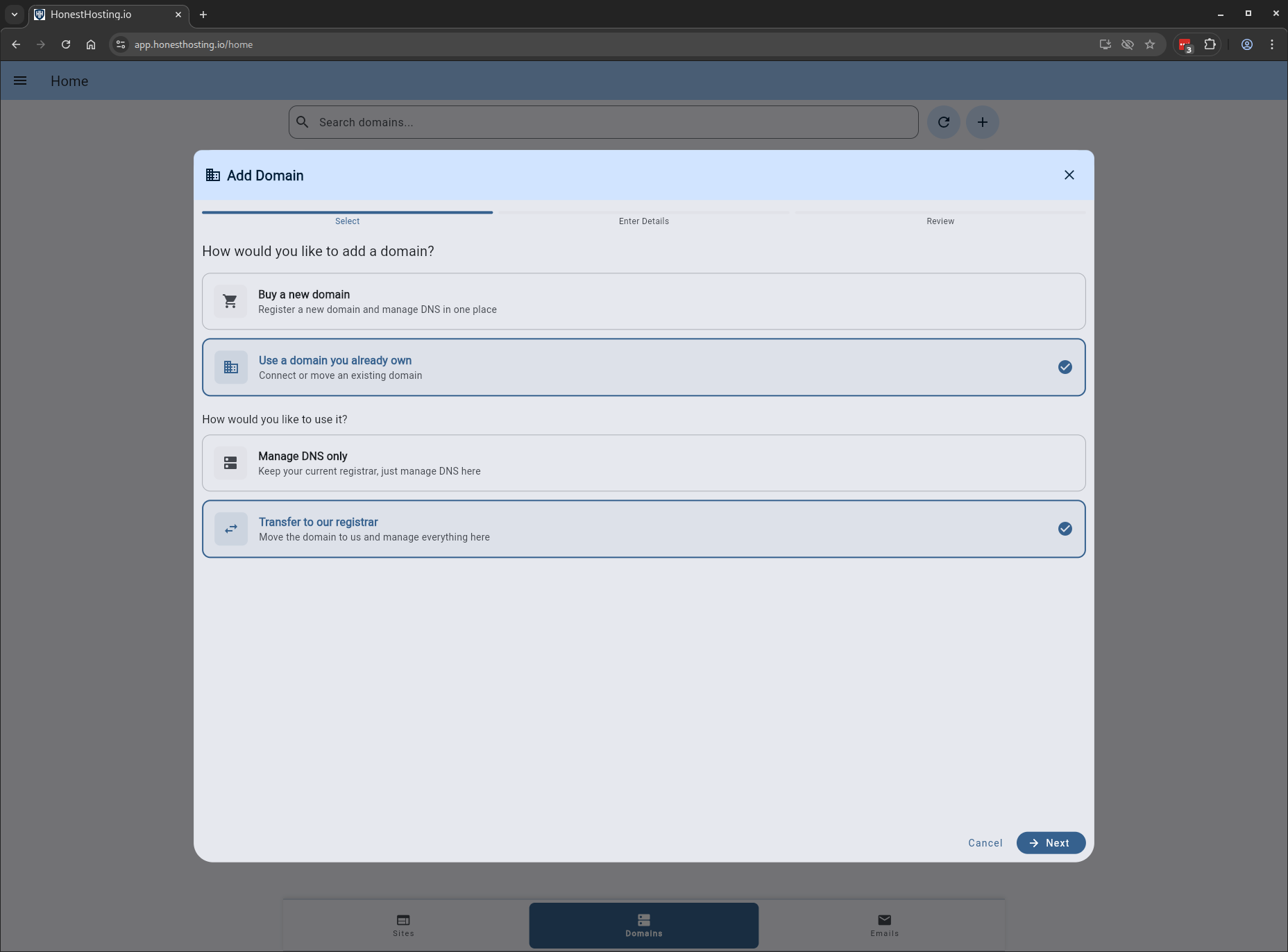
Verify you have the following information before continuing your transfer:
- Domain is unlocked at current registrar
- Obtain authorization code (EPP code) for domain
- Ensure domain is at least 60 days old
- Domain must not expire in 30 days
We will be transferring the following domains in our example:
premiumwpreseller.orgpremiumwpagency.orgpremiumjunkremoval.org
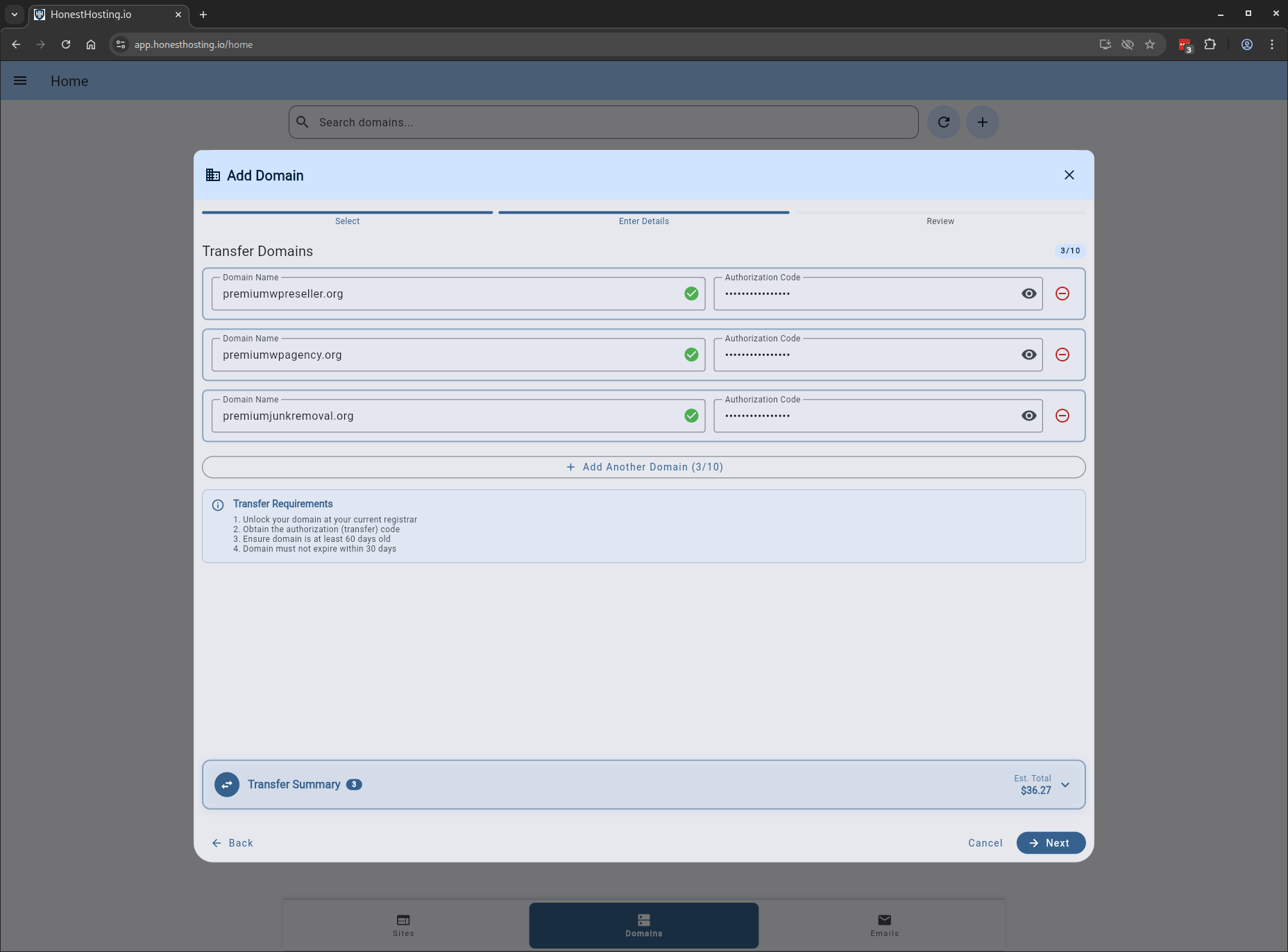
The last step will be to verify the domains, and confirm the purchase. Once confirmed, you will be redirected to Stripe for payment.
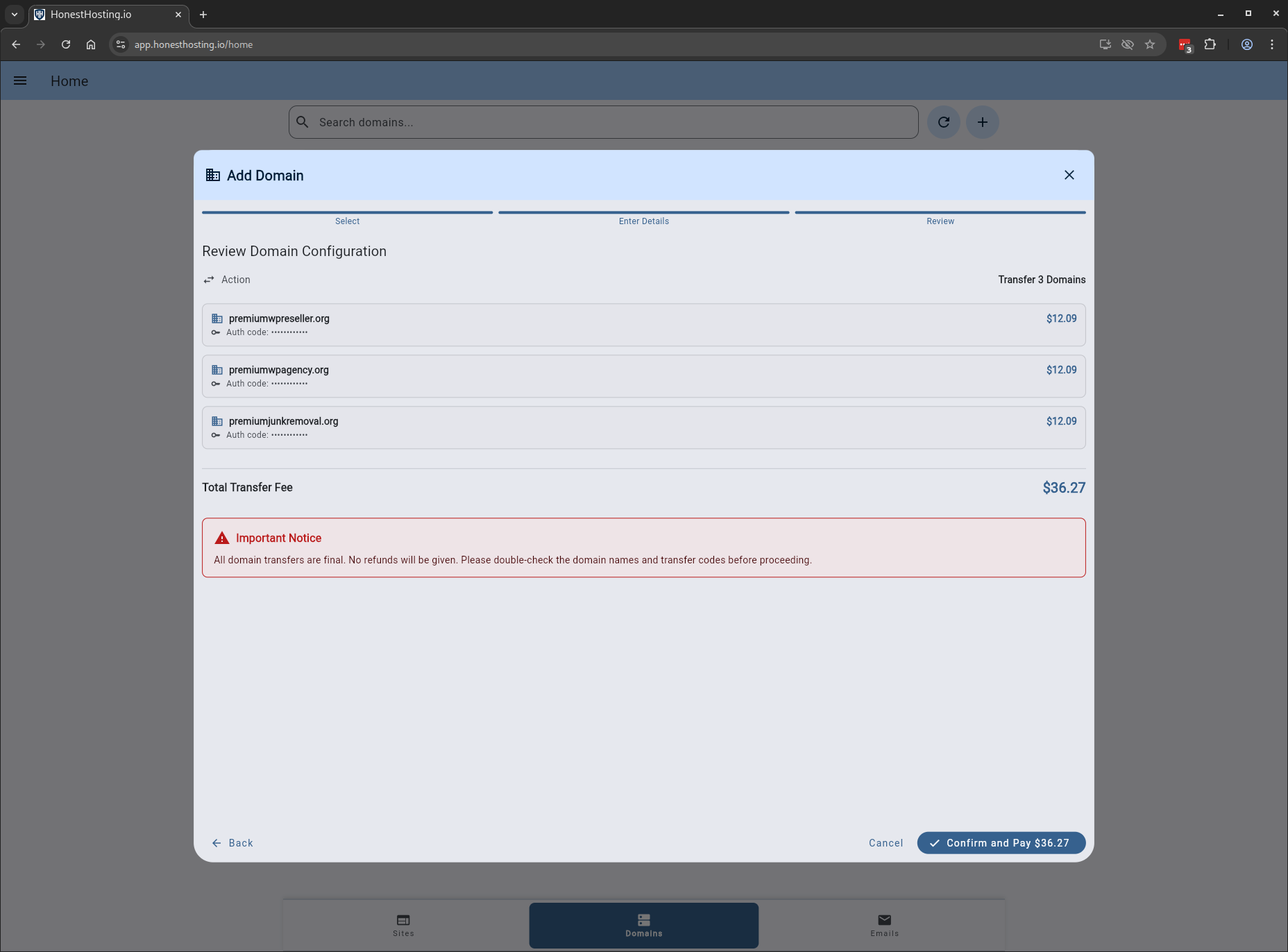
Once the domain transfer is in-progress, you will need to go to the losing registrar
and approve the transfer out. Failure to do Approve in a timely manner may result in the transfer failing!
Manage DNS Records Only
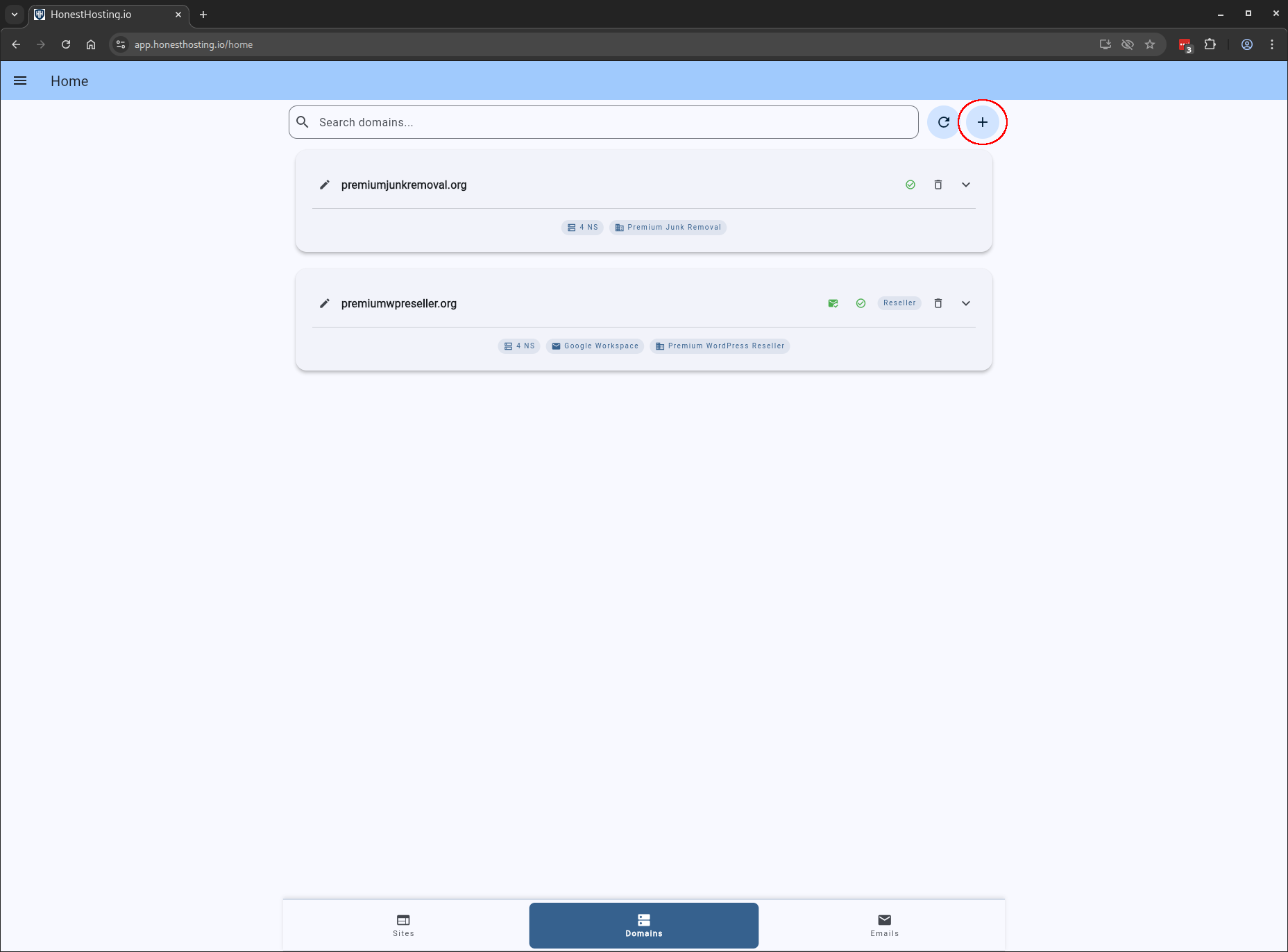
Browse to to the Domains tab, then click on the + button:
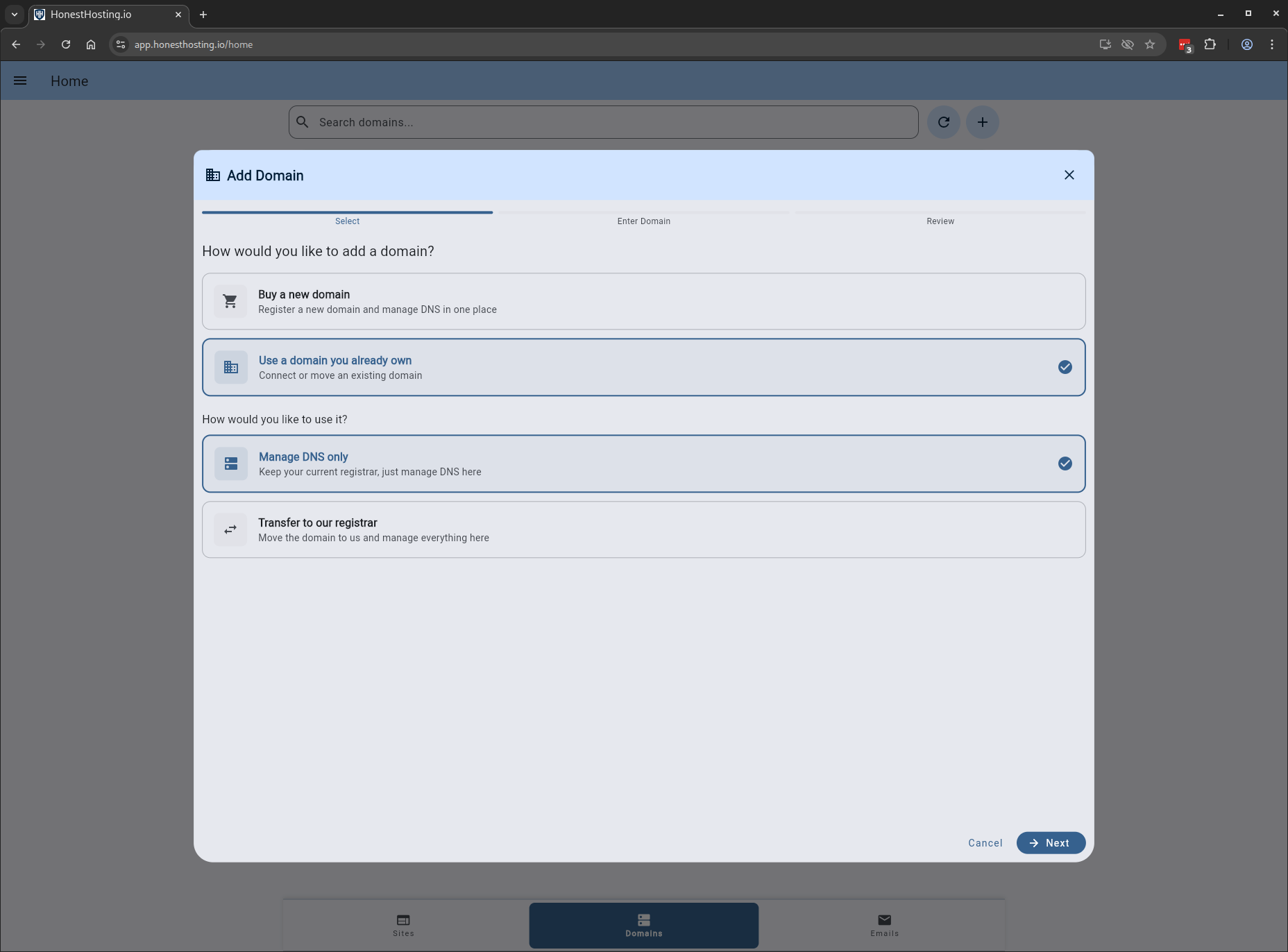
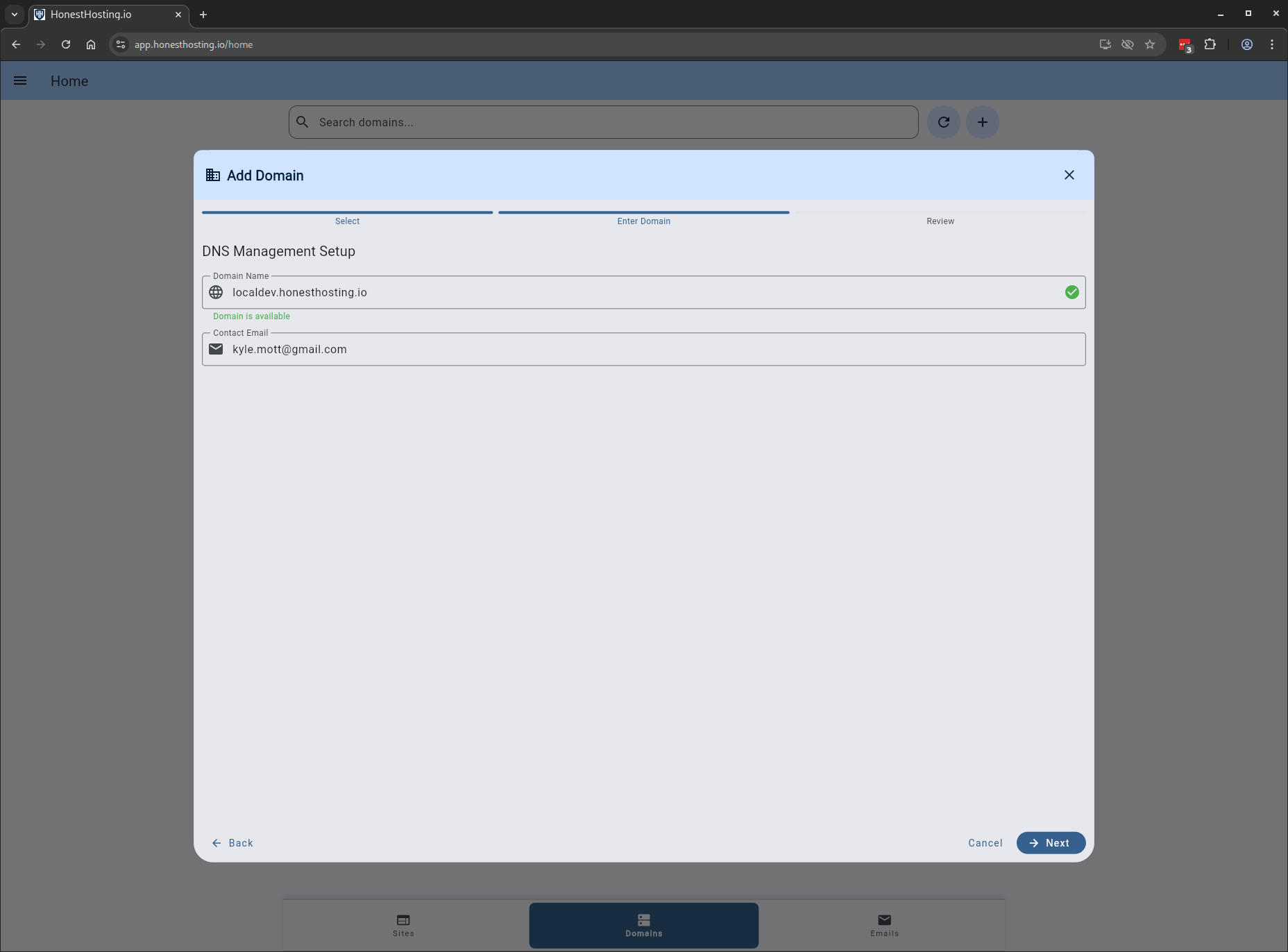
Specify the information (must be a Fully Qualified Domain Name, FQDN), and
click Save.
| Field | Description |
|---|---|
| Domain Name | A fully-qualified domain name (FQDN) |
| Contact Email | The primary contact email (admin) for the new Domain |
| Property | An optional Property the Domain is associated with |
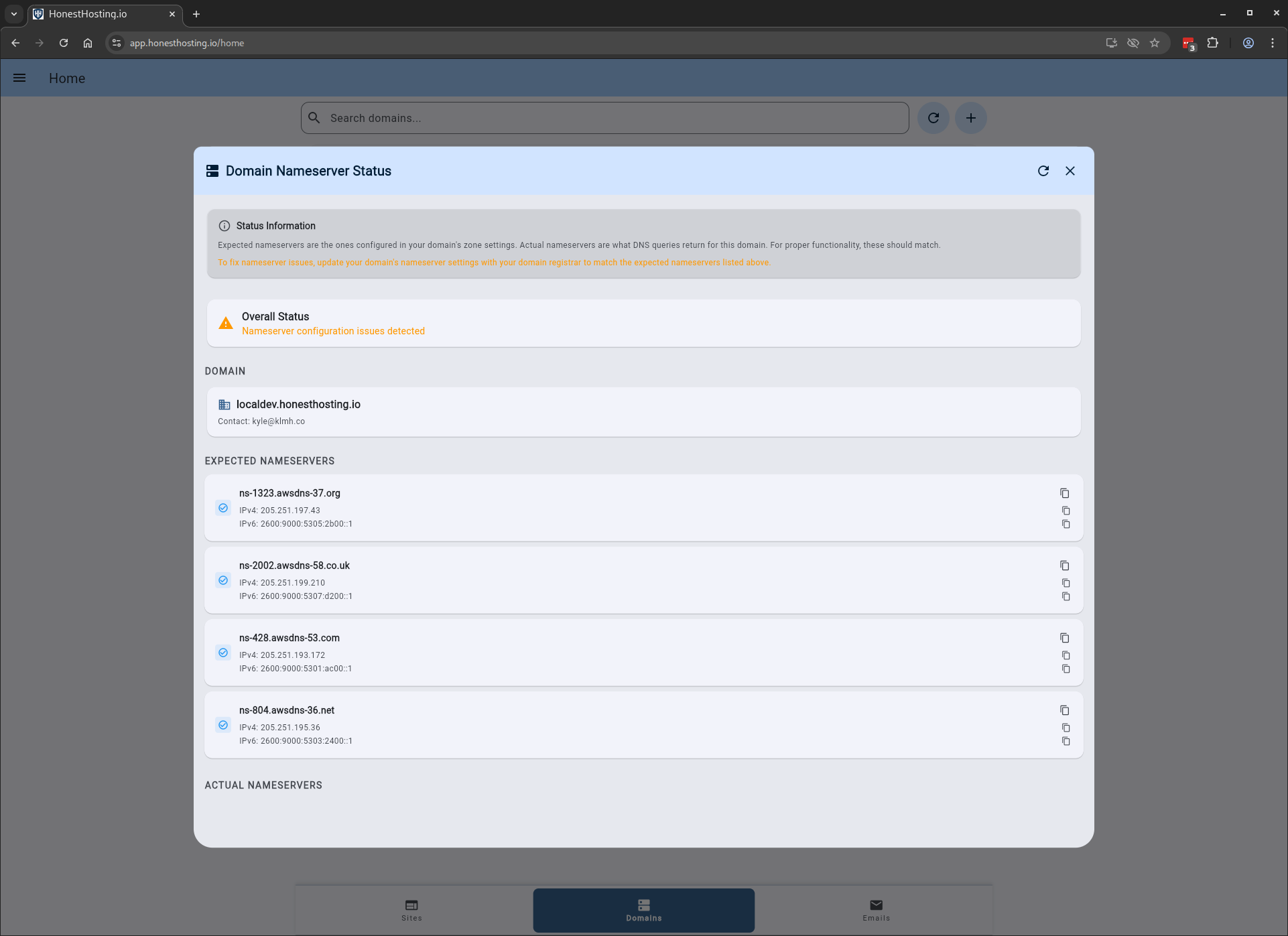
After saving your changes, expand the domain and click on the Nameserver Status icon to the left
of the trash icon to view the nameserver status in Public DNS.
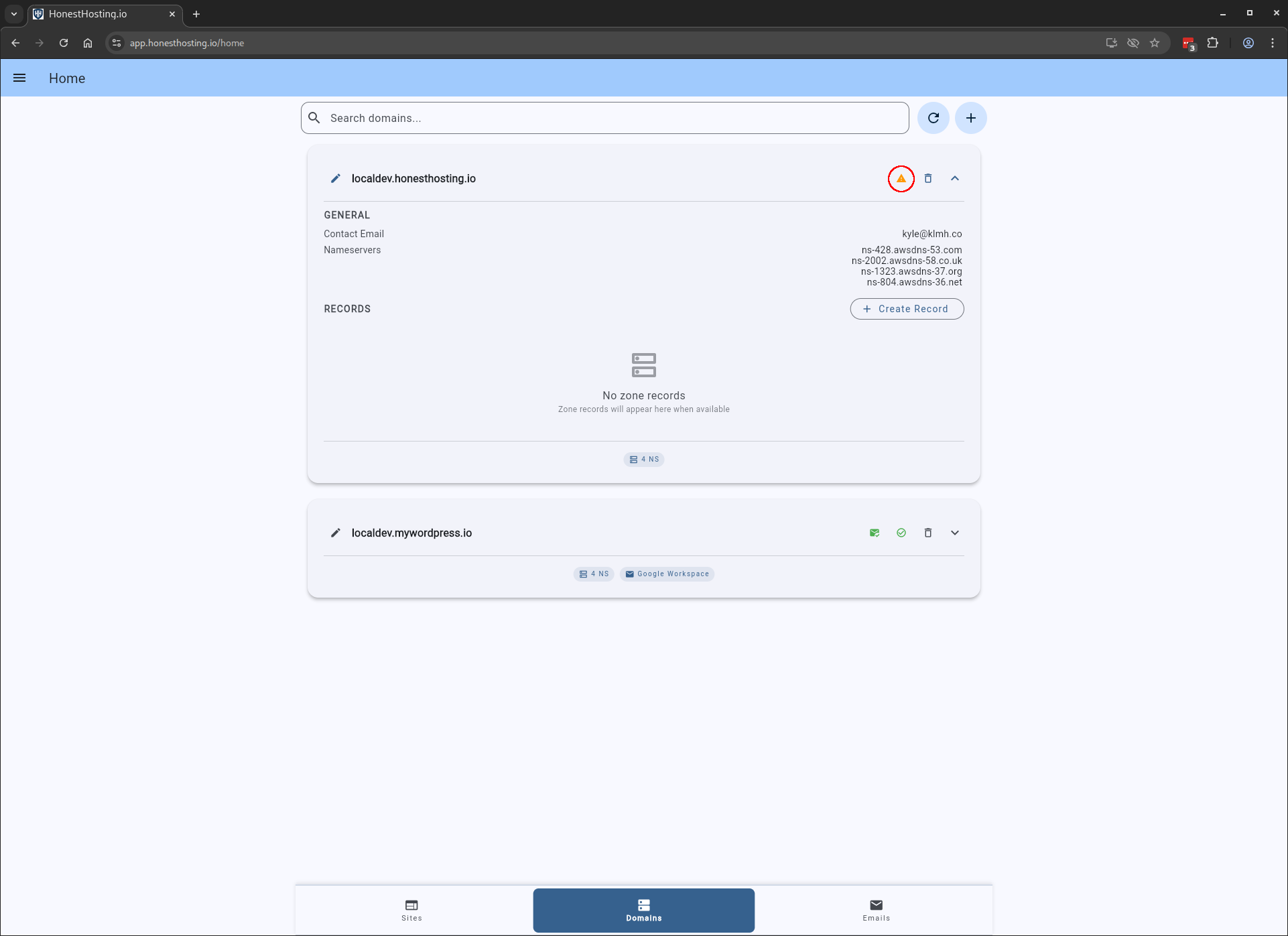
This will bring up a new dialog box that shows nameserver status in Public DNS. In the case below, I have configured a child-domain of my main ‘hhost.io’ domain, so I would need to add a child-domain with NS records before it will work in Public DNS.